Electron 项目结构
良好的项目结构是开发可维护、可扩展 Electron 应用的基础。本文将介绍 Electron 项目的标准结构、文件组织方式以及最佳实践。
项目结构概述
Electron 项目通常包含主进程代码、渲染进程代码、预加载脚本、静态资源等。合理的文件组织可以提升开发效率和代码可维护性。
基础项目结构
适用于小型项目或快速原型开发:
code
my-electron-app/
├── package.json              # 项目配置和依赖
├── main.js                   # 主进程入口文件
├── preload.js                # 预加载脚本
├── index.html                # 渲染进程 HTML
├── renderer.js               # 渲染进程 JavaScript
├── styles.css                # 样式文件
├── assets/                   # 静态资源
│   ├── icon.png              # 应用图标
│   └── images/               # 图片资源
├── .gitignore                # Git 忽略配置
├── .npmrc                    # npm 配置(可选)
└── README.md                 # 项目说明文档
文件职责说明
| 文件/目录 | 类型 | 职责 |
|---|---|---|
package.json | 配置 | 定义项目元数据、依赖、脚本命令 |
main.js | 主进程 | 应用入口、窗口管理、系统交互 |
preload.js | 预加载 | 安全桥接主进程和渲染进程 |
index.html | 渲染进程 | 应用界面结构 |
renderer.js | 渲染进程 | 页面交互逻辑 |
styles.css | 渲染进程 | 界面样式 |
assets/ | 静态资源 | 图片、图标、字体等资源 |
标准项目结构
适用于中大型项目,支持模块化和团队协作:
code
my-electron-app/
├── package.json              # 项目配置
├── package-lock.json         # 依赖锁定文件
│
├── src/                      # 源代码目录
│   ├── main/                 # 主进程代码
│   │   ├── index.js          # 主进程入口
│   │   ├── window.js         # 窗口管理模块
│   │   ├── menu.js           # 应用菜单配置
│   │   ├── tray.js           # 系统托盘模块
│   │   ├── ipc/              # IPC 通信模块
│   │   │   ├── index.js      # IPC 注册入口
│   │   │   ├── handlers.js   # IPC 处理函数
│   │   │   └── channels.js   # IPC 通道常量
│   │   └── utils/            # 主进程工具函数
│   │       ├── store.js      # 数据存储
│   │       └── shortcut.js   # 快捷键管理
│   │
│   ├── renderer/             # 渲染进程代码
│   │   ├── index.html        # 入口 HTML
│   │   ├── renderer.js       # 渲染进程入口
│   │   ├── pages/            # 页面组件
│   │   │   ├── home/         # 首页
│   │   │   ├── settings/     # 设置页
│   │   │   └── about/        # 关于页
│   │   ├── components/       # UI 组件
│   │   │   ├── Header/
│   │   │   ├── Sidebar/
│   │   │   └── Footer/
│   │   ├── styles/           # 样式文件
│   │   │   ├── main.css
│   │   │   └── variables.css
│   │   └── utils/            # 渲染进程工具
│   │       ├── api.js        # API 封装
│   │       └── helpers.js    # 辅助函数
│   │
│   └── preload/              # 预加载脚本
│       ├── index.js          # 预加载入口
│       └── api.js            # 暴露给渲染进程的 API
│
├── resources/                # 应用资源
│   ├── icon.png              # 应用图标
│   ├── icon.icns             # macOS 图标
│   ├── icon.ico              # Windows 图标
│   ├── tray/                 # 托盘图标
│   │   ├── normal.png
│   │   └── pressed.png
│   └── installer/            # 安装程序资源
│       └── background.png
│
├── build/                    # 构建配置
│   ├── webpack.main.config.js    # 主进程构建配置
│   ├── webpack.renderer.config.js # 渲染进程构建配置
│   └── webpack.rules.js          # 公共构建规则
│
├── tests/                    # 测试文件
│   ├── unit/                 # 单元测试
│   ├── integration/          # 集成测试
│   └── e2e/                  # 端到端测试
│
├── docs/                     # 项目文档
│   ├── API.md
│   └── CHANGELOG.md
│
├── scripts/                  # 构建脚本
│   ├── build.js              # 构建脚本
│   └── release.js            # 发布脚本
│
├── .gitignore                # Git 忽略配置
├── .npmrc                    # npm 配置
├── .eslintrc.js              # ESLint 配置
├── .prettierrc               # Prettier 配置
├── README.md                 # 项目说明
└── LICENSE                   # 开源许可证
大型项目结构
适用于企业级应用,支持多窗口、多团队协作:
code
enterprise-electron-app/
├── package.json              # 根项目配置(Monorepo)
├── lerna.json                # Lerna 配置(可选)
│
├── packages/                 # 多包目录
│   ├── main/                 # 主进程包
│   │   ├── package.json
│   │   ├── src/
│   │   │   ├── index.js
│   │   │   ├── services/     # 服务模块
│   │   │   ├── database/     # 数据库模块
│   │   │   └── network/      # 网络模块
│   │   └── tests/
│   │
│   ├── renderer/             # 渲染进程包
│   │   ├── package.json
│   │   ├── src/
│   │   │   ├── pages/        # 页面
│   │   │   ├── components/   # 组件
│   │   │   ├── store/        # 状态管理
│   │   │   └── router/       # 路由配置
│   │   └── public/
│   │
│   ├── preload/              # 预加载脚本包
│   │   ├── package.json
│   │   └── src/
│   │
│   ├── shared/               # 共享代码
│   │   ├── package.json
│   │   ├── src/
│   │   │   ├── types/        # TypeScript 类型
│   │   │   ├── constants/    # 常量定义
│   │   │   └── utils/        # 工具函数
│   │   └── index.js
│   │
│   └── ui/                   # UI 组件库
│       ├── package.json
│       └── src/
│
├── resources/                # 共享资源
├── scripts/                  # 构建脚本
├── docs/                     # 项目文档
└── config/                   # 配置文件
    ├── webpack.base.js
    ├── webpack.main.js
    └── webpack.renderer.js
配置文件详解
1. package.json
json
{
  "name": "my-electron-app",
  "version": "1.0.0",
  "description": "Electron 应用描述",
  "main": "./src/main/index.js",
  "author": "Your Name",
  "license": "MIT",

  "scripts": {
    "start": "electron .",
    "dev": "NODE_ENV=development electron .",
    "build": "npm run build:main && npm run build:renderer",
    "build:main": "webpack --config build/webpack.main.config.js",
    "build:renderer": "webpack --config build/webpack.renderer.config.js",
    "package": "electron-builder",
    "package:win": "electron-builder --win",
    "package:mac": "electron-builder --mac",
    "package:linux": "electron-builder --linux",
    "lint": "eslint src/",
    "test": "jest",
    "test:e2e": "playwright test"
  },

  "dependencies": {
    "electron-updater": "^6.0.0",
    "electron-store": "^8.0.0"
  },

  "devDependencies": {
    "electron": "^28.0.0",
    "electron-builder": "^24.0.0",
    "webpack": "^5.0.0",
    "eslint": "^8.0.0",
    "jest": "^29.0.0"
  },

  "build": {
    "appId": "com.example.myapp",
    "productName": "My Electron App",
    "directories": {
      "output": "dist",
      "buildResources": "resources"
    },
    "files": [
      "src/main/**/*",
      "src/preload/**/*",
      "dist/renderer/**/*",
      "package.json"
    ],
    "mac": {
      "category": "public.app-category.utilities",
      "icon": "resources/icon.icns"
    },
    "win": {
      "icon": "resources/icon.ico",
      "target": "nsis"
    },
    "linux": {
      "icon": "resources/icon.png",
      "target": "AppImage"
    }
  }
}关键字段说明:
main: 主进程入口文件路径scripts.build: 构建命令scripts.package: 打包命令build: electron-builder 配置build.files: 打包时包含的文件build.directories.output: 打包输出目录
2. .gitignore
gitignore
# 依赖目录
node_modules/

# 构建输出
dist/
out/
build/

# 日志文件
*.log
npm-debug.log*
yarn-debug.log*
yarn-error.log*

# 操作系统文件
.DS_Store
Thumbs.db

# IDE 配置
.idea/
.vscode/
*.swp
*.swo

# 环境变量
.env
.env.local
.env.production

# 打包文件
*.dmg
*.app
*.exe
*.zip

# 测试覆盖率
coverage/

# 临时文件
tmp/
temp/
3. .npmrc (可选)
ini
# 使用淘宝镜像加速下载
registry=https://registry.npmmirror.com

# Electron 二进制包镜像
electron_mirror=https://npmmirror.com/mirrors/electron/

# Electron Builder 镜像
electron_builder_binaries_mirror=https://npmmirror.com/mirrors/electron-builder-binaries/

# 严格依赖版本
save-exact=true

# 自动生成 package-lock.json
package-lock=true
4. .eslintrc.js (可选)
javascript
module.exports = {
  env: {
    browser: true,
    es2021: true,
    node: true
  },
  extends: [
    'eslint:recommended',
    'plugin:react/recommended'
  ],
  parserOptions: {
    ecmaVersion: 'latest',
    sourceType: 'module'
  },
  rules: {
    'no-console': process.env.NODE_ENV === 'production' ? 'warn' : 'off',
    'no-unused-vars': ['error', { argsIgnorePattern: '^_' }]
  }
}
关键文件模板
主进程入口 (src/main/index.js)
javascript
const { app, BrowserWindow } = require('electron')
const path = require('path')
const { registerIPC } = require('./ipc')
const { createMenu } = require('./menu')

// 开发环境检测
const isDev = process.env.NODE_ENV === 'development'

// 窗口引用
let mainWindow = null

function createWindow() {
  mainWindow = new BrowserWindow({
    width: 1200,
    height: 800,
    webPreferences: {
      preload: path.join(__dirname, '../preload/index.js'),
      contextIsolation: true,
      nodeIntegration: false
    }
  })

  // 开发环境加载开发服务器
  if (isDev) {
    mainWindow.loadURL('http://localhost:3000')
    mainWindow.webContents.openDevTools()
  } else {
    // 生产环境加载打包后的文件
    mainWindow.loadFile(path.join(__dirname, '../renderer/index.html'))
  }

  mainWindow.on('closed', () => {
    mainWindow = null
  })
}

// 应用初始化
app.whenReady().then(() => {
  createWindow()
  createMenu()
  registerIPC()

  app.on('activate', () => {
    if (BrowserWindow.getAllWindows().length === 0) {
      createWindow()
    }
  })
})

app.on('window-all-closed', () => {
  if (process.platform !== 'darwin') {
    app.quit()
  }
})
IPC 通信模块 (src/main/ipc/index.js)
javascript
const { ipcMain } = require('electron')
const handlers = require('./handlers')

function registerIPC() {
  // 注册所有 IPC 处理器
  Object.keys(handlers).forEach(channel => {
    ipcMain.handle(channel, handlers[channel])
  })

  console.log('IPC 处理器注册完成')
}

module.exports = { registerIPC }
预加载脚本 (src/preload/index.js)
javascript
const { contextBridge, ipcRenderer } = require('electron')

// 有效的 IPC 通道白名单
const validChannels = {
  invoke: ['dialog:open', 'file:read', 'file:write'],
  send: ['app:log', 'window:minimize'],
  receive: ['update:available', 'notification:show']
}

// 安全暴露 API 到渲染进程
contextBridge.exposeInMainWorld('electronAPI', {
  // 双向通信
  invoke: async (channel, ...args) => {
    if (validChannels.invoke.includes(channel)) {
      return await ipcRenderer.invoke(channel, ...args)
    }
    throw new Error(`Invalid invoke channel: ${channel}`)
  },

  // 单向通信:发送
  send: (channel, ...args) => {
    if (validChannels.send.includes(channel)) {
      ipcRenderer.send(channel, ...args)
    }
  },

  // 单向通信:接收
  receive: (channel, callback) => {
    if (validChannels.receive.includes(channel)) {
      const subscription = (event, ...args) => callback(...args)
      ipcRenderer.on(channel, subscription)

      // 返回取消订阅函数
      return () => ipcRenderer.removeListener(channel, subscription)
    }
  }
})
构建配置
Webpack 配置示例
主进程构建配置 (build/webpack.main.config.js):
javascript
const path = require('path')

module.exports = {
  entry: './src/main/index.js',
  target: 'electron-main',
  output: {
    path: path.resolve(__dirname, '../dist/main'),
    filename: 'index.js'
  },
  node: {
    __dirname: false,
    __filename: false
  },
  module: {
    rules: [
      {
        test: /\.js$/,
        exclude: /node_modules/,
        use: {
          loader: 'babel-loader'
        }
      }
    ]
  },
  resolve: {
    extensions: ['.js'],
    alias: {
      '@main': path.resolve(__dirname, '../src/main'),
      '@shared': path.resolve(__dirname, '../src/shared')
    }
  }
}
渲染进程构建配置 (build/webpack.renderer.config.js):
javascript
const path = require('path')
const HtmlWebpackPlugin = require('html-webpack-plugin')

module.exports = {
  entry: './src/renderer/renderer.js',
  target: 'electron-renderer',
  output: {
    path: path.resolve(__dirname, '../dist/renderer'),
    filename: 'renderer.js'
  },
  module: {
    rules: [
      {
        test: /\.js$/,
        exclude: /node_modules/,
        use: {
          loader: 'babel-loader'
        }
      },
      {
        test: /\.css$/,
        use: ['style-loader', 'css-loader']
      }
    ]
  },
  plugins: [
    new HtmlWebpackPlugin({
      template: './src/renderer/index.html',
      filename: 'index.html'
    })
  ],
  resolve: {
    extensions: ['.js', '.css'],
    alias: {
      '@renderer': path.resolve(__dirname, '../src/renderer'),
      '@shared': path.resolve(__dirname, '../src/shared')
    }
  }
}
资源文件管理
应用图标
不同平台需要不同格式的图标:
| 平台 | 图标格式 | 推荐尺寸 |
|---|---|---|
| macOS | .icns | 512x512, 256x256, 128x128, 64x64, 32x32, 16x16 |
| Windows | .ico | 256x256, 128x128, 64x64, 48x48, 32x32, 16x16 |
| Linux | .png | 512x512 |
生成工具:
bash
# 安装工具
npm install -D electron-icon-builder

# 从源图生成各平台图标
npx electron-icon-builder --input=./assets/icon.png --output=./resources
ASAR 打包
ASAR 是一种简单的归档格式,可以减少文件数量,提升应用启动速度:
jsonc
// package.json
{
  "build": {
    "asar": true,
    "asarUnpack": [
      "**/*.node"  // 不打包原生模块
    ]
  }
}
最佳实践
1. 代码分离
text
// ✅ 推荐:按功能模块组织
src/main/
├── services/
│   ├── DatabaseService.js
│   └── FileService.js
├── utils/
│   ├── logger.js
│   └── validator.js
└── ipc/
    └── handlers.js

// ❌ 不推荐:所有代码写在一个文件
src/main/index.js  // 包含所有逻辑
2. 环境变量管理
javascript
// config/env.js
const path = require('path')

const env = process.env.NODE_ENV || 'development'

require('dotenv').config({
  path: path.resolve(__dirname, `../.env.${env}`)
})

module.exports = {
  isDev: env === 'development',
  isProd: env === 'production',
  apiBaseUrl: process.env.API_BASE_URL
}
3. 类型安全 (TypeScript)
code
src/
├── main/
│   ├── index.ts
│   └── types.ts       # 主进程类型定义
├── renderer/
│   ├── index.ts
│   └── types.ts       # 渲染进程类型定义
├── preload/
│   └── index.ts
└── shared/
    └── types.ts       # 共享类型定义
4. 测试文件组织
code
tests/
├── unit/                    # 单元测试
│   ├── main/
│   │   └── services/
│   └── renderer/
│       └── components/
├── integration/             # 集成测试
│   └── ipc.test.js
└── e2e/                     # 端到端测试
    └── app.test.js
常见问题
Q: 如何选择项目结构?
A: 根据项目规模选择:
- 小型项目(< 5000 行代码):使用基础结构
- 中型项目(5000-20000 行代码):使用标准结构
- 大型项目(> 20000 行代码):使用企业级结构或 Monorepo
Q: 主进程和渲染进程代码能共用吗?
A: 可以。将共享代码放在 src/shared/ 目录,通过构建工具的 alias 配置引用:
javascript
// 主进程引用共享模块
const { formatDate } = require('@shared/utils')

// 渲染进程引用共享模块
import { formatDate } from '@shared/utils'
Q: 如何处理静态资源路径?
A: 使用 __dirname 和 path.join:
javascript
// 主进程
const iconPath = path.join(__dirname, '../resources/icon.png')

// 渲染进程(HTML)
<img src="./assets/images/logo.png">

// 渲染进程(JavaScript)
const logoUrl = new URL('./assets/images/logo.png', import.meta.url).href
Q: 如何优化打包体积?
A: 策略包括:
- 使用 ASAR 打包
- 排除不必要的文件(配置
build.files) - 代码分割和 Tree Shaking
- 压缩资源文件
- 使用 externals 排除大型依赖
Q: 如何管理多窗口项目?
A: 为每个窗口创建独立的目录:
code
src/renderer/
├── main-window/       # 主窗口
│   ├── index.html
│   └── renderer.js
├── settings-window/   # 设置窗口
│   ├── index.html
│   └── renderer.js
└── about-window/      # 关于窗口
    ├── index.html
    └── renderer.js
相关资源
安装程序图标
根据你使用的不同开发脚手架不同,图标文件放置位置也是不同的。下面我们使用 electron-vite 脚手架进行安装图标操作
- build 目录内定义一个 512x512 的 png 图片
- 删除 build 目录中的 icon.icns 与 icon.ico 图片
使用 Photoshop等图像处理软件创建的512x512尺寸的png 图标,并命名为 icon.png,并放在项目根目录的 build 目录中
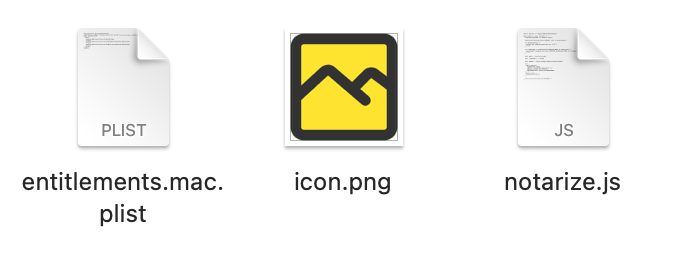
现在根据你的操作系统运行编译命令,具体在package.json文件中查看,然后就可以在 dist 目录中看到软件图标已经有效了
powershell
pnpm run build:mac按上面的快速操作已经可以设置安装图标了,所以下面的操作可以不用做,除非你想了解安装图标的细节知识
mac
苹果系统的软件图标可以使用 png 或 icns,将生成的图标放在 build 目录即可
苹果系统安装程序图标可以使用 png格式,你使用 PS 软件制作就可以
- 要求文件名是 icon.png
- 图片尺寸是512x512
苹果系统安装程序也可以使用 icns 图标,可以使用多种方式创建 icns,比如 electron-icns 包生成,或使用 anyconv、 alltoall 等网站将 png 转为 icns 格式,也可以使用 sips 命令生成 icns 图标
electron-icns
使用 electron-icns 可以简单快速的创建 icns 图片
powershell
pnpm add -g electron-icns
# png图片的路径
electron-icns build/icon.png
使用 sips 生成
下面来讲解使用 sips 制作icns 图片,以下命令需要在苹果系统执行。创建目录 icons.iconset 目录必须以.iconset 结尾
powershell
mkdir icons.iconset生成 png 图标,将build 目录中的 png图标生成到 icons.iconset 目录
powershell
sips -z 512 512 build/icon.png --out icons.iconset/icon_512x512.png
sips -z 1024 1024 build/icon.png --out icons.iconset/icon_512x512@2x.png
执行以下命令在项目根目录下生成 icns 文件,然后将 icns 文件复制到 build 目录就可以了
plain
iconutil -c icns icons.iconset -o icon.icnsWindows
Windows 系统支持 png 与 ico 图片文件,需要将图标复制到 build 目录,下面介绍几种图片格式的创建要求。
-
png
-
使用图像处理软件创建512x512 尺寸的 png 图片文件
-
ico
-
如果你想使用 ico 格式可以能过 在线网站 将png 转为 ico,图片尺寸不能小于 256x256
状态栏图标
Windows
首先介绍 Windows 隐藏任务栏图标的方式
javascript
const mainWindow = new BrowserWindow({
  width: 300,
  height: 300,
  //隐藏任务栏图标
  skipTaskbar: true,
  ...
})
mac
下面是定义苹果系统隐藏 dock 栏图标
javascript
app.whenReady().then(() => {
  ...
  //隐藏苹果dock图标
  if (process.platform == 'darwin') app.dock.hide()
    ...
})
托盘图标
你可以使用 PS 等软件创建图标文件。如果你使用的是 electron-vite 脚手架,需要将图标文件放在 resources 目录中
Mac
苹果系统图标指的是顶部菜单栏处的图标,要求如下:
- 要求文件名以 Template 单词结尾如macTrayTemplate@2x.png
- 分辨率和尺寸可以是16x16 (72dpi) 或 32x32@2x (144dpi)
- 要求是白色图标


Windowss
Windows 图标指的是底部右侧的图标,要求如上:
- 可以使用彩色的 png 图标
- 尺寸和分辨率是 32x32(144dpi)文件
示例代码
下面是托盘图标的定义,并且 Windows 与 mac 使用不同的图标
javascript
import { Menu, Tray } from 'electron'
import path from 'path'
const createTray = () => {
  const tray = new Tray(
    path.resolve(
      __dirname,
      process.platform == 'darwin'? '../../resources/trayTemplate@2x.png': '../../resources/windowTray.png'
    )
  )
  const contextMenu = Menu.buildFromTemplate([{ label: '退出', role: 'quit' }])
  tray.setToolTip('标题')
  tray.setContextMenu(contextMenu)
}

export { createTray }
需要在 app 之后创建图标
javascript
app.whenReady().then(() => {
  ...
  createTray()
  createWindow()
    ...
})