canvas 快速入门
以前我们用 div+css 可以绘制矩形、圆角矩形、圆形、或者椭圆形,可是若想绘制三角形、五角形,或者异形,那就很难了
因此,这个时候我们就需要使用 canvas 绘图。我们可以使用 canvas 绘制复杂图形,做动画,处理图像,开发游戏,处理视频…
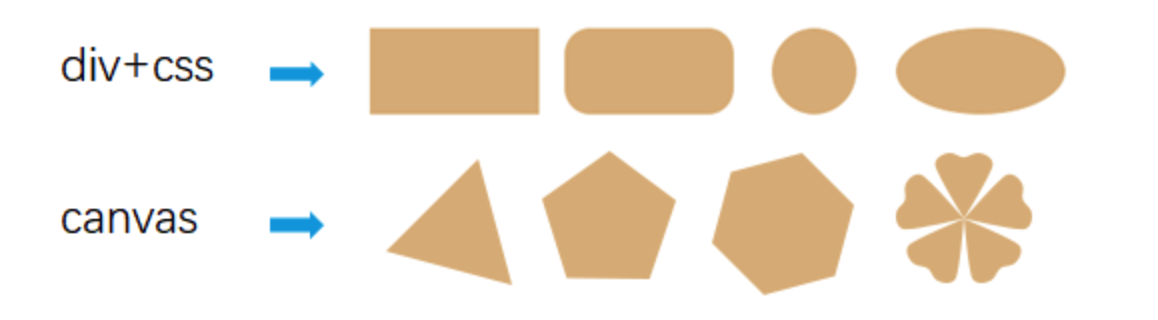
这时候,会 svg 的小伙伴可能会说,用 svg 也可以绘制上面的形状
svg 与 canvas 确实有着很多共通之处,很多项目可以用 SVG 开发,也可以用 canvas 开发
但svg与canvas的差异也挺大的:
- svg,是矢量图形,缩放不失真;支持鼠标事件,选择方便;不适合图形数量较大的场景
- canvas,是位图,缩放失真;鼠标事件只能通过 canvas 接收,其内部图形无法接收;适合图像数量较大的场景
注:当 canvas 图像数量和图像的计算量太大的时候,也会卡,这时候便可以选择 WebGL,因为 WebGL 有GPU 加速
概念
- 广义:h5 新增 canvas 2d 绘图功能
- 在 html 中: canvas 是 html 标签,可以理解为一张画布。我们需要用 js 在 canvas 里绘制图形
设置 canvas 的 width、height 属性:
html
<canvas id="canvas" width="700" height="800">也可用 js 设置:
javascript
const canvas=document.getElementById('canvas');
canvas.width=300;
canvas.height=150;
注:不要使用 css 设置 canvas 尺寸,除非想要调整图像清晰度
上下文对象
如果说 canvas 是画布,那么 canvas 上下文对象就是画笔。获取上下文对象的方法:canvas.getContext('2d')
javascript
//画布
const canvas=document.getElementById('canvas');
//画笔
const ctx=canvas.getContext('2d');
使用画笔在 canvas 上画画,要考虑三个方面:
- 颜色
- 形状
- 绘图方法
如,绘制一个红色的矩形:
html
<canvas id="canvas" width="700" height="800">
  不兼容
</canvas>
<script>
  //画布
  const canvas=document.getElementById('canvas');
  //画笔
  const ctx=canvas.getContext('2d');
  //填充色
  ctx.fillStyle='red';
  //绘制填充矩形
  ctx.fillRect(
    20,20,
    400,200
  )
</script>
效果如下:
注意事项
canvas 的尺寸不能过大,尺寸尽量控制在 4000 以内,canvas 尺寸的极限值因浏览器、平台不同而不同
canvas 在不同浏览器和平台上的极限值:
-
Chrome:
-
Maximum height/width: 32,767 pixels
-
Maximum area: 268,435,456 pixels (e.g., 16,384 x 16,384)
-
-
Firefox:
-
Maximum height/width: 32,767 pixels
-
Maximum area: 472,907,776 pixels (e.g., 22,528 x 20,992)
-
图形
画布的坐标系和栅格
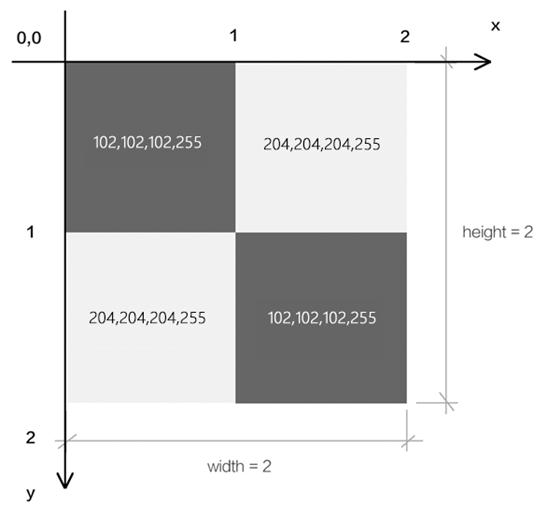
- canvas 的坐标系是二维直角坐标系,由 x 轴和 y 轴组成
- canvas 坐标系中横向的轴为 x 轴,越往右越大;竖向的轴为 y 轴,越往下越大
- canvas 坐标系是以像素的宽高为基底的
- 栅格就是上图的4 个格子,每一个格子就是一个像素,像素具有 rgba 数据
- canvas 画布的像素的数量等于画布的宽度乘以高度
矩形
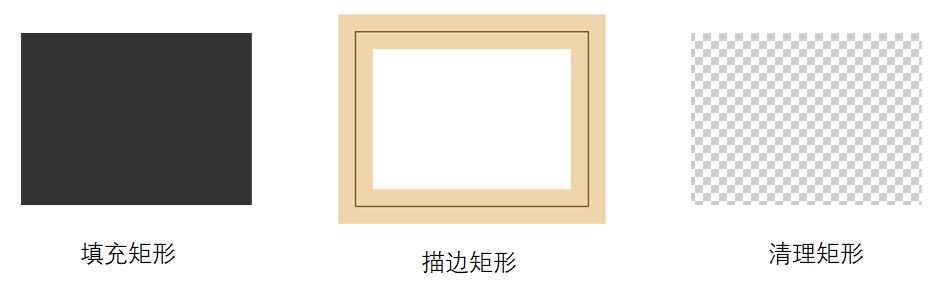
这里说的矩形是 canvas 绘图形式中的矩形,它有三种类型:
- 填充矩形方法:fillRect(x,y,w,h)
- 描边矩形方法:strokeRect(x,y,w,h)
- 清理矩形方法:clearRect(x,y,w,h)
javascript
const canvas=document.getElementById('canvas');
canvas.width=window.innerWidth;
canvas.height=window.innerHeight;

//画笔
const  ctx=canvas.getContext('2d');


/*填充矩形方法:fillRect(x,y,w,h)*/
ctx.fillRect(
  100,50,
  400,200
)

/*描边矩形方法:strokeRect(x,y,w,h)*/
ctx.strokeStyle='red';
ctx.lineWidth=10;
ctx.strokeRect(
  100,50,
  400,200
)

/*清理矩形方法:clearRect(x,y,w,h)*/
ctx.clearRect(
  100,50,
  400,200
)
路径
绘制路径的步骤
-
开始建立路径:beginPath()
-
向路径集合中添加子路径:
javascript
[
  moveTo(x,y); 形状; closePath() 可选,
  moveTo(x,y); 形状; closePath() 可选,
  moveTo(x,y); 形状; closePath() 可选,
]- 显示路径:填充 fill() ,描边 stroke()
子路径的形状
- 直线:lineTo(x,y); lineTo(x,y); lineTo(x,y)
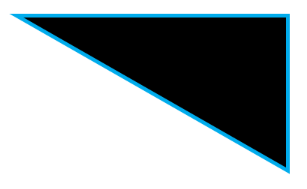
javascript
//画笔
const  ctx=canvas.getContext('2d');
//线宽
ctx.lineWidth=10;

//直线
ctx.beginPath();
ctx.moveTo(50,50);
ctx.lineTo(400,50);
ctx.lineTo(400,250);
ctx.closePath();
ctx.stroke();
ctx.fill();- 圆弧:arc(x,y,半径,开始弧度,结束弧度,方向)
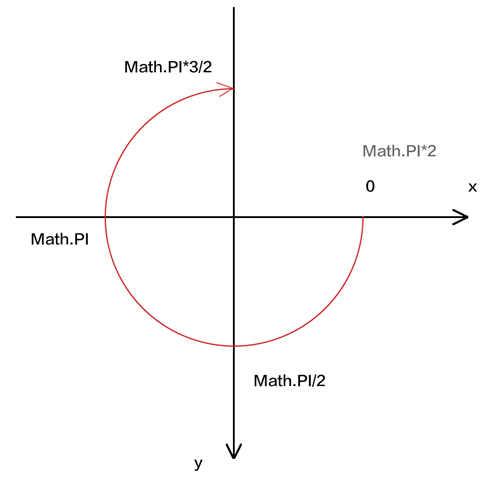
javascript
ctx.beginPath();
ctx.arc(
    300,300,
    200,
    0,Math.PI*3/2,
);
ctx.moveTo(300+200,500);
ctx.arc(
    300,500,
    200,
    0,Math.PI*3/2,
);
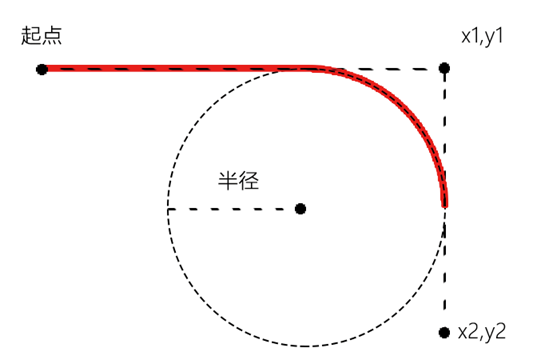
ctx.stroke();- 切线圆弧:arcTo(x1,y1,x2,y2,半径)
- 二次贝塞尔曲线:quadraticCurveTo(cpx1,cpy1,x,y)
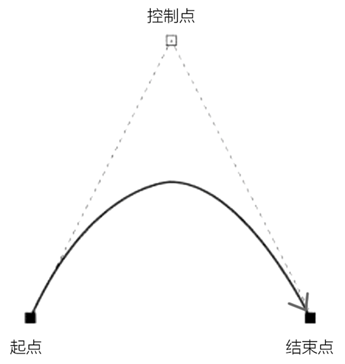
javascript
ctx.beginPath();
//起点
ctx.moveTo(50,50);

// 控制点与起点
ctx.quadraticCurveTo(
  400,500,
  400,250,
)
ctx.stroke();- 三次贝塞尔曲线:bezierCurveTo(cpx1,cpy1,cpx2,cpy2,x,y)
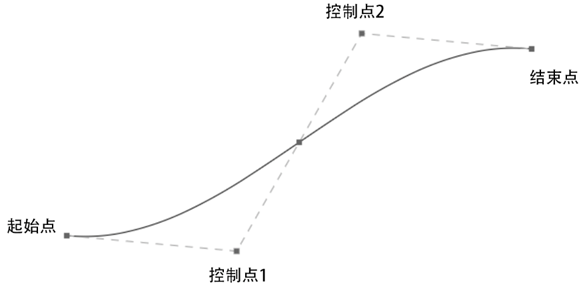
javascript
//起始点
ctx.moveTo(50,50);
ctx.bezierCurveTo(
    //控制点1
    400,50,
    //控制点2
    400,250,
    //结束点
    600,250
)
ctx.stroke();- 矩形:rect(x,y,w,h)
javascript
ctx.beginPath();

ctx.rect(
  100,50,
  400,200
)

ctx.rect(
  100,350,
  400,200
)

ctx.stroke();
rect(x,y,w,h) 绘制路径时,会内置 moveTo() 功能
路径的绘图原理
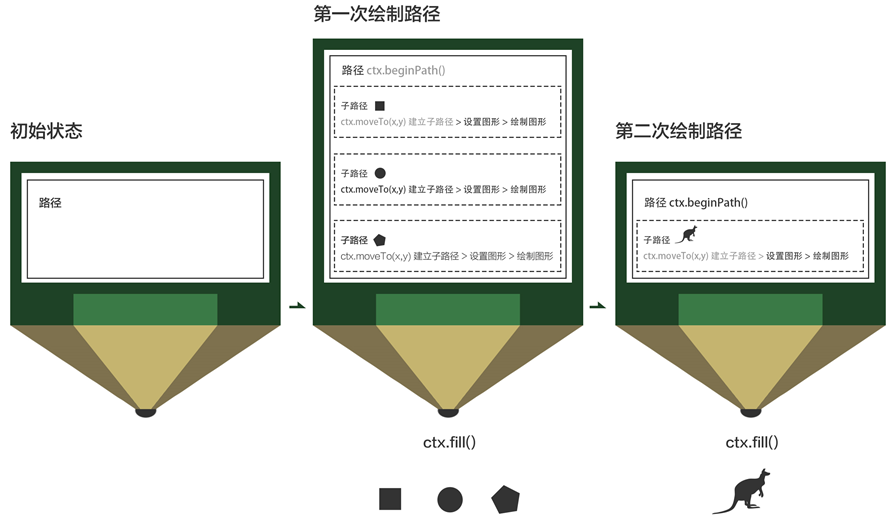
路径和子路径的概念
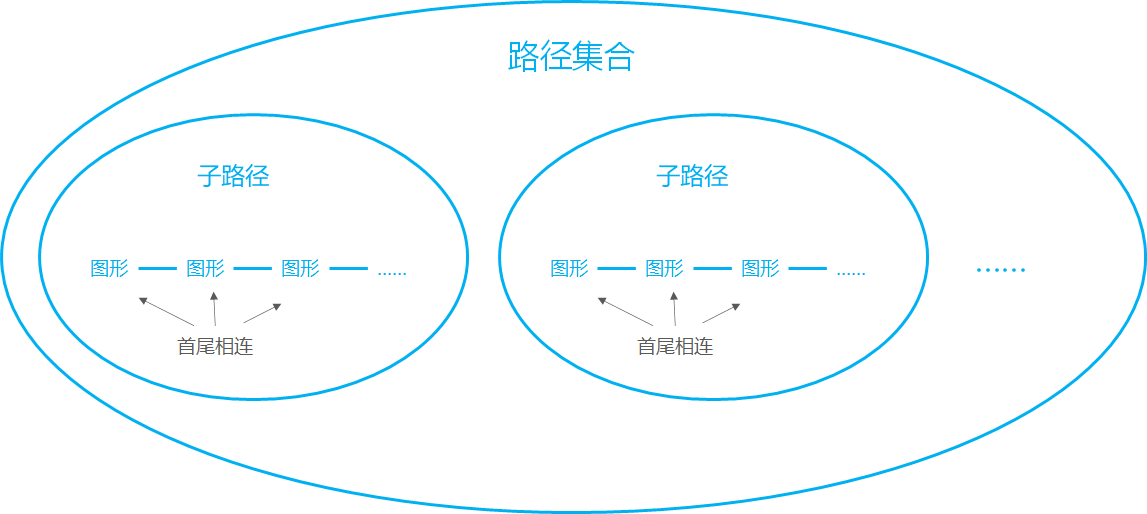
- 路径:路径是子路径的集合。一个上下文对象同时只有一个路径,想要绘制新的路径,就要把当前路径置空。beginPath() 方法当前路径置空,也就是将路径恢复到默认状态,让之后绘制的路径不受以前路径的影响。
- 子路径:子路径是一条只有一个起点的、连续不断开的线。moveTo(x,y) 是设置路径起点的方法,也是创建一条新的子路径的方法。路径里的第一条子路径可以无需设置起点,它的起点默认是子路径中的第一个点。
样式
图形的着色区域
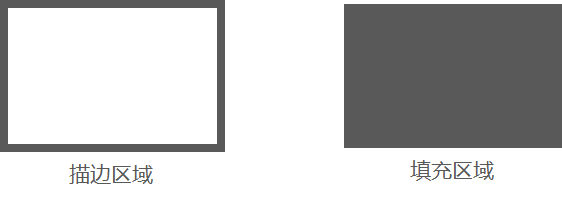
图形的着色区域有两种:
- 描边区域: strokeStyle 代表了描边样式,描边区域的绘制方法有 stroke()、strokeRect() 、strokeText()
- 填充区域: fillStyle 代表了填充样式,填充区域的绘制方法有fill()、fillRect()、fillText()
图形的着色 3 种方式
图形的着色方式有 3 种:纯色、渐变、纹理
纯色
书写方式(与 css 一致):
- 颜色名称,如 red
- 十六进制颜色值,如
#000000 rgb(r,g,b)rgba(r,g,b,a)
为图形着色
javascript
ctx.fillStyle = 'red'
ctx.strokeStyle = 'rgb(r,g,b)'
渐变
- 建立渐变对象的方式:
- 线性渐变
gradient=ctx.createLinearGradient(x1, y1, x2, y2) - 径向渐变
gradient=ctx.createRadialGradient(x1, y1, r1, x2, y2, r2)
- 定义渐变的颜色节点
gradient.addColorStop(position, color)
- 为图形着色
javascript
ctx.fillStyle= gradient
ctx.strokeStyle= gradient- 线性渐变详解
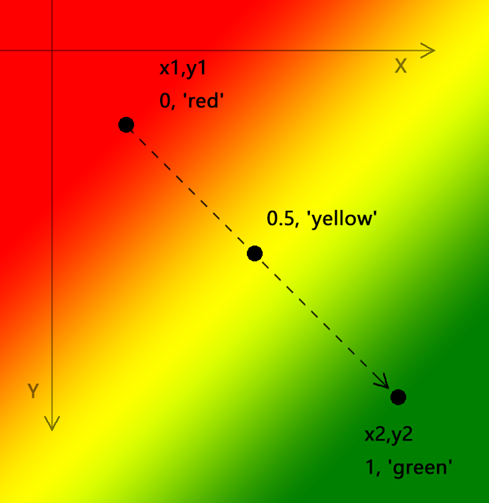
javascript
const linerGradient=ctx.createLinearGradient(x1,y1,x2,y2);
linerGradient.addColorStop(0,'red');
linerGradient.addColorStop(.5,'yellow');
linerGradient.addColorStop(1,'green');- 径向渐变详解
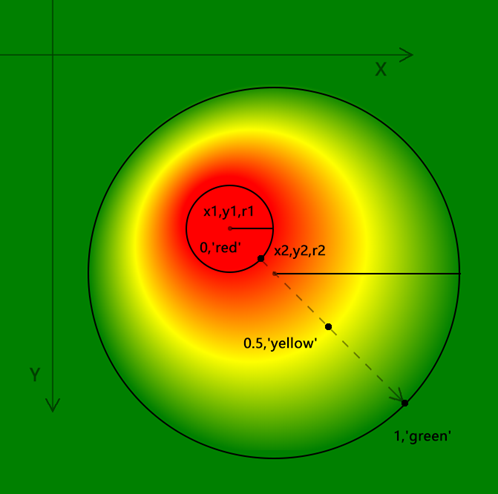
javascript
const radGradient=ctx.createRadialGradient(x1, y1, r1, x2, y2, r2);
radGradient.addColorStop(0,'red');
radGradient.addColorStop(.5,'yellow');
radGradient.addColorStop(1,'green');
纹理
纹理可以将一张图片作为图形的底色,如下图所示:
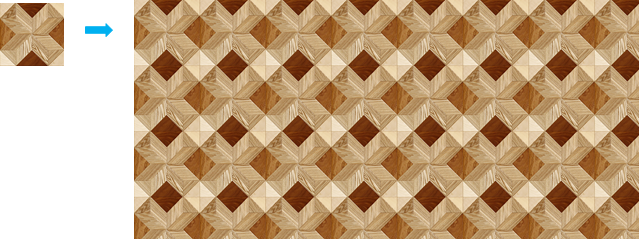
- 建立纹理对象:
javascript
pattern=context.createPattern(image,"repeat|repeat-x|repeat-y|no-repeat");- 为图形着色
javascript
ctx.fillStyle= pattern
ctx.strokeStyle= pattern
影响描边样式的因素
- strokeStyle:描边的颜色
- lineWidth:描边宽
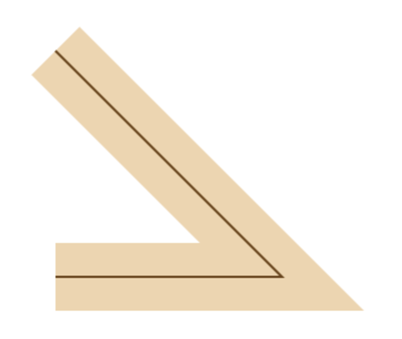
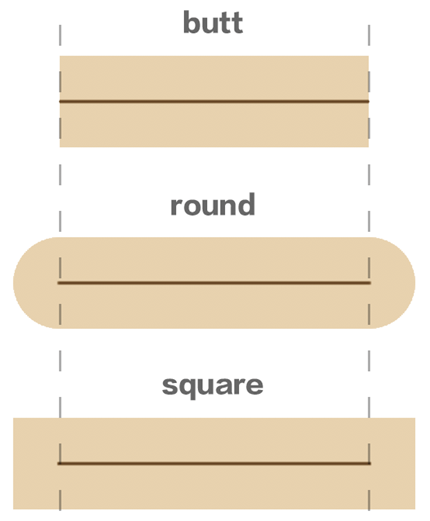
- lineCap:描边端点样式
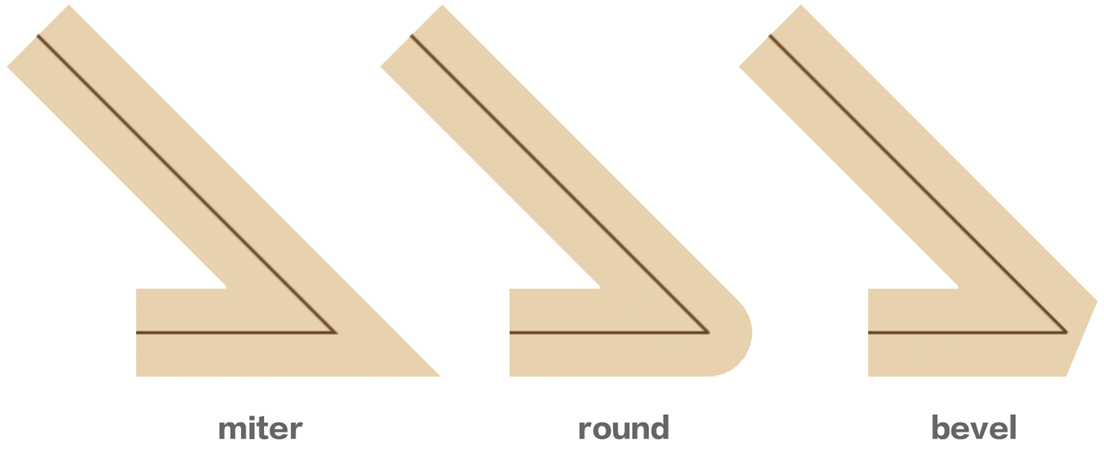
- lineJoin:描边拐角类型
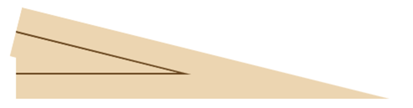
- miterLimit:拐角最大厚度(只适用于lineJoin=‘miter’ 的情况)当lineJoin 为miter 时,若拐角过小,拐角的厚度就会过大。
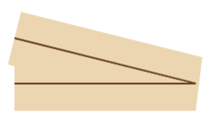
ctx.miterLimit 可避免此问题:
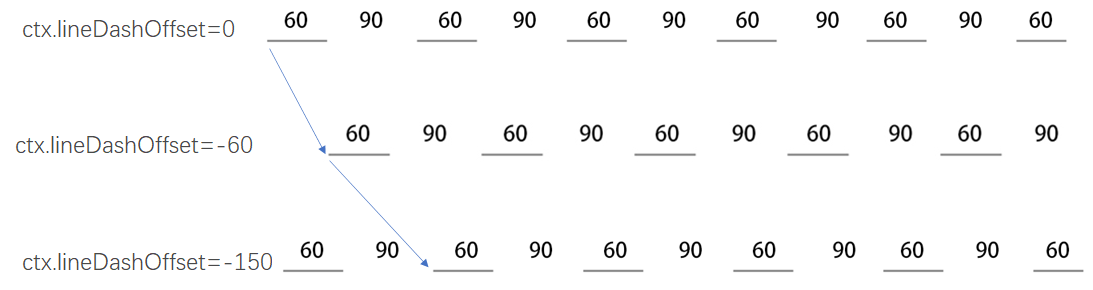
- setLineDash(segments):将描边设置为虚线,可以通过 getLineDash() 方法获取虚线样式。例如:

-
ctx.setLineDash([ 60, 90 ])
-
ctx.setLineDash([ 60, 90, 120 ])
-
lineDashOffset:虚线偏移
投影
投影是上下文对象的一种属性,在绘制图形时,无论执行的是描边方法,还是填充方法,只要设置了投影相关的属性,都会在其所绘图形的后面添加投影
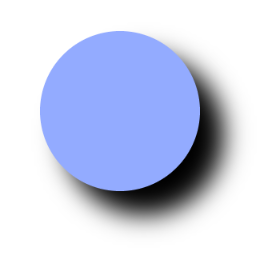
投影相关的属性:
-
偏移位置
-
shadowOffsetX = float -
shadowOffsetY = float -
模糊度:
shadowBlur = float -
颜色:
shadowColor = color
其实,投影不仅可以做投影,当投影比较亮的时候,还可以做光晕
文本
文本的属性有 3 种:
- 字体:font
- 水平对齐: textAlign
- 垂直对齐:textBaseline
font 字体
canvas 里的 font 属性和 css 的 font 属性是一样的,它可以设置文本的粗细、字号、字体等
- css 设置字体:
p{font:bold 18px serif;} - canvas 设置字体:
ctx.font = 'bold 18px serif'
更多参数可参考 css MDN:https://developer.mozilla.org/zh-CN/docs/Web/CSS/font
textAlign 水平对齐
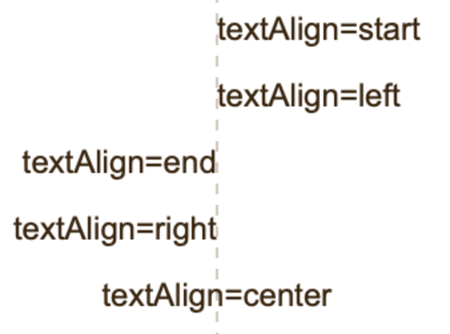
下方文字的 x 位置都是一样,都是垂直虚线的 x 位置,它们的 textAlign 属性各不相同。
javascript
ctx.textAlign='start';
ctx.fillText('start',300,100);

ctx.textAlign='left';
ctx.fillText('left',300,150);

ctx.textAlign='end';
ctx.fillText('end',300,200);

ctx.textAlign='right';
ctx.fillText('right',300,250);

ctx.textAlign='center';
ctx.fillText('center',300,300);- start:文本起始位对齐
- left:文本左对齐
- end:文本结束位置对齐
- right:文本右对齐
- center:文本居中对齐
注:start 和 left 的差异在文本的阅读方向dir
- html 文本默认自左向右读:
javascript
<html dir='ltr'>- 当 html 文本自右向左读时,start 和 left 便会发生改变:
javascript
<html dir='rtl'>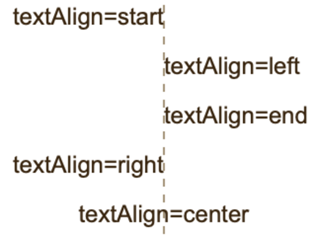
textBaseline 垂直对齐
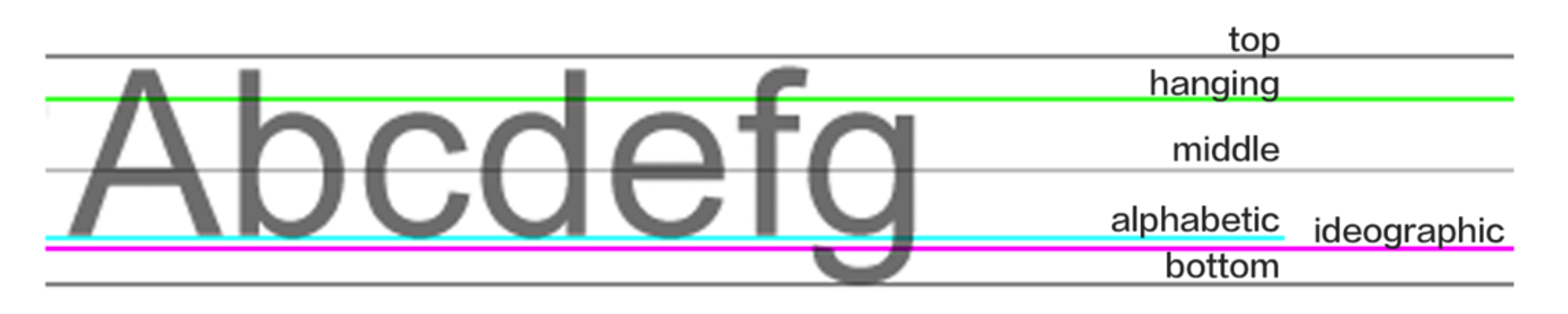
| alphabetic | 默认。标准字母基线对齐 |
|---|---|
| top | 上对齐 |
| hanging | 悬挂基线对齐 |
| middle | 垂直居中 |
| ideographic | 表意基线对齐 |
| bottom | 下对齐 |
javascript
ctx.textBaseline='top';
ctx.fillText('top',100,200);

ctx.textBaseline='middle';
ctx.fillText('middle',200,200);

ctx.textBaseline='bottom';
ctx.fillText('bottom',300,200);

ctx.textBaseline='alphabetic';
ctx.fillText('alphabetic',400,200);
绘制文本的方法
文本的绘制方法有 2 种:
- 填充文字 fillText(text, x, y , maxWidth)
- 描边文字 strokeText(text, x, y , maxWidth)
除此之外,还有一个方法可以获取文本的宽度:measureText(text)
javascript
//文字内容
const text='好好学习,天天向上';
//字体
ctx.font='100px arial';
//描边宽度
ctx.lineWidth=3;
//描边色
ctx.strokeStyle='red';
//填充文字
ctx.fillText(text,100,300);
//描边文字
ctx.strokeText(text,100,300);
图像
图像源
这里说的图像源就是 canvas 在绘制图像时所用的源文件。常见的图像源有三种:
- 图像元素 img
- 视频元素 video
- canvas 画布
在 canvas 中绘制图像
drawImage() 方法可以将一张图像绘制到 canvas 画布里。drawImage() 方法因参数数量不同,其具体功能也不同:
- 绘图 + 位移:drawImage(image, x, y)
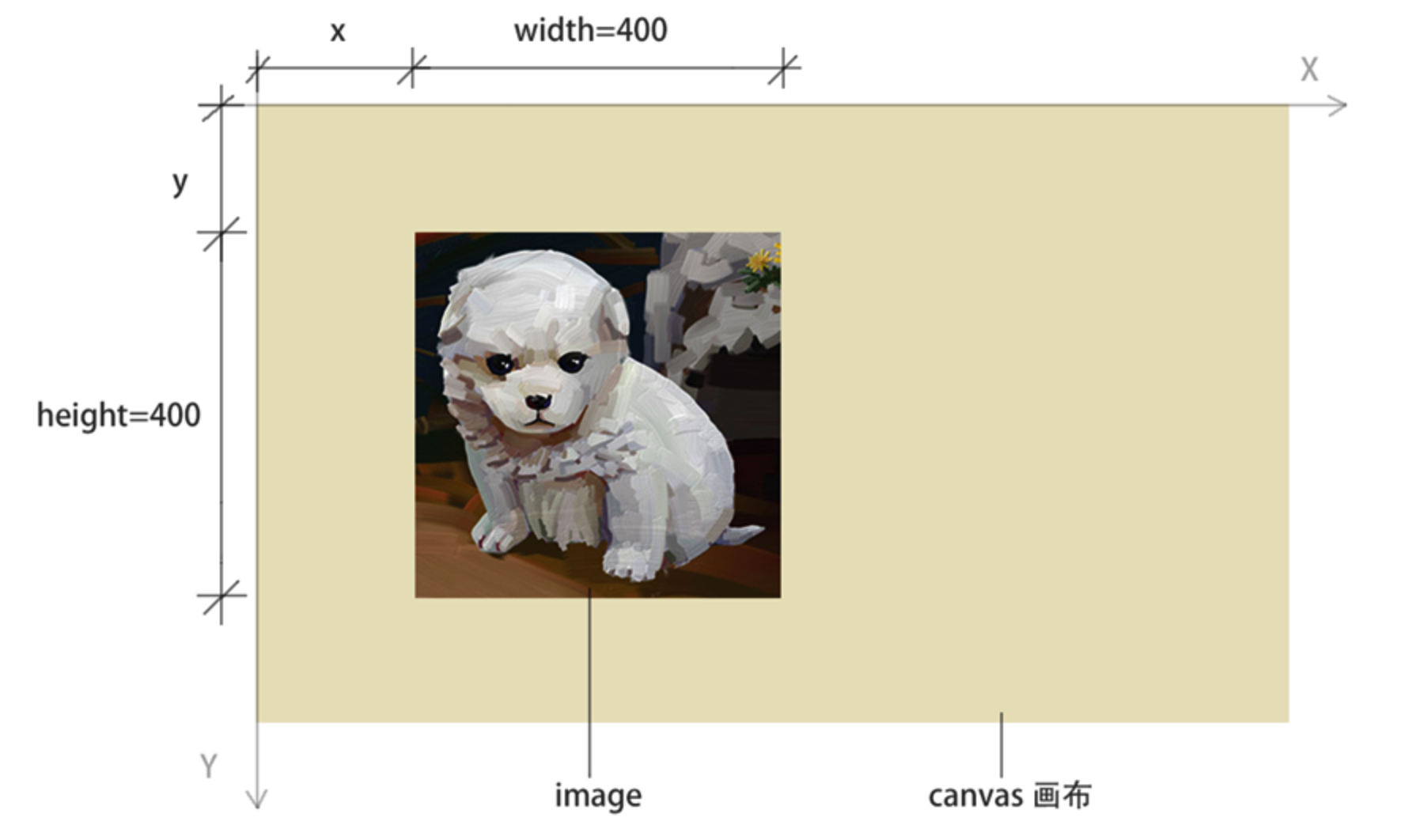
javascript
const ctx=canvas.getContext('2d');

const img=new Image();
img.src='./images/dog.jpg';
img.onload=function(){
  /*图像尺寸*/
  const {width,height}=img;

  /*绘图+移动 drawImage(image, x, y) */
  ctx.drawImage(
    img,
    50,100
  );

};- 绘图 + 位移 + 缩放:drawImage(image, x, y,width,height)
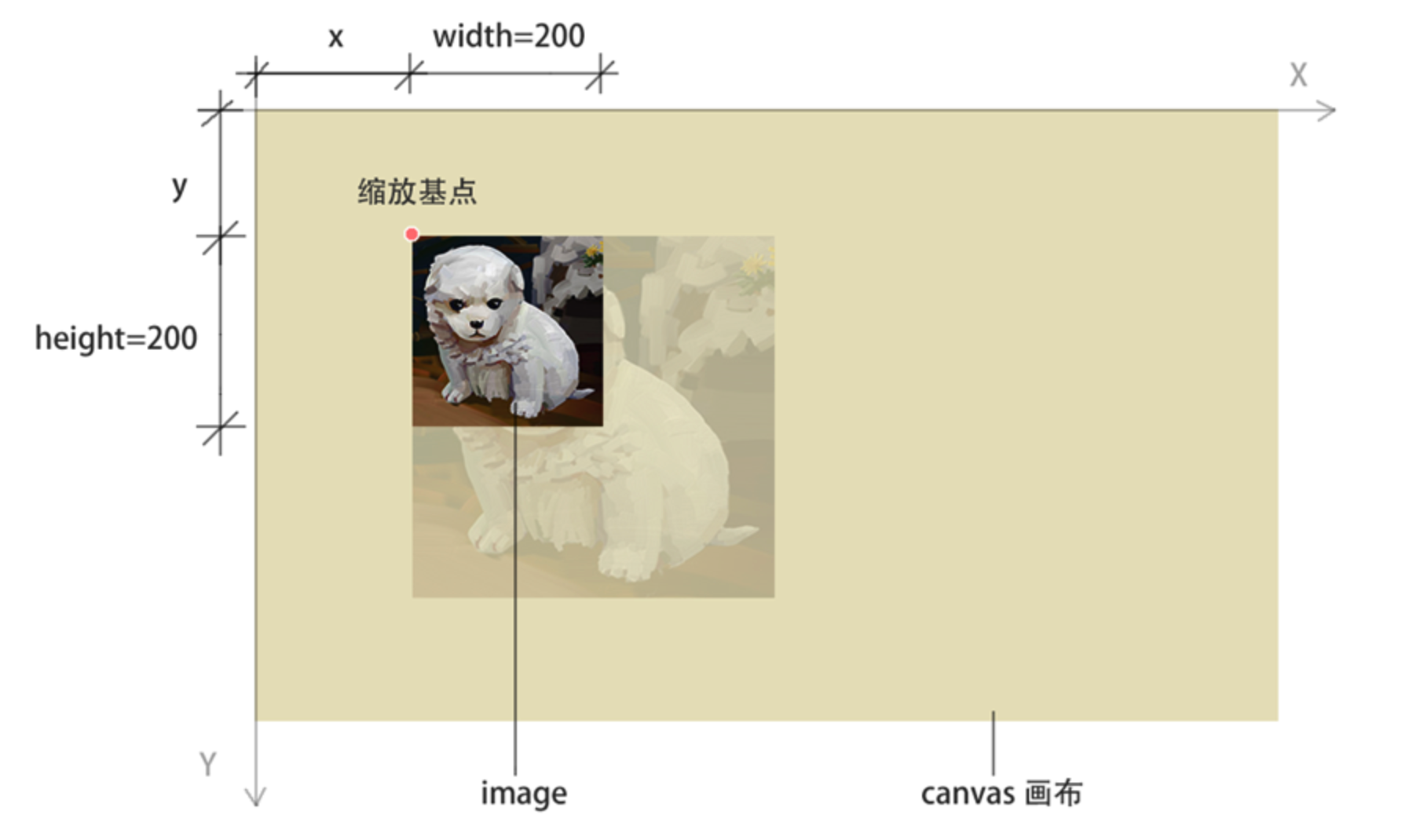
javascript
const ctx=canvas.getContext('2d');

const img=new Image();
img.src='./images/dog.jpg';
img.onload=function(){
  /*图像尺寸*/
  const {width,height}=img;

  /*绘图+移动+缩放 drawImage(image, x, y,width,height) */
  ctx.drawImage(
    img,
    0,0,
    width*2,height*2
  )

};- 绘图 + 裁切 + 位移 + 缩放:drawImage(image, x1, y1,w1,h1,x2,y2,w2,h2)
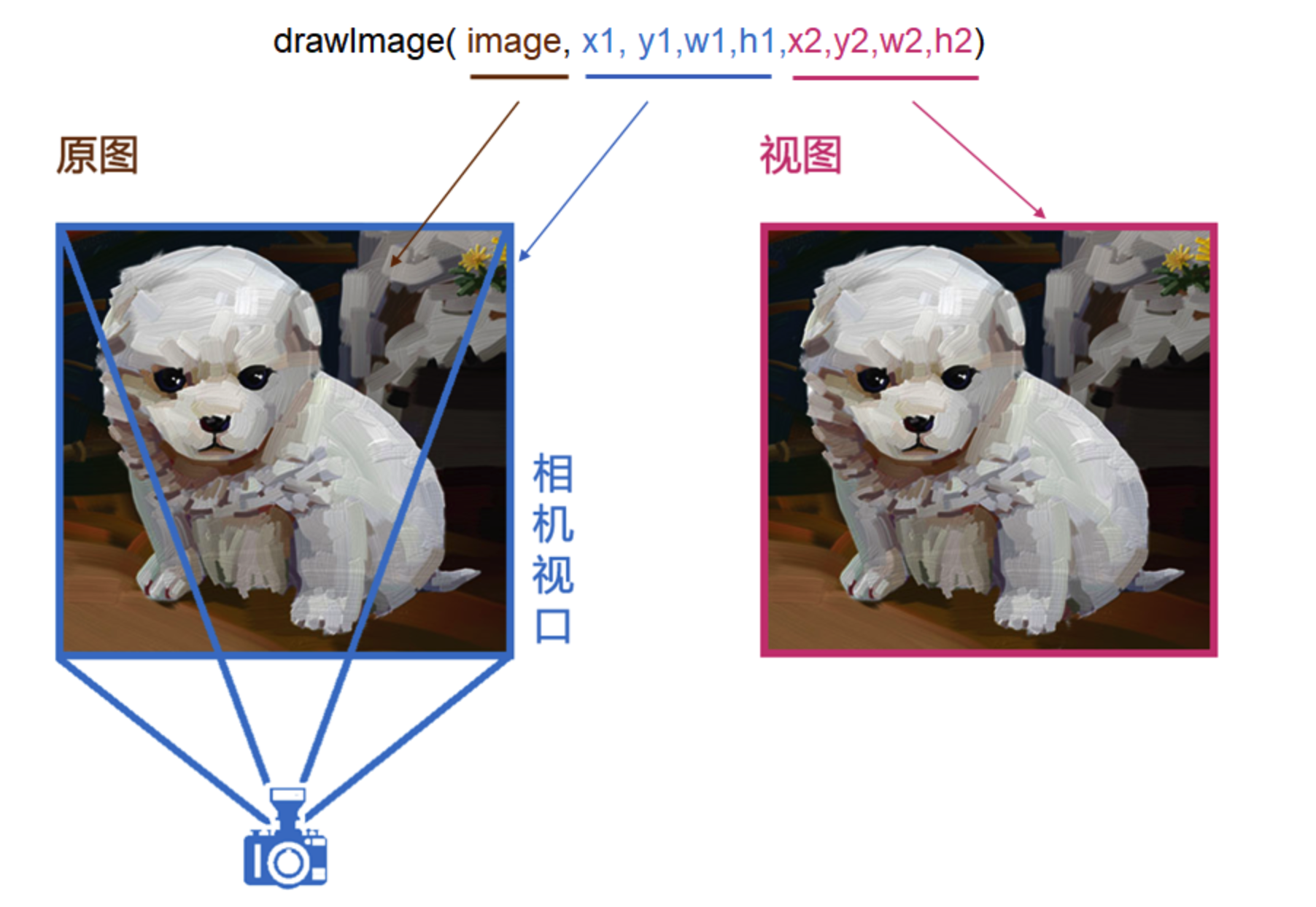
此时的 drawImage() 方法已经具备了相机视口的功能
javascript
const ctx=canvas.getContext('2d');

const img=new Image();
img.src='./images/dog.jpg';
img.onload=function(){
  /*图像尺寸*/
  const {width,height}=img;

  /*绘图+裁剪+移动+缩放 drawImage(image, x1, y1,w1,h1,x2,y2,w2,h2) */
  ctx.drawImage(
    img,
    //裁剪
    width/2,height/2,
    width/2,height/2,
    //位移+缩放
    100,100,
    width,height
  )

};