表单
HTML 表单是 Web 应用程序中收集用户输入数据的主要方式。表单允许用户输入、选择和提交数据,这些数据可以被发送到服务器进行处理
表单 form
<form> 是 HTML 中用于创建交互式表单的核心元素,允许用户输入数据并将其发送到服务器进行处理。表单是 Web 应用程序中收集用户信息的主要方式
<form action="server_endpoint" method="POST">
  <!-- 表单内容 -->
</form>
主要属性:
| 属性 | 是否必需 | 描述 | 取值(如有) |
|---|---|---|---|
action | 是 | 指定表单数据提交的 URL | - |
method | 是 | 指定数据提交的方式 | GET(数据附加在 URL 后面,适用于非敏感数据)<br>POST(数据包含在请求体中,适用于敏感数据) |
target | 否 | 指定在哪里打开响应 | _blank(新窗口/标签页)<br>_self(当前窗口/标签页,默认)<br>_parent(父框架)<br>_top(整个窗口体)<br>framename(特定 iframe) |
enctype | 否(仅对 POST 有效) | 指定表单数据的编码方式 | application/x-www-form-urlencoded(默认)<br>multipart/form-data(用于文件上传)<br>text/plain |
name | 否 | 为表单指定名称,可通过 JavaScript 访问 | - |
novalidate | 否 | 禁用浏览器默认的表单验证 | - |
autocomplete | 否 | 控制表单或表单元素的自动填充行为 | on(默认)<br>off |
示例:
<form action="/submit" method="POST">
  <!-- 表单内容 -->
</form>

<form action="/submit" target="_blank">
  <!-- 表单内容 -->
</form>

<form action="/upload" method="POST" enctype="multipart/form-data">
  <!-- 表单内容 -->
</form>

<form name="myForm">
  <!-- 表单内容 -->
</form>

<form novalidate>
  <!-- 表单内容 -->
</form>

<form autocomplete="off">
  <!-- 表单内容 -->
</form><!-- 来源:8-表单.md - 完整用户注册表单 -->
<!DOCTYPE html>
<html lang="zh-CN">
<head>
<meta charset="UTF-8">
<meta name="viewport" content="width=device-width, initial-scale=1.0">
<title>完整用户注册表单</title>
<style>
* { margin: 0; padding: 0; box-sizing: border-box; }
body {
font-family: -apple-system, BlinkMacSystemFont, "Segoe UI", sans-serif;
line-height: 1.6; color: #333;
background: linear-gradient(135deg, #667eea 0%, #764ba2 100%);
min-height: 100vh; display: flex; align-items: center; justify-content: center; padding: 20px;
}
.form-container {
background: white; width: 100%; max-width: 520px;
border-radius: 16px; padding: 36px; box-shadow: 0 20px 60px rgba(0,0,0,0.2);
}
.form-header { text-align: center; margin-bottom: 28px; }
.form-header h1 { font-size: 26px; color: #222; margin-bottom: 6px; }
.form-header p { color: #888; font-size: 14px; }
.form-group { margin-bottom: 18px; }
.form-group label {
display: block; margin-bottom: 6px; font-weight: 600; font-size: 14px; color: #444;
}
.form-group label .required { color: #dc3545; }
input[type="text"],
input[type="password"],
input[type="email"],
input[type="tel"],
input[type="url"],
input[type="number"],
input[type="date"],
select,
textarea {
width: 100%; padding: 12px 14px; border: 2px solid #e0e0e0;
border-radius: 8px; font-size: 15px; transition: all 0.2s;
outline: none; background: #fafbfc;
}
input:focus, select:focus, textarea:focus {
border-color: #667eea; background: white; box-shadow: 0 0 0 3px rgba(102,126,234,0.12);
}
textarea { min-height: 90px; resize: vertical; }
/* 单选/复选 */
.radio-group, .checkbox-group { display: flex; gap: 18px; flex-wrap: wrap; }
.radio-item, .checkbox-item {
display: flex; align-items: center; gap: 6px; cursor: pointer;
padding: 8px 14px; border-radius: 8px; border: 2px solid #e0e0e0;
transition: all 0.2s;
}
.radio-item:hover, .checkbox-item:hover { border-color: #c5cae9; background: #f5f5ff; }
.radio-item input, .checkbox-item input { width: auto; cursor: pointer; }
/* 滑块 */
.range-wrapper { display: flex; align-items: center; gap: 12px; }
input[type="range"] { flex: 1; accent-color: #667eea; }
.range-value { font-weight: 700; color: #667eea; min-width: 36px; text-align: right; }
/* 颜色选择器 */
input[type="color"] { width: 50px; height: 40px; border: none; border-radius: 8px; cursor: pointer; padding: 2px; }
/* 文件上传 */
.file-upload-area {
border: 2px dashed #ccc; border-radius: 10px; padding: 24px; text-align: center;
cursor: pointer; transition: all 0.2s; position: relative; overflow: hidden;
}
.file-upload-area:hover { border-color: #667eea; background: #f5f5ff; }
.file-upload-area input { position: absolute; inset: 0; opacity: 0; cursor: pointer; }
.file-upload-icon { font-size: 36px; margin-bottom: 8px; }
.file-upload-text { color: #888; font-size: 13px; }
#avatarPreview img { max-width: 80px; max-height: 80px; border-radius: 50%; margin-top: 10px; }
/* 提交按钮 */
.btn-submit {
width: 100%; padding: 14px; background: linear-gradient(135deg, #667eea, #764ba2);
color: white; border: none; border-radius: 10px; font-size: 16px;
font-weight: 600; cursor: pointer; transition: all 0.3s; margin-top: 8px;
}
.btn-submit:hover { transform: translateY(-2px); box-shadow: 0 8px 24px rgba(102,126,234,0.35); }
small { display: block; color: #999; font-size: 11px; margin-top: 4px; }
/* 验证状态 */
input:invalid:not(:placeholder-shown) { border-color: #dc3545; }
input:valid:not(:placeholder-shown) { border-color: #28a745; }
.form-footer { text-align: center; margin-top: 18px; font-size: 13px; color: #888; }
.form-footer a { color: #667eea; text-decoration: none; }
</style>
</head>
<body>
<div class="form-container">
<div class="form-header">
<h1>📝 用户注册</h1>
<p>创建您的账户,开始探索精彩内容</p>
</div>
<form action="/register" method="POST" id="registerForm" novalidate
onsubmit="event.preventDefault(); alert('注册信息已提交!\n\n' + new FormData(this).toArray().map(([k,v])=>k+': '+v).join('\n'))">
<!-- 用户名 -->
<div class="form-group">
<label for="username">用户名 <span class="required">*</span></label>
<input type="text" id="username" name="username"
placeholder="请输入用户名(3-20个字符)"
required minlength="3" maxlength="20"
pattern="[a-zA-Z][a-zA-Z0-9_]*"
title="用户名必须以字母开头,只允许字母、数字和下划线" />
<small>以字母开头,3-20个字符</small>
</div>
<!-- 邮箱 -->
<div class="form-group">
<label for="email">电子邮箱 <span class="required">*</span></label>
<input type="email" id="email" name="email"
placeholder="example@email.com" required />
<small>用于接收通知和找回密码</small>
</div>
<!-- 密码 -->
<div class="form-group">
<label for="password">密码 <span class="required">*</span></label>
<input type="password" id="password" name="password"
required minlength="8" maxlength="32"
placeholder="至少8位,包含字母和数字" />
<small>8-32位字符</small>
</div>
<!-- 手机号 -->
<div class="form-group">
<label for="phone">手机号码</label>
<input type="tel" id="phone" name="phone"
pattern="[0-9]{11}" placeholder="请输入11位手机号"
inputmode="numeric" />
</div>
<!-- 性别 -->
<div class="form-group">
<label>性别</label>
<div class="radio-group">
<label class="radio-item"><input type="radio" name="gender" value="male"> 男</label>
<label class="radio-item"><input type="radio" name="gender" value="female"> 女</label>
<label class="radio-item"><input type="radio" name="gender" value="other"> 其他</label>
</div>
</div>
<!-- 出生日期 -->
<div class="form-group">
<label for="birthdate">出生日期</label>
<input type="date" id="birthdate" name="birthdate" />
</div>
<!-- 喜欢的颜色 -->
<div class="form-group">
<label for="favColor">喜欢的颜色</label>
<div style="display:flex;align-items:center;gap:12px;">
<input type="color" id="favColor" name="favorite_color" value="#667eea" />
<span id="colorValue">#667eea</span>
</div>
</div>
<!-- 兴趣偏好 -->
<div class="form-group">
<label>兴趣偏好(可多选)</label>
<div class="checkbox-group">
<label class="checkbox-item"><input type="checkbox" name="interests" value="tech"> 🖥️ 科技</label>
<label class="checkbox-item"><input type="checkbox" name="interests" value="design"> 🎨 设计</label>
<label class="checkbox-item"><input type="checkbox" name="interests" value="music"> 🎵 音乐</label>
<label class="checkbox-item"><input type="checkbox" name="interests" value="sports"> ⚽ 运动</label>
</div>
</div>
<!-- 个人简介 -->
<div class="form-group">
<label for="bio">个人简介</label>
<textarea id="bio" name="bio" rows="3"
maxlength="200" placeholder="简单介绍一下自己..."></textarea>
<small><span id="bioCount">0</span>/200 字</small>
</div>
<!-- 头像上传 -->
<div class="form-group">
<label>头像</label>
<div class="file-upload-area">
<input type="file" id="avatar" name="avatar" accept="image/*"
onchange="previewAvatar(this)" />
<div class="file-upload-icon">📷</div>
<div class="file-upload-text">点击或拖拽上传头像图片</div>
<div id="avatarPreview"></div>
</div>
</div>
<!-- 同意条款 -->
<div class="form-group">
<label class="checkbox-item" style="border:none;padding:0;">
<input type="checkbox" name="agree" required style="width:auto;" />
我已阅读并同意 <a href="#">服务条款</a> 和 <a href="#">隐私政策</a>
</label>
</div>
<button type="submit" class="btn-submit">✨ 立即注册</button>
<div class="form-footer">
已有账户?<a href="#">立即登录</a>
</div>
</form>
</div>
<script>
// 颜色选择器实时显示
document.getElementById('favColor').addEventListener('input', function() {
document.getElementById('colorValue').textContent = this.value.toUpperCase()
})
// 个人简介字数统计
document.getElementById('bio').addEventListener('input', function() {
document.getElementById('bioCount').textContent = this.value.length
})
// 头像预览
function previewAvatar(input) {
const preview = document.getElementById('avatarPreview')
if (input.files && input.files[0]) {
const reader = new FileReader()
reader.onload = e => {
preview.innerHTML = `<img src="${e.target.result}" alt="头像预览">`
}
reader.readAsDataURL(input.files[0])
} else {
preview.innerHTML = ''
}
}
// 表单验证增强
document.getElementById('registerForm').addEventListener('submit', function(e) {
if (!this.checkValidity()) {
e.preventDefault()
// 高亮第一个无效字段
const firstInvalid = this.querySelector(':invalid')
if (firstInvalid) {
firstInvalid.focus()
firstInvalid.scrollIntoView({ behavior: 'smooth', block: 'center' })
}
}
})
</script>
</body>
</html><!DOCTYPE html>
<!--
来源:基础知识/8-表单.md
演示:完整注册表单(综合运用所有表单元素和属性)
-->
<html lang="zh-CN">
<head>
<meta charset="UTF-8">
<title>完整注册表单实战</title>
<style>
* { margin: 0; padding: 0; box-sizing: border-box; }
body { font-family: -apple-system, sans-serif; background: linear-gradient(135deg, #667eea 0%, #764ba2 100%); min-height: 100vh; padding: 40px 20px; display: flex; justify-content: center; align-items: flex-start; }
.form-container { background: white; width: 100%; max-width: 580px; border-radius: 16px; box-shadow: 0 20px 60px rgba(0,0,0,0.3); overflow: hidden; }
.form-header {
background: linear-gradient(135deg, #3498db, #2980b9); color: white;
padding: 30px; text-align: center;
}
.form-header h1 { font-size: 24px; margin-bottom: 5px; }
.form-header p { opacity: 0.85; font-size: 14px; }
.form-body { padding: 30px; }
fieldset { border: none; padding: 0; margin-bottom: 25px; }
legend { font-size: 16px; font-weight: bold; color: #2c3e50; margin-bottom: 12px; display: flex; align-items: center; gap: 8px; padding: 0; }
.form-group { margin-bottom: 16px; }
.form-group label { display: block; font-weight: 600; font-size: 13px; color: #555; margin-bottom: 6px; }
.form-group label .required { color: #e74c3c; margin-left: 2px; }
input[type="text"], input[type="email"], input[type="password"],
input[type="tel"], input[type="date"], select, textarea {
width: 100%; padding: 11px 14px; border: 2px solid #e8e8e8; border-radius: 8px;
font-size: 14px; transition: all 0.2s; background: #fafafa;
}
input:focus, select:focus, textarea:focus {
outline: none; border-color: #3498db; background: white;
box-shadow: 0 0 0 4px rgba(52,152,219,0.1);
}
input:valid:not(:placeholder-shown) { border-color: #27ae60; }
input:invalid:not(:placeholder-shown) { border-color: #e74c3c; }
.row { display: grid; grid-template-columns: 1fr 1fr; gap: 15px; }
.radio-group, .checkbox-group { display: flex; gap: 20px; flex-wrap: wrap; }
.radio-item, .checkbox-item { display: flex; align-items: center; gap: 6px; cursor: pointer; font-size: 14px; color: #555; }
.radio-item input, .checkbox-item input { accent-color: #3498db; width: 18px; height: 18px; }
.strength-bar { height: 4px; border-radius: 2px; background: #e0e0e0; margin-top: 6px; overflow: hidden; }
.strength-fill { height: 100%; width: 0; transition: all 0.3s; border-radius: 2px; }
.strength-text { font-size: 12px; margin-top: 4px; }
.avatar-upload {
width: 80px; height: 80px; border-radius: 50%; background: #f0f0f0;
display: flex; align-items: center; justify-content: center;
cursor: pointer; border: 3px dashed #ccc; transition: all 0.2s; overflow: hidden;
position: relative;
}
.avatar-upload:hover { border-color: #3498db; background: #ebf5fb; }
.avatar-upload img { width: 100%; height: 100%; object-fit: cover; }
.avatar-upload .overlay {
position: absolute; inset: 0; background: rgba(0,0,0,0.4); color: white;
display: flex; align-items: center; justify-content: center; font-size: 11px; opacity: 0; transition: opacity 0.2s;
}
.avatar-upload:hover .overlay { opacity: 1; }
button[type="submit"] {
width: 100%; padding: 14px; background: linear-gradient(135deg, #3498db, #2980b9);
color: white; border: none; border-radius: 10px; font-size: 16px; font-weight: bold;
cursor: pointer; transition: transform 0.2s, box-shadow 0.2s; margin-top: 10px;
}
button[type="submit"]:hover { transform: translateY(-2px); box-shadow: 0 6px 20px rgba(52,152,219,0.4); }
button[type="submit"]:active { transform: translateY(0); }
.terms { font-size: 13px; color: #666; line-height: 1.6; }
.terms a { color: #3498db; text-decoration: none; }
.preview-panel {
background: #f8f9fa; border: 1px solid #dee2e6; border-radius: 10px;
padding: 20px; margin-top: 20px; display: none;
}
.preview-panel.show { display: block; animation: fadeIn 0.3s; }
@keyframes fadeIn { from { opacity: 0; transform: translateY(-10px); } to { opacity: 1; transform: translateY(0); } }
.step-indicator { display: flex; justify-content: center; gap: 8px; margin-bottom: 25px; }
.step { width: 32px; height: 32px; border-radius: 50%; background: #e0e0e0; color: #999; display: flex; align-items: center; justify-content: center; font-size: 13px; font-weight: bold; }
.step.active { background: #3498db; color: white; }
.step.done { background: #27ae60; color: white; }
.step-line { width: 40px; height: 2px; background: #e0e0e0; align-self: center; }
.step-line.done { background: #27ae60; }
</style>
</head>
<body>
<div class="form-container">
<div class="form-header">
<h1>📝 创建新账户</h1>
<p>填写以下信息完成注册</p>
</div>
<div class="form-body">
<div class="step-indicator">
<div class="step active" id="step1">1</div>
<div class="step-line" id="line1"></div>
<div class="step" id="step2">2</div>
<div class="step-line" id="line2"></div>
<div class="step" id="step3">3</div>
</div>
<form id="register-form" onsubmit="return handleSubmit(event)">
<!-- 步骤1:基本信息 -->
<fieldset id="fieldset-1">
<legend>👤 基本信息</legend>
<div class="form-group">
<label>头像 <span style="font-weight:normal;color:#888;font-size:12px;">(可选)</span></label>
<label class="avatar-upload" id="avatar-label">
<span style="font-size:30px;color:#ccc;" id="avatar-placeholder">📷</span>
<img id="avatar-preview" style="display:none;">
<span class="overlay">更换头像</span>
<input type="file" accept="image/*" onchange="previewAvatar(this)" hidden>
</label>
</div>
<div class="row">
<div class="form-group">
<label>用户名 <span class="required">*</span></label>
<input type="text" name="username" required minlength="3" maxlength="20"
pattern="[a-zA-Z0-9_]+" placeholder="3-20位字母数字下划线"
title="用户名只能包含字母、数字和下划线">
</div>
<div class="form-group">
<label>昵称 <span style="font-weight:normal;color:#888;font-size:12px;">(可选)</span></label>
<input type="text" name="nickname" placeholder="展示名称">
</div>
</div>
<div class="form-group">
<label>邮箱 <span class="required">*</span></label>
<input type="email" name="email" required placeholder="用于登录和找回密码">
</div>
<div class="row">
<div class="form-group">
<label>手机号 <span class="required">*</span></label>
<input type="tel" name="phone" required pattern="1[3-9]\d{9}"
placeholder="11位手机号码" title="请输入正确的手机号">
</div>
<div class="form-group">
<label>出生日期</label>
<input type="date" name="birthdate" max="2008-01-01">
</div>
</div>
</fieldset>
<!-- 步骤2:安全设置 -->
<fieldset id="fieldset-2">
<legend>🔐 安全设置</legend>
<div class="row">
<div class="form-group">
<label>密码 <span class="required">*</span></label>
<input type="password" name="password" required minlength="8" maxlength="32"
id="pwd-input" placeholder="至少8位,含字母和数字"
oninput="checkStrength(this.value)">
<div class="strength-bar"><div class="strength-fill" id="strength-fill"></div></div>
<div class="strength-text" id="strength-text"></div>
</div>
<div class="form-group">
<label>确认密码 <span class="required">*</span></label>
<input type="password" name="confirmPwd" required
oninput="checkConfirmPwd(this.value)">
<div class="strength-text" id="confirm-msg"></div>
</div>
</div>
<div class="form-group">
<label>性别</label>
<div class="radio-group">
<label class="radio-item"><input type="radio" name="gender" value="male"> 男</label>
<label class="radio-item"><input type="radio" name="gender" value="female"> 女</label>
<label class="radio-item"><input type="radio" name="gender" value="other"> 其他</label>
<label class="radio-item"><input type="radio" name="gender" value="" checked> 不透露</label>
</div>
</div>
</fieldset>
<!-- 步骤3:偏好设置 -->
<fieldset id="fieldset-3">
<legend>⚙️ 偏好设置</legend>
<div class="form-group">
<label>所在城市</label>
<select name="city">
<option value="">-- 请选择 --</option>
<optgroup label="直辖市">
<option value="beijing">北京</option>
<option value="shanghai">上海</option>
<option value="tianjin">天津</option>
<option value="chongqing">重庆</option>
</optgroup>
<optgroup label="省份">
<option value="guangdong">广东</option>
<option value="zhejiang">浙江</option>
<option value="jiangsu">江苏</option>
<option value="sichuan">四川</option>
</optgroup>
</select>
</div>
<div class="form-group">
<label>感兴趣的领域(可多选)</label>
<div class="checkbox-group">
<label class="checkbox-item"><input type="checkbox" name="interests" value="frontend"> 前端开发</label>
<label class="checkbox-item"><input type="checkbox" name="interests" value="backend"> 后端开发</label>
<label class="checkbox-item"><input type="checkbox" name="interests" value="mobile"> 移动开发</label>
<label class="checkbox-item"><input type="checkbox" name="interests" value="ai"> AI/ML</label>
<label class="checkbox-item"><input type="checkbox" name="interests" value="devops"> DevOps</label>
</div>
</div>
<div class="form-group">
<label>个人简介</label>
<textarea name="bio" rows="3" maxlength="200" placeholder="简单介绍一下自己...(最多200字)"></textarea>
</div>
<div class="form-group terms">
<label class="checkbox-item">
<input type="checkbox" name="agree" required> 我已阅读并同意
<a href="#">《用户服务协议》</a> 和 <a href="#">《隐私政策》</a>
</label>
</div>
</fieldset>
<button type="submit">✨ 立即注册</button>
<p style="text-align:center;margin-top:15px;font-size:13px;color:#888;">
已有账户?<a href="#" style="color:#3498db;">立即登录</a>
</p>
</form>
<!-- 提交预览 -->
<div class="preview-panel" id="preview">
<h3 style="color:#27ae60;margin-bottom:15px;">✅ 注册信息预览</h3>
<pre id="preview-data" style="background:#263238;color:#eceff1;padding:15px;border-radius:8px;font-size:12px;line-height:1.6;overflow-x:auto;"></pre>
</div>
</div>
</div>
<script>
// 头像预览
function previewAvatar(input) {
if (input.files && input.files[0]) {
const reader = new FileReader();
reader.onload = (e) => {
const preview = document.getElementById('avatar-preview');
const placeholder = document.getElementById('avatar-placeholder');
preview.src = e.target.result;
preview.style.display = 'block';
placeholder.style.display = 'none';
};
reader.readAsDataURL(input.files[0]);
}
}
// 密码强度检测
function checkStrength(pwd) {
const fill = document.getElementById('strength-fill');
const text = document.getElementById('strength-text');
let score = 0;
if (pwd.length >= 8) score++;
if (pwd.length >= 12) score++;
if (/[a-z]/.test(pwd) && /[A-Z]/.test(pwd)) score++;
if (/\d/.test(pwd)) score++;
if (/[^a-zA-Z\d]/.test(pwd)) score++;
const levels = [
{ w: '0%', c: '#e74c3c', t: '' },
{ w: '25%', c: '#e74c3c', t: '🔴 弱 - 建议增加长度和复杂度' },
{ w: '50%', c: '#f39c12', t: '🟡 中等 - 可以更强' },
{ w: '75%', c: '#3498db', t: '🔵 较强 - 继续保持' },
{ w: '100%', c: '#27ae60', t: '🟢 非常强!' }
];
fill.style.width = levels[score].w;
fill.style.background = levels[score].c;
text.textContent = pwd ? levels[score].t : '';
text.style.color = levels[score].c;
}
// 确认密码
function checkConfirmPwd(val) {
const msg = document.getElementById('confirm-msg');
const pwd = document.getElementById('pwd-input').value;
if (!val) { msg.textContent = ''; return; }
if (val === pwd) {
msg.textContent = '✅ 密码一致';
msg.style.color = '#27ae60';
} else {
msg.textContent = '❌ 两次密码不一致';
msg.style.color = '#e74c3c';
}
}
// 表单提交
function handleSubmit(e) {
e.preventDefault();
const form = e.target;
if (!form.checkValidity()) {
form.reportValidity();
return false;
}
const data = new FormData(form);
let output = '// 收集到的表单数据:\n{\n';
for (let [key, value] of data.entries()) {
if (key === 'password' || key === 'confirmPwd') {
output += ` "${key}": "******",\n`;
} else {
output += ` "${key}": "${value}",\n`;
}
}
output += '}';
document.getElementById('preview-data').textContent = output;
document.getElementById('preview').classList.add('show');
// 标记步骤完成
document.querySelectorAll('.step').forEach(s => s.classList.add('done'));
document.querySelectorAll('.step-line').forEach(l => l.classList.add('done'));
return false;
}
</script>
</body>
</html>input 元素
<input> 元素用于创建各种类型的输入控件。它通过 type 属性的不同值可以实现多种功能,从简单的文本输入到复杂的文件上传和日期选择
<input type="text" name="username" /><!DOCTYPE html>
<!--
来源:基础知识/8-表单.md
演示:各种 input 类型完整展示
-->
<html lang="zh-CN">
<head>
<meta charset="UTF-8">
<title>Input 类型完整展示</title>
<style>
* { margin: 0; padding: 0; box-sizing: border-box; }
body { font-family: -apple-system, sans-serif; padding: 30px; background: #f0f2f5; max-width: 960px; margin: 0 auto; }
h1 { color: #1a1a1a; margin-bottom: 25px; }
.section { background: white; padding: 25px; margin-bottom: 20px; border-radius: 10px; box-shadow: 0 2px 10px rgba(0,0,0,0.06); }
h2 { color: #333; font-size: 17px; margin-bottom: 15px; border-bottom: 2px solid #eee; padding-bottom: 8px; }
.form-row { display: flex; gap: 20px; flex-wrap: wrap; margin-bottom: 15px; align-items: flex-end; }
.form-group { flex: 1; min-width: 220px; }
.form-group label {
display: block; font-weight: 600; font-size: 13px; color: #555; margin-bottom: 6px;
}
.form-group label code {
background: #e8f4fd; color: #1976d2; padding: 1px 6px; border-radius: 3px;
font-size: 12px; margin-left: 5px;
}
input[type="text"], input[type="password"], input[type="email"],
input[type="url"], input[type="tel"], input[type="search"],
input[type="number"], input[type="date"], input[type="time"],
input[type="datetime-local"], input[type="month"], input[type="week"] {
width: 100%; padding: 10px 12px; border: 2px solid #e0e0e0; border-radius: 8px;
font-size: 14px; transition: border-color 0.2s;
}
input:focus { outline: none; border-color: #3498db; box-shadow: 0 0 0 3px rgba(52,152,219,0.15); }
/* 特殊类型样式 */
input[type="color"] { width: 60px; height: 40px; border: 2px solid #ddd; border-radius: 8px; cursor: pointer; padding: 3px; }
input[type="range"] { width: 100%; height: 6px; -webkit-appearance: none; background: #ddd; border-radius: 3px; outline: none; }
input[type="range"]::-webkit-slider-thumb { -webkit-appearance: none; width: 20px; height: 20px; background: #3498db; border-radius: 50%; cursor: pointer; }
input[type="file"] { padding: 8px; border: 2px dashed #ccc; border-radius: 8px; width: 100%; cursor: pointer; }
input[type="hidden"] { display: none; }
.color-wrap { display: flex; align-items: center; gap: 10px; }
.color-preview { width: 40px; height: 40px; border-radius: 8px; border: 2px solid #ddd; }
.range-value { font-size: 13px; color: #666; min-width: 40px; text-align: center; font-weight: bold; }
.type-tag { display: inline-block; padding: 2px 8px; border-radius: 4px; font-size: 11px; font-family: monospace; background: #f0f0f0; color: #666; }
table { width: 100%; border-collapse: collapse; font-size: 13px; margin-top: 20px; }
th, td { padding: 10px 12px; text-align: left; border: 1px solid #dee2e6; }
th { background: #34495e; color: white; }
tr:nth-child(even) { background: #f8f9fa; }
.hint { font-size: 12px; color: #888; margin-top: 4px; }
</style>
</head>
<body>
<h1>📝 HTML Input 类型完整展示</h1>
<!-- 文本类型 -->
<div class="section">
<h2>1. 文本输入类型</h2>
<div class="form-row">
<div class="form-group">
<label>text <span class="type-tag">默认</span></label>
<input type="text" placeholder="单行文本输入" value="">
<div class="hint">最基础的文本输入框</div>
</div>
<div class="form-group">
<label>password <span class="type-tag">密码</span></label>
<input type="password" placeholder="输入密码" value="123456">
<div class="hint">字符显示为 ● 或 •</div>
</div>
</div>
<div class="form-row">
<div class="form-group">
<label>search <span class="type-tag">搜索</span></label>
<input type="search" placeholder="搜索..." value="">
<div class="hint">移动端回车键变为"搜索"</div>
</div>
<div class="form-group">
<label>hidden <span class="type-tag">隐藏</span></label>
<div style="padding:10px;background:#f5f5f5;border-radius:6px;font-size:13px;">
<input type="hidden" name="csrf_token" value="abc123xyz">
<code><input type="hidden" value="abc123xyz"></code><br>
<span style="color:#888;">不可见,但会随表单提交</span>
</div>
</div>
</div>
</div>
<!-- 格式化类型 -->
<div class="section">
<h2>2. 格式化输入类型(带验证)</h2>
<div class="form-row">
<div class="form-group">
<label>email <span class="type-tag">邮箱</span></label>
<input type="email" placeholder="user@example.com" value="test@example.com">
<div class="hint">自动验证邮箱格式 ✉️</div>
</div>
<div class="form-group">
<label>url <span class="type-tag">网址</span></label>
<input type="url" placeholder="https://example.com" value="https://google.com">
<div class="hint">自动验证 URL 格式 🔗</div>
</div>
</div>
<div class="form-row">
<div class="form-group">
<label>tel <span class="type-tag">电话</span></label>
<input type="tel" placeholder="13800138000" value="13800138000">
<div class="hint">移动端弹出数字键盘 📱</div>
</div>
<div class="form-group">
<label>number <span class="type-tag">数字</span></label>
<input type="number" placeholder="0-100" min="0" max="100" step="1" value="42">
<div class="hint">带上下箭头,限制范围和步长</div>
</div>
</div>
</div>
<!-- 日期时间类型 -->
<div class="section">
<h2>3. 日期与时间类型</h2>
<div class="form-row">
<div class="form-group">
<label>date <span class="type-tag">日期</span></label>
<input type="date" value="2024-06-15">
<div class="hint">日期选择器 📅</div>
</div>
<div class="form-group">
<label>time <span class="type-tag">时间</span></label>
<input type="time" value="14:30">
<div class="hint">时间选择器 ⏰</div>
</div>
</div>
<div class="form-row">
<div class="form-group">
<label>datetime-local <span class="type-tag">日期时间</span></label>
<input type="datetime-local" value="2024-06-15T14:30">
<div class="hint">日期+时间组合选择器</div>
</div>
<div class="form-group">
<label>month <span class="type-tag">月份</span></label>
<input type="month" value="2024-06">
<div class="hint">年月选择器(如订阅账单周期)</div>
</div>
</div>
<div class="form-row">
<div class="form-group">
<label>week <span class="type-tag">周</span></label>
<input type="week" value="2024-W24">
<div class="hint">周选择器(如周报系统)</div>
</div>
</div>
</div>
<!-- 特殊控件 -->
<div class="section">
<h2>4. 特殊控件类型</h2>
<div class="form-row">
<div class="form-group">
<label>range <span class="type-tag">滑块</span></label>
<input type="range" id="demo-range" min="0" max="100" value="50" oninput="document.getElementById('range-val').textContent=this.value">
<div class="range-value" id="range-val">50</div>
<div class="hint">拖动滑块选择数值</div>
</div>
<div class="form-group">
<label>color <span class="type-tag">颜色</span></label>
<div class="color-wrap">
<input type="color" id="picker" value="#3498db" oninput="document.getElementById('color-prev').style.backgroundColor=this.value">
<div class="color-preview" id="color-prev" style="background:#3498db;"></div>
<code id="color-code">#3498db</code>
</div>
<div class="hint">原生颜色选择器 🎨</div>
</div>
</div>
<div class="form-row">
<div class="form-group">
<label>file <span class="type-tag">文件</span></label>
<input type="file" accept="image/*,.pdf" multiple>
<div class="hint">支持多文件、格式过滤</div>
</div>
<div class="form-group">
<label>image <span class="type-tag">图片按钮</span></label>
<input type="image" src="" alt="提交" style="width:80px;height:36px;background:#3498db;border-radius:6px;display:flex;align-items:center;justify-content:center;color:white;font-size:12px;" disabled>
<div style="padding:8px 14px;background:#3498db;color:white;border-radius:6px;display:inline-block;font-size:12px;">📷 图片提交按钮</div>
<div class="hint">用图片作为提交按钮</div>
</div>
</div>
</div>
<!-- 按钮类型 -->
<div class="section">
<h2>5. 按钮类型</h2>
<div style="display:flex;gap:12px;flex-wrap:wrap;margin:15px 0;">
<button style="padding:10px 24px;border:none;border-radius:6px;background:#3498db;color:white;cursor:pointer;font-size:14px;" onclick="alert('submit 提交表单')">
<code style="background:none;color:inherit;padding:0;">type="submit"</code> 提交
</button>
<button type="reset" style="padding:10px 24px;border:none;border-radius:6px;background:#95a5a6;color:white;cursor:pointer;font-size:14px;">
<code style="background:none;color:inherit;padding:0;">type="reset"</code> 重置
</button>
<button type="button" style="padding:10px 24px;border:none;border-radius:6px;background:#9b59b6;color:white;cursor:pointer;font-size:14px;" onclick="alert('普通按钮')">
<code style="background:none;color:inherit;padding:0;">type="button"</code> 按钮
</button>
</div>
</div>
<!-- 类型总览表 -->
<div class="section">
<h2>6. Input 类型速查表</h2>
<table>
<thead>
<tr><th>type 值</th><th>控件外观</th><th>自动验证</th><th>典型用途</th><th>移动端键盘</th></tr>
</thead>
<tbody>
<tr><td><code>text</code></td><td>单行文本框</td><td>无</td><td>通用文本</td><td>标准键盘</td></tr>
<tr><td><code>password</code></td><td>密码框 (●●●)</td><td>无</td><td>密码输入</td><td>标准键盘</td></tr>
<tr><td><code>email</code></td><td>邮箱框</td><td>✅ 邮箱格式</td><td>邮箱地址</td><td>含 @ 键盘</td></tr>
<tr><td><code>url</code></td><td>URL 框</td><td>✅ URL 格式</td><td>网址输入</td><td>含 /. 键盘</td></tr>
<tr><td><code>tel</code></td><td>电话框</td><td>无</td><td>电话号码</td><td>数字键盘</td></tr>
<tr><td><code>number</code></td><td>数字框 + 箭头</td><td>✅ 数字</td><td>数值输入</td><td>数字键盘</td></tr>
<tr><td><code>search</code></td><td>搜索框 + ✕</td><td>无</td><td>搜索功能</td><td>"搜索"回车</td></tr>
<tr><td><code>range</code></td><td>滑块</td><td>无</td><td>音量/亮度等</td><td>-</td></tr>
<tr><td><code>color</code></td><td>颜色选择器</td><td>无</td><td>颜色选取</td><td>-</td></tr>
<tr><td><code>date</code></td><td>日期选择器</td><td>✅ 有效日期</td><td>生日/预约</td><td>日历弹窗</td></tr>
<tr><td><code>time</code></td><td>时间选择器</td><td>✅ 有效时间</td><td>时刻选择</td><td>时钟弹窗</td></tr>
<tr><td><code>datetime-local</code></td><td>日期时间选择器</td><td>✅ 有效</td><td>日程安排</td><td>-</td></tr>
<tr><td><code>month</code></td><td>月份选择器</td><td>✅ 有效月份</td><td>信用卡到期</td><td>-</td></tr>
<tr><td><code>week</code></td><td>周选择器</td><td>✅ 有效周</td><td>周报</td><td>-</td></tr>
<tr><td><code>file</code></td><td>文件选择按钮</td><td>无</td><td>文件上传</td><td>-</td></tr>
<tr><td><code>hidden</code></td><td>(不可见)</td><td>-</td><td>CSRF token 等</td><td>-</td></tr>
</tbody>
</table>
</div>
<script>
// 颜色选择器联动
document.getElementById('picker').addEventListener('input', function() {
document.getElementById('color-code').textContent = this.value.toUpperCase();
});
</script>
</body>
</html><!DOCTYPE html>
<!--
来源:基础知识/8-表单.md
演示:表单高级特性综合演示(form 属性关联、readonly vs disabled、placeholder、autofocus 等)
-->
<html lang="zh-CN">
<head>
<meta charset="UTF-8">
<title>表单高级特性综合演示</title>
<style>
* { margin: 0; padding: 0; box-sizing: border-box; }
body { font-family: -apple-system, sans-serif; padding: 30px; background: #f0f2f5; max-width: 900px; margin: 0 auto; }
h1 { color: #1a1a1a; margin-bottom: 25px; }
.section { background: white; padding: 25px; margin-bottom: 20px; border-radius: 10px; box-shadow: 0 2px 10px rgba(0,0,0,0.06); }
h2 { color: #333; font-size: 17px; margin-bottom: 15px; border-bottom: 2px solid #eee; padding-bottom: 8px; }
h3 { color: #555; font-size: 15px; margin: 18px 0 10px; }
.form-group { margin-bottom: 14px; }
.form-group label { display: block; font-weight: 600; font-size: 13px; color: #555; margin-bottom: 6px; }
.tag {
background: #e3f2fd; color: #1976d2; padding: 1px 7px; border-radius: 3px;
font-size: 11px; font-family: monospace; margin-left: 5px;
}
input, select, textarea {
width: 100%; padding: 10px 12px; border: 2px solid #e0e0e0; border-radius: 8px;
font-size: 14px; transition: all 0.2s;
}
input:focus, select:focus, textarea:focus {
outline: none; border-color: #3498db; box-shadow: 0 0 0 3px rgba(52,152,219,0.15);
}
/* readonly vs disabled */
input[readonly] { background: #f8f9fa; color: #333; border-color: #ddd; }
input[disabled], select[disabled], textarea[disabled] {
background: #f0f0f0; color: #aaa; border-color: #e0e0e0; cursor: not-allowed;
}
table { width: 100%; border-collapse: collapse; font-size: 13px; margin: 15px 0; }
th, td { padding: 10px 12px; text-align: left; border: 1px solid #dee2e6; }
th { background: #34495e; color: white; }
tr:nth-child(even) { background: #f8f9fa; }
pre { background: #263238; color: #eceff1; padding: 15px; border-radius: 8px; font-size: 12px; line-height: 1.6; overflow-x: auto; }
.compare-grid { display: grid; grid-template-columns: 1fr 1fr; gap: 20px; }
@media (max-width: 600px) { .compare-grid { grid-template-columns: 1fr; } }
.compare-box { padding: 20px; border-radius: 10px; border: 2px solid; }
.compare-box.readonly { border-color: #3498db; background: #ebf5fb; }
.compare-box.disabled { border-color: #e74c3c; background: #fdedec; }
.log-panel { background: #1e1e1e; color: #d4d4d4; padding: 15px; border-radius: 8px; font-family: monospace; font-size: 12px; line-height: 1.6; max-height:250px;overflow-y:auto;}
button { padding: 8px 16px; border: none; border-radius: 6px; cursor: pointer; font-size: 13px; font-weight:600; background: #3498db; color: white; }
button:hover { background: #2980b9; }
</style>
</head>
<body>
<h1>🔧 表单高级特性综合演示</h1>
<!-- ========== form 属性关联 ========== -->
<div class="section">
<h2>1. form 属性 — 表单外部元素关联</h2>
<p><code>form</code> 属性可以让表单元素放在 <form> 外部但仍属于该表单:</p>
<form id="external-form" action="#" method="POST" onsubmit="event.preventDefault(); logFormAction();">
<div class="form-group">
<label>用户名(在 form 内部)</label>
<input type="text" name="username" required placeholder="必填项">
</div>
</form>
<div style="background:#fff8e1;padding:20px;border-radius:10px;border:2px dashed #ffc107;margin:15px 0;">
<p style="font-size:13px;color:#666;margin-bottom:12px;">⬇️ 以下输入框在 form 外部,但通过 <code>form="external-form"</code> 关联到上方表单:</p>
<div class="form-group">
<label>邮箱(在 form 外部)<span class="tag">form="external-form"</span></label>
<input type="email" name="email" form="external-form" required placeholder="也会被提交">
</div>
<div class="form-group">
<label>备注(在 form 外部)<span class="tag">form="external-form"</span></label>
<textarea name="note" form="external-form" rows="2" placeholder="同样属于该表单"></textarea>
</div>
<!-- 按钮也在外部 -->
<button type="submit" form="external-form" style="background:#f39c12;">提交(按钮也在外部!)</button>
</div>
<div class="log-panel" id="form-log">// 点击提交查看收集的数据...</div>
</div>
<!-- ========== readonly vs disabled ========== -->
<div class="section">
<h2>2. readonly vs disabled 对比</h2>
<div class="compare-grid">
<div class="compare-box readonly">
<h3 style="color:#2980b9;margin-bottom:12px;">readonly 只读</h3>
<div class="form-group">
<label>用户 ID <span class="tag">readonly</span></label>
<input type="text" value="USR-20240615-001" readonly>
</div>
<div class="form-group">
<label>创建时间 <span class="tag">readonly</span></label>
<input type="text" value="2024-06-15 09:30:00" readonly>
</div>
<ul style="font-size:12px;color:#555;margin-top:10px;padding-left:18px;line-height:1.8;">
<li>✅ 可以获得焦点</li>
<li>✅ 可以选中文本</li>
<li>✅ 值会随表单提交</li>
<li>✅ Tab 键可以聚焦</li>
<li>💡 适用场景:显示系统生成的值</li>
</ul>
</div>
<div class="compare-box disabled">
<h3 style="color:#c0392b;margin-bottom:12px;">disabled 禁用</h3>
<div class="form-group">
<label>VIP 专属字段 <span class="tag">disabled</span></label>
<input type="text" value="仅 VIP 可编辑" disabled>
</div>
<div class="form-group">
<label>已下架选项 <span class="tag">disabled</span></label>
<select disabled>
<option>此选项不可用</option>
</select>
</div>
<ul style="font-size:12px;color:#555;margin-top:10px;padding-left:18px;line-height:1.8;">
<li>❌ 无法获得焦点</li>
<li>❌ 无法选中或修改</li>
<li>❌ 值<strong>不会</strong>随表单提交</li>
<li>❌ Tab 键跳过此元素</li>
<li>💡 适用场景:权限控制、条件禁用</li>
</ul>
</div>
</div>
</div>
<!-- ========== Placeholder / Autofocus / Autocomplete ========== -->
<div class="section">
<h2>3. Placeholder / Autofocus / Autocomplete</h2>
<div class="form-row" style="display:flex;gap:20px;flex-wrap:wrap;">
<div class="form-group" style="flex:1;min-width:240px;">
<label>placeholder 占位提示</label>
<input type="text" placeholder="这是 placeholder 文字,输入后消失">
<small style="font-size:12px;color:#888;">提供输入提示,不应替代 label</small>
</div>
<div class="form-group" style="flex:1;min-width:240px;">
<label>autofocus 自动聚焦 <span class="tag">autofocus</span></label>
<input type="text" placeholder="页面加载时自动聚焦到此框(可能被其他 autofocus 抢占)">
<small style="font-size:12px;color:#888;">一个页面只生效第一个 autofocus</small>
</div>
</div>
<div class="form-row" style="display:flex;gap:20px;flex-wrap:wrap;margin-top:15px;">
<div class="form-group" style="flex:1;min-width:240px;">
<label>autocomplete=on <span class="tag">默认开启</span></label>
<input type="text" autocomplete="on" placeholder="浏览器会记住并建议填写">
</div>
<div class="form-group" style="flex:1;min-width:240px;">
<label>autocomplete=off <span class="tag">关闭填充</span></label>
<input type="text" autocomplete="off" placeholder="不显示历史记录建议">
<small style="font-size:12px;color:#888;">适用于验证码、一次性 token 等</small>
</div>
</div>
<table style="margin-top:20px;">
<thead>
<tr><th>属性</th><th>作用</th><th>典型值</th><th>注意事项</th></tr>
</thead>
<tbody>
<tr><td><code>placeholder</code></td><td>占位提示文字</td><td>任意字符串</td><td>不能替代 label,语义上不等价</td></tr>
<tr><td><code>autofocus</code></td><td>页面加载时聚焦</td><td>(布尔)</td><td>每页只生效一个;慎用(影响无障碍)</td></tr>
<tr><td><code>autocomplete</code></td><td>浏览器自动填充</td><td>on/off/email/name...</td><td>off 不保证所有浏览器遵守</td></tr>
<tr><td><code>list</code></td><td>关联 datalist</td><td>datalist 的 id</td><td>提供下拉建议但不限制输入</td></tr>
</tbody>
</table>
</div>
<!-- ========== formaction / formmethod / formenctype ========== -->
<div class="section">
<h2>4. 表单覆盖属性(按钮级别)</h2>
<p>submit 按钮可以用以下属性覆盖 <form> 的对应属性:</p>
<form id="override-demo" action="/default-submit" method="POST" enctype="application/x-www-form-urlencoded"
onsubmit="event.preventDefault(); logOverride(event);">
<div class="form-group">
<label>测试数据</label>
<input type="text" name="data" value="测试内容" style="width:auto;display:inline;width:300px;">
</div>
<div style="display:flex;gap:10px;flex-wrap:wrap;">
<button type="submit" class="btn-primary">
默认提交<br><small>(action=/default-submit, POST)</small>
</button>
<button type="submit" formaction="/custom-action" style="background:#9b59b6;">
覆盖 action<br><small>(formaction="/custom-action")</small>
</button>
<button type="submit" formmethod="GET" style="background:#e67e22;">
覆盖为 GET<br><small>(formmethod="GET")</small>
</button>
<button type="submit" formmethod="POST" formenctype="multipart/form-data" style="background:#e74c3c;">
multipart 编码<br><small>(formenctype="multipart")</small>
</button>
<button type="submit" formnovalidate style="background:#7f8c8d;">
跳过验证<br><small>(formnovalidate)</small>
</button>
</div>
</form>
<div class="log-panel" id="override-log" style="margin-top:15px;"></div>
<pre style="margin-top:15px;">// submit 按钮可覆盖的属性:
// ┌──────────────┬────────────────┬─────────────────────┐
// │ form 属性 │ 按钮覆盖属性 │ 说明 │
// ├──────────────┼────────────────┼─────────────────────┤
// │ action │ formaction │ 提交目标 URL │
// │ method │ formmethod │ GET 或 POST │
// │ enctype │ formenctype | 数据编码方式 │
// │ novalidate │ formnovalidate | 是否跳过验证 │
// │ target │ formtarget │ 在哪里打开响应 │
// └──────────────┴────────────────┴─────────────────────┘</pre>
</div>
<!-- ========== FormData API ========== -->
<div class="section">
<h2>5. FormData API — 编程式数据收集</h2>
<form id="fd-form">
<div class="form-row" style="display:flex;gap:15px;flex-wrap:wrap;">
<div class="form-group" style="flex:1;min-width:180px;">
<label>姓名</label>
<input type="text" name="name" value="张三">
</div>
<div class="form-group" style="flex:1;min-width:180px;">
<label>年龄</label>
<input type="number" name="age" value="25">
</div>
<div class="form-group" style="flex:1;min-width:180px;">
<label>邮箱</label>
<input type="email" name="email" value="zhangsan@test.com">
</div>
</div>
<div class="form-group">
<label>兴趣</label>
<div style="display:flex;gap:15px;">
<label><input type="checkbox" name="hobbies" value="coding" checked> 编程</label>
<label><input type="checkbox" name="hobbies" value="reading" checked> 阅读</label>
<label><input type="checkbox" name="hobbies" value="gaming"> 游戏</label>
</div>
</div>
</form>
<div style="margin:15px 0;display:flex;gap:10px;flex-wrap:wrap;">
<button onclick="showFormData()">📋 查看 FormData</button>
<button onclick="showFormEntries()">📝 遍历 entries()</button>
<button onclick="showFormValues()" style="background:#27ae60;">📊 values() 数组</button>
<button onclick="manipulateFormData()" style="background:#e67e22;">🛠️ 动态增删数据</button>
</div>
<div class="log-panel" id="fd-log"></div>
</div>
<script>
function logFormAction() {
const form = document.getElementById('external-form');
const fd = new FormData(form);
let log = `// form 属性关联测试\n`;
log += `form.id = "external-form"\n`;
log += `form.elements.length = ${form.elements.length}\n\n`;
log += `// 收集到的数据(包括 form 外部的元素):\n`;
for (let [k, v] of fd) {
log += `${k}: "${v}"\n`;
}
log += `\n// ✅ form 属性让表单结构更灵活!\n`;
log += `// 适用于:动态布局、复杂 UI 设计`;
document.getElementById('form-log').textContent = log;
}
function logOverride(e) {
const btn = e.submitter;
const log = document.getElementById('override-log');
log.textContent = `// [${new Date().toLocaleTimeString()}] 点击了按钮:\n` +
`// 按钮文本: ${btn.textContent.trim().split('\n')[0]}\n` +
`// form.action → ${document.getElementById('override-demo').action}\n` +
`// form.method → ${document.getElementById('override-demo').method}\n` +
`// 按钮 formaction → ${btn.getAttribute('formaction') || '(未设置,使用 form 的)'}\n` +
`// 按钮 formmethod → ${btn.getAttribute('formmethod') || '(未设置)'}\n` +
`// 按钮 formnovalidate → ${!!btn.formNoValidate}\n` +
`// 按钮 formenctype → ${btn.getAttribute('formenctype') || '(未设置)'}\n`;
}
function showFormData() {
const fd = new FormData(document.getElementById('fd-form'));
document.getElementById('fd-log').textContent =
`// new FormData(formElement)\n` +
`// 类型: ${fd.constructor.name}\n` +
`// 可直接传给 fetch/XMLHttpRequest\n\n` +
`// 内容(for...of 遍历):\n${
Array.from(fd.entries()).map(([k,v]) => ` "${k}": "${v}"`).join('\n')
}\n\n// 用法示例:\n// fetch('/api', { method: 'POST', body: fd })`;
}
function showFormEntries() {
const fd = new FormData(document.getElementById('fd-form'));
let out = `// formData.entries()\n// 返回迭代器,包含 [key, value] 对:\n\n[\n`;
for (let entry of fd.entries()) {
out += ` ["${entry[0]}", "${entry[1]}"],\n`;
}
out += `]\n\n// 注意: 同名多值(如checkbox)会生成多个条目`;
document.getElementById('fd-log').textContent = out;
}
function showFormValues() {
const fd = new FormData(document.getElementById('fd-form'));
document.getElementById('fd-log').textContent =
`// Array.from(formData.values())\n${JSON.stringify(Array.from(fd.values()), null, 2)}`;
}
function manipulateFormData() {
const fd = new FormData(document.getElementById('fd-form'));
// 添加数据
fd.append('timestamp', new Date().toISOString());
fd.append('source', 'demo_page');
fd.append('extra', ['value1', 'value2']); // 字符串
// 删除数据
fd.delete('age');
// 修改数据
fd.set('name', '李四(已修改)');
// 检查存在
const hasEmail = fd.has('email');
const ageVal = fd.get('age'); // null after delete
let out = `// 动态操作 FormData:\n\n`;
out += `fd.append('timestamp', '${fd.get('timestamp')}') // 新增\n`;
out += `fd.delete('age') // 删除\n`;
out += `fd.set('name', '${fd.get('name')}') // 修改\n`;
out += `\nfd.has('email') → ${hasEmail}\n`;
out += `fd.get('age') → ${ageVal} (删除后返回 null)\n`;
out += `fd.getAll('hobbies') → ${JSON.stringify(fd.getAll('hobbies'))}\n\n`;
out += `// 最终数据:\n${Array.from(fd.entries()).map(([k,v]) => ` "${k}": "${v}"`).join('\n')}`;
document.getElementById('fd-log').textContent = out;
}
</script>
</body>
</html>type 属性值
-
text:默认值,创建单行文本输入框,用户可以输入任意文本 -
password:创建密码输入框,输入的文本会被隐藏(通常显示为圆点或星号) -
radio:创建单选按钮,通常用于一组选项中选择一个 -
checkbox:创建复选框,用于选择一个或多个选项 -
submit:创建提交按钮,用于提交表单数据 -
button:创建一个可点击的按钮,没有默认行为,通常需要配合 JavaScript 使用 -
reset:创建重置按钮,用于重置表单中的所有输入字段到初始值 -
file:创建文件选择框,允许用户从本地选择文件上传 -
hidden:创建隐藏输入字段,不会在页面上显示,但可以在表单提交时发送数据 -
email:创建电子邮件地址输入框,自动验证输入是否为有效的电子邮件格式 -
url:创建 URL 输入框,自动验证输入是否为有效的 URL 格式 -
tel:创建电话号码输入框,在移动设备上会显示数字键盘 -
search:创建搜索输入框,在移动设备上键盘的"换行"键会变为"搜索"键 -
number:创建数字输入框,允许用户输入数字,并提供上下箭头来增加或减少数值 -
range:创建滑块控件,允许用户在一个范围内选择一个值 -
date:创建日期选择器,允许用户选择日期 -
time:创建时间选择器,允许用户选择时间 -
datetime-local:创建日期和时间选择器,允许用户选择日期和时间 -
month:创建月份选择器,允许用户选择月份 -
week:创建周选择器,允许用户选择周 -
color:创建颜色选择器,允许用户选择颜色
search:在移动设备上,搜索框的键盘"换行"键会变为"搜索"键,提供更好的用户体验tel:在移动设备上会自动显示数字键盘,方便输入电话号码email:在移动设备上会显示包含@符号的键盘布局
主要属性
| 属性 | 是否必需 | 描述 | 取值示例 |
|---|---|---|---|
type | 是 | 指定输入控件的类型,决定输入框的外观和功能 | text、 password、 email、number、 date、 file 等 |
name | 是 | 为输入字段命名,用于表单提交时标识该字段 | username、email、 password |
value | 否 | 设置输入框的默认值 | "默认值" |
placeholder | 否 | 显示提示文本,当输入框为空时显示 | "请输入用户名" |
required | 否 | 标记该字段为必填项 | - |
disabled | 否 | 禁用该输入字段,不可编辑且不会随表单提交 | - |
readonly | 否 | 使输入字段只读,不可编辑但会随表单提交 | - |
maxlength | 否 | 限制输入的最大字符数 | 20 |
min 和 max | 否 | 设置数值或日期的最小/最大值 | min="18"、max="99" |
step | 否 | 设置数值的步长(适用于数字和范围输入) | step="5" |
pattern | 否 | 使用正则表达式验证输入 | pattern="[a-zA-Z]{3}" |
autocomplete | 否 | 控制浏览器自动填充行为(on 或 off) | autocomplete="off" |
minlength | 否 | 限制输入的最小字符数 | minlength="3" |
list | 否 | 关联到 <datalist> 元素,提供自动完成选项 | list="browsers" |
form | 否 | 关联到表单的 ID,即使不在表单内 | form="myForm" |
formaction | 否 | 覆盖表单的 action 属性(仅 submit 类型) | formaction="/custom-submit" |
formmethod | 否 | 覆盖表单的 method 属性(仅 submit 类型) | formmethod="GET" |
formnovalidate | 否 | 覆盖表单的 novalidate 属性 | formnovalidate |
基本使用
<input type="text" name="username" placeholder="请输入用户名" />

<input type="password" name="password" minlength="6" />

<input type="number" name="age" min="18" max="99" step="1" />

<input type="range" name="volume" min="0" max="100" value="50" />

<input type="color" name="favorite-color" value="#ff0000" />

<!-- 日期选择器 -->
<input type="date" name="birthdate" />

<!-- 时间选择器 -->
<input type="time" name="meeting-time" />

<!-- 日期时间选择器 -->
<input type="datetime-local" name="event-time" />

<!-- 月份选择器 -->
<input type="month" name="subscription-month" />

<!-- 周选择器 -->
<input type="week" name="fiscal-week" />

<!-- 单文件上传 -->
<input type="file" name="avatar" />

<!-- 多文件上传 -->
<input type="file" name="documents" multiple accept=".pdf,.doc,.docx" />

<input type="hidden" name="csrf_token" value="abc123xyz" />

<!-- 提交按钮 -->
<input type="submit" value="提交" />

<!-- 重置按钮 -->
<input type="reset" value="重置" />

<!-- 普通按钮 -->
<input type="button" value="点击我" onclick="alert('Hello!')" />

<!-- 搜索框 -->
<input type="search" name="q" placeholder="搜索..." />

<!-- URL 输入 -->
<input type="url" name="website" placeholder="https://example.com" />

<!-- 电话号码 -->
<input type="tel" name="phone" placeholder="请输入电话号码" />
高级特性
- 输入验证
<!-- 电子邮件验证 -->
<input type="email" name="email" required />

<!-- URL验证 -->
<input type="url" name="website" />

<!-- 正则表达式验证 -->
<input type="text" name="username" pattern="[a-zA-Z0-9]{5,}" title="用户名必须为5个以上字母或数字" />- 自动填充控制
<!-- 禁用自动填充 -->
<input type="text" name="ssn" autocomplete="off" />

<!-- 启用自动填充 -->
<input type="email" name="email" autocomplete="email" />- 输入限制
<!-- 最大长度限制 -->
<input type="text" name="username" maxlength="20" />

<!-- 数值范围限制 -->
<input type="number" name="quantity" min="1" max="100" step="5" />
示例:
<img src="https://zhangzhengyang.oss-cn-beijing.aliyuncs.com/images/202505232153629.png" alt="image-20250523215330981" style="zoom:67%;" /><!DOCTYPE html>
<html lang="zh-CN">
<head>
<meta charset="UTF-8" />
<meta name="viewport" content="width=device-width, initial-scale=1.0" />
<title>扩展表单示例</title>
<style>
.form-container {
max-width: 500px;
margin: 20px auto;
padding: 20px;
border: 1px solid #ddd;
border-radius: 5px;
font-family: Arial, sans-serif;
}
.form-group {
margin-bottom: 15px;
}
label {
display: block;
margin-bottom: 5px;
font-weight: bold;
}
input[type="text"],
input[type="password"],
input[type="number"],
input[type="range"],
input[type="color"],
input[type="date"],
input[type="time"],
input[type="datetime-local"],
input[type="month"],
input[type="week"],
input[type="file"] {
width: 100%;
padding: 8px;
border: 1px solid #ddd;
border-radius: 4px;
box-sizing: border-box;
}
input[type="submit"],
input[type="reset"],
input[type="button"] {
padding: 10px 15px;
background-color: #4caf50;
color: white;
border: none;
border-radius: 4px;
cursor: pointer;
margin-right: 10px;
}
input[type="submit"]:hover,
input[type="reset"]:hover,
input[type="button"]:hover {
background-color: #45a049;
}
.file-upload-preview {
margin-top: 10px;
font-style: italic;
color: #666;
}
</style>
</head>
<body>
<div class="form-container">
<h2>用户注册表单</h2>
<form action="/register" method="POST" enctype="multipart/form-data">
<!-- 基本信息 -->
<div class="form-group">
<label for="username">用户名</label>
<input type="text" id="username" name="username" placeholder="请输入用户名" required minlength="3" maxlength="20" />
</div>
<div class="form-group">
<label for="password">密码</label>
<input type="password" id="password" name="password" placeholder="请输入密码" required minlength="6" />
<small>密码至少需要6个字符</small>
</div>
<div class="form-group">
<label for="confirm-password">确认密码</label>
<input type="password" id="confirm-password" name="confirm_password" placeholder="请再次输入密码" required />
</div>
<!-- 个人信息 -->
<div class="form-group">
<label for="age">年龄</label>
<input type="number" id="age" name="age" min="18" max="99" step="1" value="18" />
</div>
<div class="form-group">
<label for="volume">音量设置</label>
<input type="range" id="volume" name="volume" min="0" max="100" value="50" />
<span id="volume-value">50</span>
</div>
<div class="form-group">
<label for="favorite-color">喜欢的颜色</label>
<input type="color" id="favorite-color" name="favorite_color" value="#ff0000" />
</div>
<!-- 日期时间选择 -->
<div class="form-group">
<label for="birthdate">出生日期</label>
<input type="date" id="birthdate" name="birthdate" />
</div>
<div class="form-group">
<label for="meeting-time">会议时间</label>
<input type="time" id="meeting-time" name="meeting_time" />
</div>
<div class="form-group">
<label for="event-time">活动时间</label>
<input type="datetime-local" id="event-time" name="event_time" />
</div>
<div class="form-group">
<label for="subscription-month">订阅月份</label>
<input type="month" id="subscription-month" name="subscription_month" />
</div>
<div class="form-group">
<label for="fiscal-week">财政周</label>
<input type="week" id="fiscal-week" name="fiscal_week" />
</div>
<!-- 文件上传 -->
<div class="form-group">
<label for="avatar">头像图片</label>
<input type="file" id="avatar" name="avatar" accept="image/*" />
<div class="file-upload-preview" id="avatar-preview"></div>
</div>
<div class="form-group">
<label for="documents">文档上传 (PDF, Word)</label>
<input type="file" id="documents" name="documents" multiple accept=".pdf,.doc,.docx" />
<div class="file-upload-preview" id="documents-preview"></div>
</div>
<!-- 隐藏字段 -->
<input type="hidden" name="csrf_token" value="abc123xyz" />
<!-- 额外信息 -->
<div class="form-group">
<label for="website">个人网站</label>
<input type="url" id="website" name="website" />
</div>
<div class="form-group">
<label for="phone">电话号码</label>
<input type="tel" id="phone" name="phone" pattern="[0-9]{11}" placeholder="请输入11位手机号码" />
</div>
<!-- 提交按钮 -->
<div class="form-group">
<input type="submit" value="提交注册" />
<input type="reset" value="重置表单" />
<input type="button" value="示例按钮" onclick="alert('这是一个示例按钮!')" />
</div>
</form>
</div>
<script>
// 范围滑块值显示
const volumeSlider = document.getElementById("volume")
const volumeValue = document.getElementById("volume-value")
volumeSlider.addEventListener("input", function () {
volumeValue.textContent = this.value
})
// 文件上传预览
const avatarInput = document.getElementById("avatar")
const avatarPreview = document.getElementById("avatar-preview")
const documentsInput = document.getElementById("documents")
const documentsPreview = document.getElementById("documents-preview")
avatarInput.addEventListener("change", function () {
if (this.files && this.files[0]) {
const reader = new FileReader()
reader.onload = function (e) {
avatarPreview.innerHTML = `<img src="${e.target.result}" style="max-width: 100px; max-height: 100px; border-radius: 4px;">`
}
reader.readAsDataURL(this.files[0])
} else {
avatarPreview.innerHTML = ""
}
})
documentsInput.addEventListener("change", function () {
if (this.files && this.files.length > 0) {
let previewText = "<ul>"
for (let i = 0; i < this.files.length; i++) {
previewText += `<li>${this.files[i].name} (${(this.files[i].size / 1024).toFixed(2)} KB)</li>`
}
previewText += "</ul>"
documentsPreview.innerHTML = previewText
} else {
documentsPreview.innerHTML = ""
}
})
</script>
</body>
</html>textarea 元素
<textarea> 元素,允许用户输入多行文本。与 <input type="text">不同,<textarea> 可以容纳多行文本,适合用于需要较长输入内容的场景,如评论、留言、描述等
<textarea name="message" rows="4" cols="50">
  这里是默认文本内容
</textarea>
主要属性:
| 属性 | 是否必需 | 默认值 | 描述 | 取值示例 |
|---|---|---|---|---|
name | 是 | - | 为文本区域命名,用于表单提交时标识该字段 | name="comment" |
rows | 否 | 2 | 指定文本区域的可见行数 | rows="5" |
cols | 否 | 20 | 指定文本区域的可见列数(字符宽度) | cols="40" |
placeholder | 否 | - | 显示提示文本,当文本区域为空时显示(HTML5 新增) | placeholder="请输入您的评论..." |
maxlength | 否 | - | 限制输入的最大字符数(HTML5 新增) | maxlength="500" |
readonly | 否 | - | 使文本区域只读,不可编辑但会随表单提交 | - |
disabled | 否 | - | 禁用文本区域,不可编辑且不会随表单提交 | disabled |
required | 否 | - | 标记该字段为必填项(HTML5 新增) | - |
wrap | 否 | soft | 控制文本换行方式 | hard(保留换行符并提交)<br>soft(不保留换行符,默认) |
<!DOCTYPE html>
<!--
来源:基础知识/8-表单.md
演示:textarea / select / datalist / optgroup 下拉选项
-->
<html lang="zh-CN">
<head>
<meta charset="UTF-8">
<title>Textarea / Select / Datalist 演示</title>
<style>
* { margin: 0; padding: 0; box-sizing: border-box; }
body { font-family: -apple-system, sans-serif; padding: 30px; background: #f0f2f5; max-width: 900px; margin: 0 auto; }
h1 { color: #1a1a1a; margin-bottom: 25px; }
.section { background: white; padding: 25px; margin-bottom: 20px; border-radius: 10px; box-shadow: 0 2px 10px rgba(0,0,0,0.06); }
h2 { color: #333; font-size: 17px; margin-bottom: 15px; border-bottom: 2px solid #eee; padding-bottom: 8px; }
h3 { color: #555; font-size: 15px; margin: 18px 0 10px; }
.form-row { display: flex; gap: 20px; flex-wrap: wrap; }
.form-group { flex: 1; min-width: 260px; margin-bottom: 15px; }
.form-group label { display: block; font-weight: 600; font-size: 13px; color: #555; margin-bottom: 6px; }
textarea {
width: 100%; padding: 12px; border: 2px solid #e0e0e0; border-radius: 8px;
font-size: 14px; font-family: inherit; resize: vertical; line-height: 1.5;
transition: border-color 0.2s;
}
textarea:focus { outline: none; border-color: #3498db; box-shadow: 0 0 0 3px rgba(52,152,219,0.15); }
select {
width: 100%; padding: 10px 12px; border: 2px solid #e0e0e0; border-radius: 8px;
font-size: 14px; background: white; cursor: pointer; transition: border-color 0.2s;
}
select:focus { outline: none; border-color: #3498db; }
select[multiple] { min-height: 120px; }
input[list] {
width: 100%; padding: 10px 12px; border: 2px solid #e0e0e0; border-radius: 8px;
font-size: 14px; transition: border-color 0.2s;
}
input[list]:focus { outline: none; border-color: #3498db; }
.attr-badge { display: inline-block; background: #e3f2fd; color: #1565c0; padding: 2px 8px; border-radius: 4px; font-size: 11px; font-family: monospace; margin-left: 5px; }
.stats { display: inline-block; background: #e8f5e9; color: #2e7d32; padding: 4px 10px; border-radius: 4px; font-size: 12px; font-family: monospace; margin-left: 10px; }
pre { background: #263238; color: #eceff1; padding: 15px; border-radius: 6px; overflow-x: auto; font-size: 12px; line-height: 1.6; }
.hint { font-size: 12px; color: #888; margin-top: 4px; }
</style>
</head>
<body>
<h1>📋 Textarea / Select / Datalist 完整演示</h1>
<!-- ========== Textarea ========== -->
<div class="section">
<h2>1. Textarea 多行文本域</h2>
<div class="form-row">
<div class="form-group">
<label>基础 textarea <span class="attr-badge">rows=4 cols=50</span></label>
<textarea rows="4" cols="50" placeholder="请输入内容...">这是预设文本内容。</textarea>
<div class="hint">rows 控制行数,cols 控制列宽(CSS 可覆盖)</div>
</div>
<div class="form-group">
<label>带 maxlength <span class="attr-badge">maxlength=200</span></label>
<textarea rows="4" maxlength="200" placeholder="最多200字" id="ta-limit"></textarea>
<div class="hint"><span id="ta-count" class="stats">0 / 200</span> 实时字数统计</div>
</div>
</div>
<div class="form-row">
<div class="form-group">
<label>wrap 属性演示 <span class="attr-badge">wrap=hard</span></label>
<textarea rows="3" wrap="hard" placeholder="提交时会在每行末尾添加换行符">测试换行行为</textarea>
<div class="hint">wrap: hard(提交时加换行) | soft(默认) | off(不自动换行)</div>
</div>
<div class="form-group">
<label>只读 & 禁用状态</label>
<textarea rows="3" readonly style="background:#f5f5f5;">这段文字是只读的,用户无法修改但可以选中文本并随表单提交。</textarea>
<div class="hint">readonly vs disabled: readonly 可聚焦/选中文本,disabled 完全不可交互且不提交</div>
</div>
</div>
</div>
<!-- ========== Select ========== -->
<div class="section">
<h2>2. Select 下拉选择</h2>
<h3>基础下拉菜单</h3>
<div class="form-row">
<div class="form-group">
<label>单选 select</label>
<select id="city-select" onchange="document.getElementById('sel-result').textContent=this.value">
<option value="">-- 请选择城市 --</option>
<option value="beijing">北京</option>
<option value="shanghai">上海</option>
<option value="guangzhou">广州</option>
<option value="shenzhen">深圳</option>
<option value="hangzhou">杭州</option>
</select>
<div class="hint">选中值:<strong id="sel-result" style="color:#3498db;">未选择</strong></div>
</div>
<div class="form-group">
<label>带 optgroup 分组</label>
<select>
<optgroup label="前端框架">
<option value="react">React</option>
<option value="vue">Vue.js</option>
<option value="angular">Angular</option>
</optgroup>
<optgroup label="后端语言">
<option value="nodejs">Node.js</option>
<option value="python">Python</option>
<option value="java">Java</option>
</optgroup>
<optgroup label="数据库" disabled>
<option value="mysql">MySQL</option>
<option value="mongodb">MongoDB</option>
</optgroup>
</select>
<div class="hint">optgroup 可对选项分组,支持 disabled 禁用整组</div>
</div>
</div>
<h3>高级 select 用法</h3>
<div class="form-row">
<div class="form-group">
<label>多选 select <span class="attr-badge">multiple</span></label>
<select multiple size="5" id="multi-sel">
<option value="html">HTML</option>
<option value="css" selected>CSS</option>
<option value="javascript" selected>JavaScript</option>
<option value="typescript">TypeScript</option>
<option value="nodejs">Node.js</option>
<option value="vue">Vue.js</option>
<option value="react">React</option>
</select>
<div class="hint">按住 Ctrl/Cmd 多选 | 已选:<span id="multi-count" class="stats">2</span> 项</div>
</div>
<div class="form-group">
<label>带 size 属性(控制可见行数)</label>
<select size="4">
<option>选项 1 — 可见列表模式</option>
<option>选项 2</option>
<option selected>选项 3 — 默认选中</option>
<option>选项 4</option>
<option>选项 5</option>
<option>选项 6</option>
</select>
<div class="hint">size≥2 时显示为列表而非下拉框</div>
</div>
</div>
</div>
<!-- ========== Datalist ========== -->
<div class="section">
<h2>3. Datalist 自动补全</h2>
<p>Datalist 为 input 提供预定义的建议选项,同时允许自由输入:</p>
<div class="form-row">
<div class="form-group">
<label>文本自动补全 <span class="attr-badge">list="browsers"</span></label>
<input type="text" list="browsers" placeholder="输入浏览器名称...">
<datalist id="browsers">
<option value="Chrome">
<option value="Firefox">
<option value="Safari">
<option value="Edge">
<option value="Opera">
<option value="Brave">
<option value="Vivaldi">
</datalist>
<div class="hint">输入时会显示匹配的下拉建议,也可输入自定义值</div>
</div>
<div class="form-group">
<label>颜色 datalist</label>
<input type="text" list="colors" placeholder="选择或输入颜色...">
<datalist id="colors">
<option value="#FF5733 (红色)">
<option value="#33FF57 (绿色)">
<option value="#3357FF (蓝色)">
<option value="#F333FF (紫色)">
<option value="#FFD700 (金色)">
<option value="#00CED1 (青色)">
</datalist>
</div>
</div>
<div class="form-row">
<div class="form-group">
<label>编程语言 datalist</label>
<input type="text" list="langs" placeholder="搜索编程语言...">
<datalist id="langs">
<option value="JavaScript">
<option value="TypeScript">
<option value="Python">
<option value="Go">
<option value="Rust">
<option value="Java">
<option value="C++">
<option value="Swift">
<option value="Kotlin">
</datalist>
</div>
<div class="form-group">
<label>配合 range 使用</label>
<input type="range" list="tickmarks" min="0" max="100" value="25" style="margin-top:8px;">
<datalist id="tickmarks">
<option value="0" label="0%">
<option value="25" label="25%">
<option value="50" label="50%">
<option value="75" label="75%">
<option value="100" label="100%">
</datalist>
<div class="hint">datalist 可以为 range 添加刻度标记!</div>
</div>
</div>
</div>
<!-- ========== 对比表格 ========== -->
<div class="section">
<h2>4. 选择类元素对比</h2>
<table>
<thead>
<tr><th>元素</th><th>特点</th><th>是否可自定义输入</th><th>适用场景</th></tr>
</thead>
<tbody>
<tr><td><code><select></code></td><td>必须从预定义选项中选择</td><td>❌ 不能</td><td>固定选项(性别、国家等)</td></tr>
<tr><td><code><select multiple></code></td><td>可选择多个选项</td><td>❌ 不能</td><td>多选标签、权限分配</td></tr>
<tr><td><code><input list></code></td><td>有建议但不强制</td><td>✅ 可以</td><td>搜索框、模糊匹配</td></tr>
<tr><td><code><textarea></code></td><td>自由输入多行文本</td><td>✅ 自由输入</td><td>评论、描述、代码编辑</td></tr>
</tbody>
</table>
</div>
<script>
// 字数统计
const taLimit = document.getElementById('ta-limit');
const taCount = document.getElementById('ta-count');
taLimit.addEventListener('input', () => {
taCount.textContent = `${taLimit.value.length} / 200`;
taCount.style.background = taLimit.value.length > 180 ? '#ffebee' : '#e8f5e9';
taCount.style.color = taLimit.value.length > 180 ? '#c62828' : '#2e7d32';
});
// 多选计数
const multiSel = document.getElementById('multi-sel');
const multiCount = document.getElementById('multi-count');
multiSel.addEventListener('change', () => {
const selected = Array.from(multiSel.selectedOptions).length;
multiCount.textContent = selected;
});
</script>
</body>
</html>基本使用
<form action="/submit-comment" method="post">
  <label for="comment">评论:</label>
  <textarea id="comment" name="comment" rows="4" cols="50"></textarea>
  <br />
  <input type="submit" value="提交" />
</form>

<form action="/submit-feedback" method="post">
  <label for="feedback">反馈意见:</label>
  <textarea id="feedback" name="feedback" rows="5" cols="40" placeholder="请输入您的宝贵意见(最多200字)..." maxlength="200"> </textarea>
  <br />
  <input type="submit" value="提交反馈" />
</form>

<form action="/view-info" method="get">
  <label for="terms">服务条款:</label>
  <textarea id="terms" name="terms" rows="8" cols="60" readonly>
    这里是服务条款的具体内容,用户只能查看不能修改。
  </textarea>
  <br />
  <input type="submit" value="我已阅读" />
</form>

<form action="/contact" method="post">
  <label for="note">备注:</label>
  <textarea id="note" name="note" rows="3" cols="40" disabled>
    此字段暂时不可用
  </textarea>
  <br />
  <input type="submit" value="提交" />
</form>

<form action="/register" method="post">
  <label for="bio">个人简介(必填):</label>
  <textarea id="bio" name="bio" rows="6" cols="50" required placeholder="请简要介绍自己..."> </textarea>
  <br />
  <input type="submit" value="注册" />
</form>
响应式设计示例:
<img src="https://zhangzhengyang.oss-cn-beijing.aliyuncs.com/images/202505232216628.png" alt="image-20250523221636584" style="zoom:50%;" /><!DOCTYPE html>
<html lang="en">
<head>
<meta charset="UTF-8" />
<meta name="viewport" content="width=device-width, initial-scale=1.0" />
<title>Document</title>
<style>
.responsive-form {
max-width: 600px;
margin: 0 auto;
padding: 20px;
font-family: Arial, sans-serif;
}
.responsive-form label {
display: block;
margin-bottom: 8px;
font-weight: bold;
}
.responsive-form textarea {
width: 100%;
padding: 10px;
border: 1px solid #ddd;
border-radius: 4px;
box-sizing: border-box;
resize: vertical; /* 允许垂直调整大小 */
min-height: 150px;
}
.form-controls {
margin-top: 20px;
display: flex;
gap: 10px;
}
.form-controls button {
padding: 8px 16px;
border: none;
border-radius: 4px;
cursor: pointer;
}
.form-controls button[type="submit"] {
background-color: #4caf50;
color: white;
}
.form-controls button[type="reset"] {
background-color: #f44336;
color: white;
}
</style>
</head>
<body>
<form action="/post-article" method="post" class="responsive-form">
<label for="article-content">文章内容:</label>
<textarea id="article-content" name="content" rows="10" cols="50" placeholder="请输入文章内容..." required></textarea>
<div class="form-controls">
<button type="submit">发布文章</button>
<button type="reset">重置</button>
</div>
</form>
</body>
</html>高级用法
label 和 output 元素
label 元素
<label> 是 HTML 中用于为表单元素定义标签的元素,它通过关联表单控件来提高可访问性和用户体验
| 属性 | 描述 | 示例 |
|---|---|---|
for | 指定与标签关联的表单元素的 id | for="username" |
form | 指定标签所属的表单(即使不在表单内部) | form="myForm" |
使用方式:
- 包裹表单元素(推荐方式)
- 使用
for属性关联
示例:
<form>
  <label for="username">用户名:</label>
  <input type="text" id="username" name="username" /><br /><br />

  <label>
    密码:
    <input type="password" name="password" /> </label
  ><br /><br />

  <label> <input type="checkbox" name="remember" /> 记住我 </label>
</form>
output 元素
<output> 是 HTML5 新增的元素,用于显示计算结果或其他动态生成的内容
| 属性 | 描述 | 示例 |
|---|---|---|
for | 定义计算中涉及的元素的 ID 列表 | for="a b" |
form | 指定输出所属的表单 | form="myForm" |
name | 为输出元素命名 | name="result" |
使用场景:
- 显示计算结果(如利息计算器)
- 显示脚本生成的动态内容
- 显示表单操作的反馈
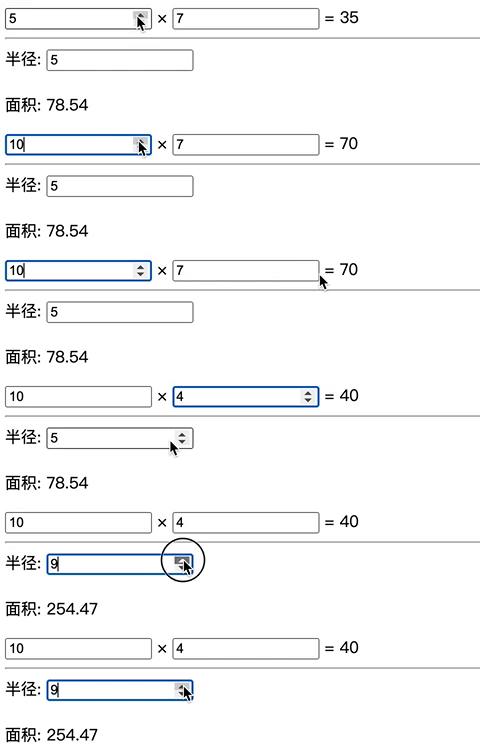
<!DOCTYPE html>
<html lang="en">
  <head>
    <meta charset="UTF-8" />
    <meta name="viewport" content="width=device-width, initial-scale=1.0" />
    <title>Document</title>
  </head>
  <body>
    <form oninput="result.value=parseInt(a.value)*parseInt(b.value)">
      <input type="number" id="a" value="5" />
      ×
      <input type="number" id="b" value="7" />
      =
      <output name="result" for="a b">35</output>
    </form>

    <hr />
    <form>
      <label for="radius">半径:</label>
      <input type="number" id="radius" value="5" min="0" /><br /><br />

      <label for="area">面积:</label>
      <output name="area" for="radius">
        <!-- 初始值 -->
        78.54
      </output>
    </form>
  </body>

  <script>
    const radiusInput = document.getElementById("radius")
    const areaOutput = document.querySelector('output[name="area"]')

    function calculateArea() {
      const radius = parseFloat(radiusInput.value) || 0
      const area = Math.PI * radius * radius
      areaOutput.value = area.toFixed(2)
    }

    radiusInput.addEventListener("input", calculateArea)
    calculateArea() // 初始化
  </script>
</html>
<label> 和 <output> 标签在创建交互式表单时非常有用,前者提高了表单的可访问性和可用性,后者则方便显示动态计算结果。合理使用这两个标签可以显著提升用户体验和表单的功能性
button 元素详解
<button> 是 HTML 中用于创建可点击按钮的元素,它可以执行各种操作,如提交表单、触发 JavaScript 函数或执行其他交互功能。
<button type="button">点击我</button>主要属性:
| 属性 | 描述 | 可选值 | 默认值 |
|---|---|---|---|
type | 定义按钮的类型和行为 | submit、reset、button | submit(在 <form> 内时) |
name | 为按钮命名,用于表单提交时标识 | 任意字符串 | - |
value | 定义按钮的值,表单提交时发送到服务器 | 任意字符串 | - |
disabled | 禁用按钮,使其不可点击 | disabled | - |
form | 关联到表单的 ID,即使按钮不在表单内 | 表单的 ID | - |
autofocus | 页面加载时自动聚焦到按钮 | autofocus | - |
formaction | 覆盖表单的 action 属性(仅用于 type="submit") | URL | - |
formenctype | 覆盖表单的 enctype 属性(仅用于 type="submit") | application/x-www-form-urlencoded、multipart/form-data、text/plain | - |
formmethod | 覆盖表单的 method 属性(仅用于 type="submit") | get、post | - |
formnovalidate | 覆盖表单的 novalidate 属性(仅用于 type="submit") | formnovalidate | - |
formtarget | 覆盖表单的 target 属性(仅用于 type="submit") | _blank、_self、_parent、_top、framename | - |
按钮类型
type="submit" (默认)
- 作用:提交表单数据到服务器
- 特点:在表单内时,如果不指定
type,默认就是submit
type="reset"
- 作用:重置表单字段到初始值
- 特点:会清除所有用户输入
type="button"
- 作用:普通按钮,无默认行为
- 特点:需要配合 JavaScript 使用
<form action="/submit" method="post">
  <input type="text" name="username" />
  <button type="submit">提交表单</button>
</form>

<form>
  <input type="text" name="username" value="默认值" />
  <button type="reset">重置表单</button>
</form>

<button type="button" onclick="alert('按钮被点击')">点击我</button>
按钮与表单关联
- 在表单内使用
<form action="/submit">
  <input type="text" name="username" />
  <button type="submit">提交</button>
</form>- 不在表单内但关联表单
<form id="myForm" action="/submit">
  <input type="text" name="username" />
</form>

<button form="myForm" type="submit">外部提交按钮</button>
按钮事件
<button id="myButton">点击我</button>

<script>
  const button = document.getElementById("myButton")

  // 点击事件
  button.addEventListener("click", function () {
    alert("按钮被点击!")
  })

  // 鼠标悬停事件
  button.addEventListener("mouseover", function () {
    this.style.backgroundColor = "#ff0000"
  })

  // 鼠标离开事件
  button.addEventListener("mouseout", function () {
    this.style.backgroundColor = ""
  })
</script>
示例:
<img src="https://zhangzhengyang.oss-cn-beijing.aliyuncs.com/images/202505232302943.png" alt="image-20250523230210246" style="zoom:50%;" /><!DOCTYPE html>
<html lang="zh-CN">
<head>
<meta charset="UTF-8" />
<meta name="viewport" content="width=device-width, initial-scale=1.0" />
<title>按钮示例</title>
<style>
.button-demo {
max-width: 500px;
margin: 20px auto;
padding: 20px;
border: 1px solid #ddd;
border-radius: 5px;
font-family: Arial, sans-serif;
}
.button-group {
display: flex;
gap: 10px;
margin-bottom: 20px;
}
button {
padding: 10px 15px;
border: none;
border-radius: 4px;
cursor: pointer;
font-size: 16px;
transition: background-color 0.3s;
}
.primary {
background-color: #4caf50;
color: white;
}
.primary:hover {
background-color: #45a049;
}
.secondary {
background-color: #2196f3;
color: white;
}
.secondary:hover {
background-color: #0b7dda;
}
.danger {
background-color: #f44336;
color: white;
}
.danger:hover {
background-color: #d32f2f;
}
.disabled {
background-color: #cccccc;
cursor: not-allowed;
}
.icon-button {
display: flex;
align-items: center;
gap: 5px;
}
</style>
</head>
<body>
<div class="button-demo">
<h2>按钮示例</h2>
<div class="button-group">
<button class="primary">主要操作</button>
<button class="secondary">次要操作</button>
<button class="danger">危险操作</button>
</div>
<div class="button-group">
<button class="primary" disabled>禁用按钮</button>
<button class="secondary" disabled>禁用按钮</button>
</div>
<h3>带图标的按钮</h3>
<div class="button-group">
<button class="icon-button primary">
<svg width="16" height="16" viewBox="0 0 24 24" fill="none" stroke="currentColor" stroke-width="2">
<path d="M5 12h14M12 5l7 7-7 7"></path>
</svg>
保存
</button>
<button class="icon-button danger">
<svg width="16" height="16" viewBox="0 0 24 24" fill="none" stroke="currentColor" stroke-width="2">
<circle cx="12" cy="12" r="10"></circle>
<line x1="15" y1="9" x2="9" y2="15"></line>
<line x1="9" y1="9" x2="15" y2="15"></line>
</svg>
删除
</button>
</div>
<h3>表单按钮</h3>
<form id="sampleForm">
<input type="text" name="username" placeholder="用户名" />
<button type="submit" class="primary">提交</button>
<button type="reset" class="secondary">重置</button>
</form>
<h3>外部关联按钮</h3>
<button form="sampleForm" type="submit" style="margin-right: 10px;">外部提交</button>
<button form="sampleForm" type="reset">外部重置</button>
</div>
<script>
// 按钮点击事件示例
document.querySelectorAll("button:not([disabled])").forEach((button) => {
button.addEventListener("click", function (e) {
if (this.type === "submit") {
e.preventDefault()
alert("表单已提交(模拟)")
} else if (this.type === "reset") {
e.preventDefault()
alert("表单已重置(模拟)")
} else {
alert(`你点击了: ${this.textContent}`)
}
})
})
</script>
</body>
</html>select 和 option 元素
select 元素
<select> 是 HTML 中用于创建下拉选择框的元素,允许用户从预定义的选项列表中进行选择
| 属性 | 描述 | 可选值 | 默认值 |
|---|---|---|---|
name | 为选择框命名,用于表单提交 | 任意字符串 | - |
size | 显示的选项数量 | 正整数 | 1(单选)/ 显示所有选项(多选时) |
multiple | 允许多选 | multiple | - |
disabled | 禁用选择框 | disabled | - |
required | 必填项 | required | - |
autofocus | 页面加载时自动聚焦 | autofocus | - |
form | 关联的表单 ID | 表单的 ID | - |
tabindex | 定义 Tab 键顺序 | 正整数 | - |
示例:
<form>
  <label for="country">国家/地区:</label>
  <select id="country" name="country">
    <option value="">请选择</option>
    <option value="cn">中国</option>
    <option value="us">美国</option>
    <option value="jp">日本</option>
    <option value="uk">英国</option>
  </select>

  <br /><br />

  <label for="colors">喜欢的颜色(多选):</label>
  <select id="colors" name="colors" multiple size="4">
    <option value="red">红色</option>
    <option value="green">绿色</option>
    <option value="blue">蓝色</option>
    <option value="yellow">黄色</option>
    <option value="purple">紫色</option>
  </select>
</form>
option 元素
<option> 是 <select> 的子元素,表示单个可选项
主要属性:
| 属性 | 描述 | 可选值 | 默认值 |
|---|---|---|---|
value | 提交到服务器的值 | 任意字符串 | 选项文本内容 |
selected | 默认选中 | selected | - |
disabled | 禁用该选项 | disabled | - |
label | 选项的简短标签 | 任意字符串 | 选项文本内容 |
示例:
<form>
  <label for="browser">浏览器:</label>
  <select id="browser" name="browser">
    <option value="">请选择浏览器</option>
    <option value="chrome" selected>Google Chrome</option>
    <option value="firefox">Mozilla Firefox</option>
    <option value="edge" disabled>Microsoft Edge (暂不可用)</option>
    <option value="safari">Apple Safari</option>
    <option value="opera">Opera</option>
  </select>

  <br /><br />

  <label for="size">尺寸:</label>
  <select id="size" name="size">
    <option value="s" label="小"></option>
    <option value="m" label="中" selected></option>
    <option value="l" label="大"></option>
    <option value="xl" label="特大"></option>
  </select>
</form>
optgroup 元素
<optgroup> 是 <select> 的子元素,用于对 <option> 进行分组,提高可读性
主要属性:
| 属性 | 描述 | 可选值 | 默认值 |
|---|---|---|---|
label | 分组的标签 | 任意字符串 | - |
disabled | 禁用整个分组 | disabled | - |
示例:
<img src="https://zhangzhengyang.oss-cn-beijing.aliyuncs.com/images/202505240015285.png" alt="image-20250524001525749" style="zoom:50%;" /><!DOCTYPE html>
<html lang="en">
<head>
<meta charset="UTF-8" />
<meta name="viewport" content="width=device-width, initial-scale=1.0" />
<title>Document</title>
</head>
<body>
<form>
<label for="car">汽车品牌:</label>
<select id="car" name="car">
<optgroup label="德国品牌">
<option value="bmw">宝马</option>
<option value="mercedes">奔驰</option>
<option value="audi">奥迪</option>
</optgroup>
<optgroup label="日本品牌">
<option value="toyota" selected>丰田</option>
<option value="honda">本田</option>
<option value="nissan">日产</option>
</optgroup>
<optgroup label="美国品牌">
<option value="ford">福特</option>
<option value="chevrolet">雪佛兰</option>
<option value="tesla">特斯拉</option>
</optgroup>
</select>
<br /><br />
<label for="fruit">水果 (禁用部分分组):</label>
<select id="fruit" name="fruit">
<optgroup label="热带水果">
<option value="mango">芒果</option>
<option value="pineapple">菠萝</option>
</optgroup>
<optgroup label="温带水果" disabled>
<option value="apple">苹果</option>
<option value="pear">梨</option>
</optgroup>
<optgroup label="浆果类">
<option value="strawberry">草莓</option>
<option value="blueberry">蓝莓</option>
</optgroup>
</select>
</form>
</body>
</html>fieldset 和 legend 元素
<fieldset> 和 <legend> 是 HTML 中用于组织和分组表单元素的标签,它们共同工作以提高表单的可读性和可访问性
<!DOCTYPE html>
<!--
来源:基础知识/8-表单.md
演示:fieldset / legend 表单分组、output 计算输出、progress / meter 进度条
-->
<html lang="zh-CN">
<head>
<meta charset="UTF-8">
<title>Fieldset / Output / Progress / Meter 演示</title>
<style>
* { margin: 0; padding: 0; box-sizing: border-box; }
body { font-family: -apple-system, sans-serif; padding: 30px; background: #f0f2f5; max-width: 900px; margin: 0 auto; }
h1 { color: #1a1a1a; margin-bottom: 25px; }
.section { background: white; padding: 25px; margin-bottom: 20px; border-radius: 10px; box-shadow: 0 2px 10px rgba(0,0,0,0.06); }
h2 { color: #333; font-size: 17px; margin-bottom: 15px; border-bottom: 2px solid #eee; padding-bottom: 8px; }
h3 { color: #555; font-size: 15px; margin: 18px 0 10px; }
fieldset {
border: 2px solid #dee2e6; border-radius: 10px; padding: 20px; margin: 15px 0;
transition: border-color 0.3s;
}
fieldset:hover { border-color: #3498db; }
legend {
font-weight: bold; font-size: 15px; color: #2c3e50; padding: 0 10px;
}
fieldset:disabled { opacity: 0.5; border-color: #e0e0e0; }
.form-group { margin-bottom: 14px; }
.form-group label { display: block; font-weight: 600; font-size: 13px; color: #555; margin-bottom: 5px; }
input[type="text"], input[type="number"], input[type="range"], select {
width: 100%; padding: 9px 12px; border: 2px solid #e0e0e0; border-radius: 6px;
font-size: 14px; transition: border-color 0.2s;
}
input:focus, select:focus { outline: none; border-color: #3498db; }
input[type="range"] { padding: 0; border: none; }
/* output 元素 */
output {
display: inline-block; padding: 6px 14px; background: #3498db; color: white;
border-radius: 6px; font-weight: bold; font-size: 16px; min-width: 60px;
text-align: center; font-variant-numeric: tabular-nums;
}
/* progress */
progress {
width: 100%; height: 22px; border: none; border-radius: 11px;
overflow: hidden;
}
progress[value] { appearance: none; -webkit-appearance: none; }
progress[value]::-webkit-progress-bar { background: #e9ecef; border-radius: 11px; }
progress[value]::-webkit-progress-value {
background: linear-gradient(90deg, #3498db, #2ecc71); border-radius: 11px;
transition: width 0.5s ease;
}
progress[value].striped::-webkit-progress-value {
background-image: linear-gradient(
45deg, rgba(255,255,255,.15) 25%, transparent 25%,
transparent 50%, rgba(255,255,255,.15) 50%, rgba(255,255,255,.15) 75%,
transparent 75%, transparent
);
background-size: 1rem 1rem;
}
progress:indeterminate { width: 100%; }
progress:indeterminate::-webkit-progress-bar { background: #e9ecef; }
/* meter */
meter {
width: 100%; height: 22px; border: none; border-radius: 11px;
appearance: none; -webkit-appearance: none;
}
meter::-webkit-meter-bar { background: #e9ecef; border-radius: 11px; }
meter::-webkit-meter-optimum-value { background: linear-gradient(90deg, #27ae60, #2ecc71); border-radius: 11px; }
meter::-webkit-meter-suboptimum-value { background: linear-gradient(90deg, #f39c12, #f1c40f); border-radius: 11px; }
meter::-webkit-meter-even-less-good-value { background: linear-gradient(90deg, #e74c3c, #c0392b); border-radius: 11px; }
button {
padding: 8px 16px; border: none; border-radius: 6px; cursor: pointer;
font-size: 13px; font-weight: 600; transition: all 0.2s;
}
.btn-primary { background: #3498db; color: white; }
.btn-primary:hover { background: #2980b9; }
.btn-success { background: #27ae60; color: white; }
.btn-danger { background: #e74c3c; color: white; }
.calc-display {
background: #263238; color: #eceff1; padding: 20px; border-radius: 10px;
text-align: center; font-size: 28px; font-weight: bold; font-variant-numeric: tabular-nums;
}
table { width: 100%; border-collapse: collapse; font-size: 13px; margin: 15px 0; }
th, td { padding: 10px 12px; text-align: left; border: 1px solid #dee2e6; }
th { background: #34495e; color: white; }
.info-card {
display: inline-block; padding: 15px 20px; background: #f8f9fa; border: 1px solid #dee2e6;
border-radius: 8px; margin: 5px; text-align: center; min-width: 140px;
}
.info-card .val { font-size: 24px; font-weight: bold; color: #3498db; }
.info-card .lbl { font-size: 12px; color: #666; margin-top: 4px; }
</style>
</head>
<body>
<h1>📦 Fieldset / Output / Progress / Meter 演示</h1>
<!-- ========== Fieldset / Legend ========== -->
<div class="section">
<h2>1. Fieldset / Legend 表单分组</h2>
<p>fieldset 用于对相关表单元素进行语义化分组,legend 提供组的标题。同时支持 <code>disabled</code> 禁用整组。</p>
<form id="group-form">
<fieldset id="fs-basic">
<legend>👤 基本信息</legend>
<div class="form-group">
<label>姓名</label>
<input type="text" placeholder="请输入姓名">
</div>
<div class="form-group">
<label>性别</label>
<select>
<option value="">请选择</option>
<option>男</option>
<option>女</option>
</select>
</div>
</fieldset>
<fieldset id="fs-contact">
<legend>📬 联系方式</legend>
<div class="form-group">
<label>邮箱</label>
<input type="text" placeholder="example@mail.com">
</div>
<div class="form-group">
<label>手机号</label>
<input type="text" placeholder="138xxxx xxxx">
</div>
</fieldset>
<fieldset id="fs-extra" disabled>
<legend>🔒 高级选项(已禁用整组)</legend>
<div class="form-group">
<label>备注</label>
<input type="text" placeholder="禁用状态下不可编辑">
</div>
<div class="form-group">
<label>优先级</label>
<select disabled>
<option>高</option>
<option>中</option>
<option>低</option>
</select>
</div>
</fieldset>
<div style="margin-top:15px;display:flex;gap:10px;">
<button type="button" class="btn-primary" onclick="toggleFieldset('fs-extra')">切换高级选项禁用状态</button>
<button type="button" class="btn-success" onclick="disableAllGroups()">禁用所有分组</button>
<button type="button" class="btn-danger" onclick="enableAllGroups()">启用所有分组</button>
</div>
</form>
</div>
<!-- ========== Output 计算输出 ========== -->
<div class="section">
<h2>2. Output 计算结果输出元素</h2>
<p><code><output></code> 用于显示计算结果,通常与 <code>oninput</code> 配合实现实时计算。</p>
<h3>简单计算器</h3>
<form oninput="o.value = parseFloat(a.value) + parseFloat(b.value || 0)"
style="display:flex;align-items:center;gap:15px;flex-wrap:wrap;max-width:500px;">
<input type="number" name="a" value="0" style="width:120px;" placeholder="数字 A">
<span style="font-size:24px;font-weight:bold;color:#666;">+</span>
<input type="number" name="b" value="0" style="width:120px;" placeholder="数字 B">
<span style="font-size:24px;font-weight:bold;color:#666;">=</span>
<output name="o" for="a b">0</output>
</form>
<h3>贷款计算器</h3>
<form oninput="
const P = parseFloat(loanAmount.value) || 0;
const r = (parseFloat(rate.value) || 0) / 100 / 12;
const n = (parseFloat(years.value) || 0) * 12;
const monthly = r > 0 ? P * r * Math.pow(1+r, n) / (Math.pow(1+r, n) - 1) : P / n;
monthlyOutput.value = isNaN(monthly) ? 0 : monthly.toFixed(2);
totalOutput.value = isNaN(monthly * n) ? 0 : (monthly * n).toFixed(2);
interestOutput.value = isNaN(monthly * n - P) ? 0 : (monthly * n - P).toFixed(2);
">
<div style="display:grid;grid-template-columns:1fr 1fr;gap:15px;max-width:550px;">
<div class="form-group">
<label>贷款金额(万元)</label>
<input type="range" name="loanAmount" min="10" max="500" value="100" step="5"
oninput="amountDisplay.value=this.value+' 万'">
<output name="amountDisplay" style="background:#f0f0f0;color:#333;font-size:14px;">100 万</output>
</div>
<div class="form-group">
<label>年利率(%)</label>
<input type="range" name="rate" min="2" max="10" value="4.5" step="0.1"
oninput="rateDisplay.value=this.value+'%'">
<output name="rateDisplay" style="background:#f0f0f0;color:#333;font-size:14px;">4.5%</output>
</div>
<div class="form-group">
<label>贷款年限</label>
<input type="range" name="years" min="1" max="30" value="20" step="1"
oninput="yearDisplay.value=this.value+' 年'">
<output name="yearDisplay" style="background:#f0f0f0;color:#333;font-size:14px;">20 年</output>
</div>
</div>
<div class="calc-display" style="margin-top:20px;">
月供: <output name="monthlyOutput" style="background:transparent;color:#2ecc71;font-size:32px;">0</output> 元
</div>
<div style="display:flex;gap:20px;justify-content:center;margin-top:15px;">
<div class="info-card">
<div class="val"><output name="totalOutput" style="background:transparent;color:#3498db;font-size:20px;">0</output></div>
<div class="lbl">还款总额(万元)</div>
</div>
<div class="info-card">
<div class="val"><output name="interestOutput" style="background:transparent;color:#e74c3c;font-size:20px;">0</output></div>
<div class="lbl">利息总额(万元)</div>
</div>
</div>
</form>
</div>
<!-- ========== Progress 进度条 ========== -->
<div class="section">
<h2>3. Progress 进度条</h2>
<p><code><progress></code> 表示任务的完成进度(已知或未知进度)。</p>
<h3>确定进度(已知百分比)</h3>
<div style="max-width:600px;">
<div style="display:flex;justify-content:space-between;margin-bottom:5px;font-size:13px;color:#666;">
<span>文件下载</span>
<span id="progress-pct">0%</span>
</div>
<progress id="demo-progress" value="0" max="100" class="striped"></progress>
</div>
<div style="margin:15px 0;display:flex;gap:10px;">
<button class="btn-primary" onclick="animateProgress()">▶ 模拟下载进度</button>
<button class="btn-warning" onclick="setProgress(35)">设为 35%</button>
<button class="btn-warning" onclick="setProgress(72)">设为 72%</button>
<button class="btn-success" onclick="setProgress(100)">完成 100%</button>
</div>
<h3>不确定进度(加载中...)</h3>
<div style="max-width:600px;margin:15px 0;">
<progress indeterminate></progress>
<p style="font-size:13px;color:#888;margin-top:5px;">⏳ 适用于加载时间不确定的场景(如请求服务器)</p>
</div>
<h3>多种样式</h3>
<div style="display:grid;grid-template-columns:1fr 1fr;gap:15px;max-width:600px;">
<div>
<p style="font-size:13px;margin-bottom:5px;">基础进度条</p>
<progress value="65" max="100"></progress>
</div>
<div>
<p style="font-size:13px;margin-bottom:5px;">条纹动画</p>
<progress value="45" max="100" class="striped"></progress>
</div>
<div>
<p style="font-size:13px;margin-bottom:5px;">低进度</p>
<progress value="15" max="100"></progress>
</div>
<div>
<p style="font-size:13px;margin-bottom:5px;">接近完成</p>
<progress value="92" max="100"></progress>
</div>
</div>
</div>
<!-- ========== Meter 度量衡 ========== -->
<div class="section">
<h2>4. Meter 度量衡指示器</h2>
<p><code><meter></code> 表示已知范围内的标量测量值(不同于 progress,它有高低阈值概念)。</p>
<h3>磁盘空间</h3>
<div style="max-width:500px;">
<meter value="68" min="0" max="100" low="30" high="85" optimum="50"></meter>
<p style="font-size:13px;margin-top:5px;">
已用 68GB / 100GB
(<code>low=30 high=85 optimum=50</code>)
</p>
</div>
<h3>各种度量场景</h3>
<div style="display:grid;grid-template-columns:1fr 1fr;gap:20px;max-width:650px;">
<div>
<p style="font-size:13px;margin-bottom:5px;">🟢 健康 (65/100, optimum=70)</p>
<meter value="65" min="0" max="100" low="30" high="80" optimum="70"></meter>
<p style="font-size:12px;color:#27ae60;">在最佳范围内</p>
</div>
<div>
<p style="font-size:13px;margin-bottom:5px;">🟡 警告 (82/100, optimum=50)</p>
<meter value="82" min="0" max="100" low="30" high="80" optimum="50"></meter>
<p style="font-size:12px;color:#f39c12;">超过 high 阈值</p>
</div>
<div>
<p style="font-size:13px;margin-bottom:5px;">🔴 危险 (92/100, optimum=30)</p>
<meter value="92" min="0" max="100" low="20" high="70" optimum="30"></meter>
<p style="font-size:12px;color:#e74c3c;">远超 high 阈值</p>
</div>
<div>
<p style="font-size:13px;margin-bottom:5px;">⚪ 无数据</p>
<meter value="0" min="0" max="100" low="30" high="70" optimum="50"></meter>
<p style="font-size:12px;color:#888;">空状态</p>
</div>
</div>
<h3>Progress vs Meter 对比</h3>
<table>
<thead>
<tr><th>特征</th><th>progress</th><th>meter</th></tr>
</thead>
<tbody>
<tr><td>用途</td><td>任务完成进度</td><td>标量测量值</td></tr>
<tr><td>是否有低/高阈值</td><td>❌ 没有</td><td>✅ low/high/optimum</td></tr>
<tr><td>不确定状态</td><td>✅ indeterminate</td><td>不支持</td></tr>
<tr><td>颜色变化</td><td>单一色</td><td>根据阈值变色(绿/黄/红)</td></tr>
<tr><td>典型场景</td><td>下载、上传、加载</td><td>磁盘用量、投票率、分数</td></tr>
</tbody>
</table>
</div>
<script>
// Fieldset 操作
function toggleFieldset(id) {
const fs = document.getElementById(id);
fs.disabled = !fs.disabled;
}
function disableAllGroups() {
document.querySelectorAll('fieldset').forEach(fs => fs.disabled = true);
}
function enableAllGroups() {
document.querySelectorAll('fieldset').forEach(fs => fs.disabled = false);
}
// Progress 动画
function animateProgress() {
const bar = document.getElementById('demo-progress');
const pct = document.getElementById('progress-pct');
bar.value = 0;
let val = 0;
clearInterval(window._progTimer);
window._progTimer = setInterval(() => {
val += Math.random() * 8 + 2;
if (val >= 100) { val = 100; clearInterval(window._progTimer); }
bar.value = val;
pct.textContent = Math.round(val) + '%';
}, 200);
}
function setProgress(v) {
const bar = document.getElementById('demo-progress');
bar.value = v;
document.getElementById('progress-pct').textContent = v + '%';
}
</script>
</body>
</html>fieldset 元素
<fieldset> 是一个容器元素,用于将一组相关的表单控件分组在一起。它会在视觉上创建一个边框,并将其中的表单元素作为一个整体呈现
- 将表单中的相关字段分组
- 提高表单的视觉层次感
- 禁用整个字段集
- 与
<legend>配合使用增强可访问性
主要属性:
| 属性 | 描述 | 可选值 | 默认值 |
|---|---|---|---|
disabled | 禁用整个字段集中的所有控件 | disabled | - |
form | 关联到表单的 ID | 表单的 ID | - |
name | 为字段集命名 | 任意字符串 | - |
示例:
<img src="https://zhangzhengyang.oss-cn-beijing.aliyuncs.com/images/202505240024067.png" alt="image-20250524002416259" style="zoom:50%;" /><form>
<fieldset>
<legend>个人信息</legend>
<label for="username">用户名:</label>
<input type="text" id="username" name="username" /><br /><br />
<label for="email">电子邮箱:</label>
<input type="email" id="email" name="email" /><br /><br />
</fieldset>
<fieldset>
<legend>偏好设置</legend>
<label for="theme">主题:</label>
<select id="theme" name="theme">
<option value="light">浅色</option>
<option value="dark">深色</option></select
><br /><br />
<label for="notifications">通知:</label>
<input type="checkbox" id="notifications" name="notifications" checked />
接收通知
</fieldset>
</form>legend 元素
<legend> 是 <fieldset> 的子元素,用于为字段集提供标题或说明。它通常显示在字段集的边框内或上方
主要属性:
| 属性 | 描述 | 可选值 | 默认值 |
|---|---|---|---|
accesskey | 定义访问键 | 任意字符 | - |
disabled | 禁用图例(很少使用) | disabled | - |
form | 关联到表单的 ID | 表单的 ID | - |
name | 为图例命名 | 任意字符串 | - |
使用场景:
- 为字段集提供描述性标题
- 提高表单的可访问性
- 与屏幕阅读器配合使用
- 增强表单的视觉层次感
<fieldset> 是语义化元素,专门用于表单分组,而 <div> 是通用容器。<fieldset> 默认有边框样式,并且与 <legend> 配合使用时对可访问性更友好
使用 CSS 移除 <fieldset> 的默认样式:
fieldset {
  border: none;
  padding: 0;
  margin: 0;
}
表单验证
HTML 表单验证是确保用户输入数据有效性的重要机制。HTML5 引入强大的客户端验证功能,可以在用户提交表单前检查数据的有效性,减少服务器端的无效请求
<h4>047-form-validation-custom.html</h4><!-- 来源:8-表单.md - 表单验证与自定义错误提示 -->
<!DOCTYPE html>
<html lang="zh-CN">
<head>
<meta charset="UTF-8">
<meta name="viewport" content="width=device-width, initial-scale=1.0">
<title>表单验证 — 原生 + 自定义</title>
<style>
* { margin: 0; padding: 0; box-sizing: border-box; }
body {
font-family: -apple-system, BlinkMacSystemFont, "Segoe UI", sans-serif;
line-height: 1.6; color: #333;
background: #f5f7fa; min-height: 100vh; display: flex; align-items: center; justify-content: center; padding: 20px;
}
.form-card {
background: white; width: 100%; max-width: 500px;
border-radius: 16px; padding: 36px;
box-shadow: 0 10px 40px rgba(0,0,0,0.08);
}
.form-card h1 { text-align: center; color: #222; margin-bottom: 6px; font-size: 24px; }
.form-card > p { text-align: center; color: #888; margin-bottom: 28px; font-size: 14px; }
.field { margin-bottom: 20px; }
.field label { display: block; font-weight: 600; font-size: 14px; color: #444; margin-bottom: 6px; }
.field label .req { color: #dc3545; }
input[type="text"],
input[type="email"],
input[type="password"],
input[type="tel"] {
width: 100%; padding: 12px 14px; border: 2px solid #e0e0e0;
border-radius: 8px; font-size: 15px; transition: all 0.2s;
outline: none; background: #fafbfc;
}
/* 验证状态样式 */
input:valid:not(:placeholder-shown) {
border-color: #28a745;
background: linear-gradient(90deg, #fafffa 0%, #fafbfc 50%);
}
input:invalid:not(:placeholder-shown) {
border-color: #dc3545;
background: linear-gradient(90deg, #fffafa 0%, #fafbfc 50%);
}
input:focus {
border-color: #667eea;
box-shadow: 0 0 0 3px rgba(102,126,234,0.12);
}
/* 自定义错误提示 */
.error-msg {
color: #dc3545; font-size: 12px; margin-top: 4px;
display: none; padding-left: 2px;
}
.error-msg.show { display: block; animation: shake 0.3s ease-out; }
@keyframes shake {
0%, 100% { transform: translateX(0); }
25% { transform: translateX(-4px); }
75% { transform: translateX(4px); }
}
/* 成功提示 */
.success-icon {
position: absolute; right: 14px; top: 38px;
color: #28a745; font-size: 16px; opacity: 0; transition: opacity 0.2s;
}
input:valid:not(:placeholder-shown) ~ .success-icon { opacity: 1; }
/* 提交按钮 */
.btn-submit {
width: 100%; padding: 14px; background: linear-gradient(135deg, #0066cc, #0052a3);
color: white; border: none; border-radius: 10px; font-size: 16px;
font-weight: 600; cursor: pointer; transition: all 0.3s; margin-top: 8px;
}
.btn-submit:hover { transform: translateY(-2px); box-shadow: 0 6px 20px rgba(0,102,204,0.25); }
.btn-submit:disabled { opacity: 0.5; cursor: not-allowed; transform: none; }
/* 验证规则说明 */
.rules-panel {
background: #e8f4fd; border-left: 4px solid #0066cc;
padding: 18px; border-radius: 8px; margin-top: 24px;
}
.rules-panel h4 { color: #0066cc; font-size: 14px; margin-bottom: 10px; }
.rules-list { list-style: none; font-size: 13px; color: #444; line-height: 1.9; }
.rules-list li { padding-left: 18px; position: relative; }
.rules-list li::before { content: "✓"; position: absolute; left: 0; color: #0066cc; font-weight: bold; }
.rules-list code { background: #d0e8ff; padding: 1px 5px; border-radius: 3px; font-size: 11px; }
/* 字段相对定位(用于成功图标) */
.field { position: relative; }
</style>
</head>
<body>
<div class="form-card">
<h1>🔐 用户登录</h1>
<p>演示 HTML5 原生验证 + 自定义错误提示</p>
<form id="loginForm" novalidate onsubmit="return validateForm(event)">
<!-- 用户名 -->
<div class="field">
<label for="uname">用户名 <span class="req">*</span></label>
<input type="text" id="uname" name="username"
placeholder="请输入用户名"
required minlength="3" maxlength="20"
pattern="[a-zA-Z][a-zA-Z0-9_]*"
oninput="clearError('uname')"
aria-describedby="err-uname" />
<span class="success-icon">✓</span>
<div class="error-msg" id="err-uname"></div>
</div>
<!-- 密码 -->
<div class="field">
<label for="pwd">密码 <span class="req">*</span></label>
<input type="password" id="pwd" name="password"
placeholder="请输入密码(至少8位,含字母和数字)"
required minlength="8" maxlength="32"
pattern="^(?=.*[A-Za-z])(?=.*\d)[A-Za-z\d!@#$%^&*()_+]{8,}$"
oninput="checkPasswordStrength(this.value); clearError('pwd')"
aria-describedby="err-pwd pwd-strength" />
<span class="success-icon">✓</span>
<div class="error-msg" id="err-pwd"></div>
<div id="pwd-strength" style="margin-top:4px;font-size:12px;"></div>
</div>
<!-- 邮箱 -->
<div class="field">
<label for="email">邮箱地址</label>
<input type="email" id="email" name="email"
placeholder="example@email.com"
oninput="clearError('email')"
aria-describedby="err-email" />
<span class="success-icon">✓</span>
<div class="error-msg" id="err-email"></div>
</div>
<!-- 手机号 -->
<div class="field">
<label for="phone">手机号码</label>
<input type="tel" id="phone" name="phone"
placeholder="请输入11位手机号"
pattern="[0-9]{11}"
inputmode="numeric"
oninput="clearError('phone')"
aria-describedby="err-phone" />
<span class="success-icon">✓</span>
<div class="error-msg" id="err-phone"></div>
</div>
<button type="submit" class="btn-submit">🚀 登录</button>
</form>
<!-- 验证规则说明 -->
<div class="rules-panel">
<h4>📋 已应用的验证规则</h4>
<ul class="rules-list">
<li><code>required</code> — 必填字段不能为空</li>
<li><code>minlength/maxlength</code> — 长度范围限制</li>
<li><code>pattern</code> — 正则表达式格式校验</li>
<li><code>type="email"</code> / <code>type="tel"</code> — 内置类型校验</li>
<li><code>:valid</code> / <code>:invalid</code> CSS 伪类实时反馈</li>
<li><code>setCustomValidity()</code> JS 自定义错误消息</li>
<li><code>aria-describedby</code> 关联错误提示(无障碍)</li>
</ul>
</div>
</div>
<script>
/**
* 显示自定义错误消息
*/
function showError(fieldId, message) {
const field = document.getElementById(fieldId)
const errorEl = document.getElementById(`err-${fieldId}`)
// 使用 setCustomValidity 设置原生验证状态
field.setCustomValidity(message)
// 显示自定义错误元素
if (errorEl) {
errorEl.textContent = message
errorEl.classList.add('show')
}
}
/**
* 清除错误消息
*/
function clearError(fieldId) {
const field = document.getElementById(fieldId)
const errorEl = document.getElementById(`err-${fieldId}`)
field.setCustomValidity('')
if (errorEl) {
errorEl.classList.remove('show')
errorEl.textContent = ''
}
}
/**
* 检查密码强度
*/
function checkPasswordStrength(pwd) {
const el = document.getElementById('pwd-strength')
if (!pwd) { el.innerHTML = ''; return }
let strength = 0
let tips = []
if (pwd.length >= 8) strength++
else tips.push('至少8位')
if (/[A-Z]/.test(pwd)) strength++
else tips.push('需要大写字母')
if (/[a-z]/.test(pwd)) strength++
else tips.push('需要小写字母')
if (/\d/.test(pwd)) strength++
else tips.push('需要数字')
if (/[^A-Za-z0-9]/.test(pwd)) strength++
else tips.push('建议包含特殊字符')
const levels = ['很弱', '弱', '一般', '强', '很强']
const colors = ['#dc3545', '#fd7e14', '#ffc107', '#28a745', '#198754']
el.innerHTML = `<strong style="color:${colors[strength-1]}">${levels[strength-1] || '很弱'}</strong>`
+ ` (${strength}/5)` + (tips.length ? ` — ${tips.join('、')}` : '')
}
/**
* 表单提交验证
*/
function validateForm(e) {
e.preventDefault()
let isValid = true
// 验证用户名
const uname = document.getElementById('uname')
if (!uname.value.trim()) {
showError('uname', '请输入用户名'); isValid = false
} else if (uname.value.length < 3) {
showError('uname', '用户名至少需要3个字符'); isValid = false
} else if (!/^[a-zA-Z][a-zA-Z0-9_]*$/.test(uname.value)) {
showError('uname', '必须以字母开头,只允许字母、数字、下划线'); isValid = false
} else {
clearError('uname')
}
// 验证密码
const pwd = document.getElementById('pwd')
if (!pwd.value) {
showError('pwd', '请输入密码'); isValid = false
} else if (pwd.value.length < 8) {
showError('pwd', '密码至少需要8个字符'); isValid = false
} else if (!/(?=.*[A-Za-z])(?=.*\d)/.test(pwd.value)) {
showError('pwd', '密码必须同时包含字母和数字'); isValid = false
} else {
clearError('pwd')
}
// 验证邮箱
const email = document.getElementById('email')
if (email.value && !email.validity.valid) {
showError('email', '请输入有效的邮箱地址'); isValid = false
} else {
clearError('email')
}
// 验证手机号
const phone = document.getElementById('phone')
if (phone.value && !/^[0-9]{11}$/.test(phone.value)) {
showError('phone', '请输入正确的11位手机号'); isValid = false
} else {
clearError('phone')
}
if (isValid) {
alert('✅ 验证通过!即将提交登录请求...')
console.log('表单数据:', Object.fromEntries(new FormData(document.getElementById('loginForm'))))
}
return false
}
</script>
</body>
</html><!DOCTYPE html>
<!--
来源:基础知识/8-表单.md
演示:表单验证(required/pattern/min/max/step/minlength/maxlength/setCustomValidity)
formnovalidate / novalidate 跳过验证
-->
<html lang="zh-CN">
<head>
<meta charset="UTF-8">
<title>表单验证完整演示</title>
<style>
* { margin: 0; padding: 0; box-sizing: border-box; }
body { font-family: -apple-system, sans-serif; padding: 30px; background: #f0f2f5; max-width: 900px; margin: 0 auto; }
h1 { color: #1a1a1a; margin-bottom: 25px; }
.section { background: white; padding: 25px; margin-bottom: 20px; border-radius: 10px; box-shadow: 0 2px 10px rgba(0,0,0,0.06); }
h2 { color: #333; font-size: 17px; margin-bottom: 15px; border-bottom: 2px solid #eee; padding-bottom: 8px; }
h3 { color: #555; font-size: 15px; margin: 18px 0 10px; }
.form-group { margin-bottom: 16px; }
.form-group label { display: block; font-weight: 600; font-size: 13px; color: #555; margin-bottom: 6px; }
.form-group label .tag {
background: #e3f2fd; color: #1976d2; padding: 1px 7px; border-radius: 3px;
font-size: 11px; font-family: monospace; margin-left: 5px;
}
input, select, textarea {
width: 100%; padding: 10px 12px; border: 2px solid #e0e0e0; border-radius: 8px;
font-size: 14px; transition: border-color 0.2s, box-shadow 0.2s;
}
input:focus, select:focus, textarea:focus {
outline: none; border-color: #3498db; box-shadow: 0 0 0 3px rgba(52,152,219,0.15);
}
input:invalid:not(:placeholder-shown), select:invalid {
border-color: #e74c3c; animation: shake 0.3s ease-in-out;
}
input:valid:not(:placeholder-shown) { border-color: #27ae60; }
@keyframes shake {
0%, 100% { transform: translateX(0); }
25% { transform: translateX(-5px); }
75% { transform: translateX(5px); }
}
button {
padding: 10px 20px; border: none; border-radius: 6px; cursor: pointer;
font-size: 14px; font-weight: 600; transition: all 0.2s;
}
.btn-primary { background: #3498db; color: white; }
.btn-primary:hover { background: #2980b9; }
.btn-success { background: #27ae60; color: white; }
.btn-danger { background: #e74c3c; color: white; }
.btn-warning { background: #f39c12; color: white; }
.validation-msg { font-size: 12px; margin-top: 4px; min-height: 18px; }
.validation-msg.error { color: #e74c3c; }
.validation-msg.success { color: #27ae60; }
.log-panel {
background: #263238; color: #eceff1; padding: 15px; border-radius: 8px;
font-family: monospace; font-size: 12px; line-height: 1.6; max-height: 300px; overflow-y: auto;
}
table { width: 100%; border-collapse: collapse; font-size: 13px; margin: 15px 0; }
th, td { padding: 10px 12px; text-align: left; border: 1px solid #dee2e6; }
th { background: #34495e; color: white; }
.validity-badge { display: inline-block; padding: 2px 8px; border-radius: 10px; font-size: 11px; font-weight: bold; }
.badge-valid { background: #e8f5e9; color: #2e7d32; }
.badge-invalid { background: #fce4ec; color: #c62828; }
</style>
</head>
<body>
<h1>✅ 表单验证完整演示</h1>
<!-- ========== 内置验证属性 ========== -->
<div class="section">
<h2>1. HTML5 内置验证属性</h2>
<p>尝试留空或输入无效数据后点击提交,观察浏览器原生的验证提示:</p>
<form id="validate-form" onsubmit="return handleFormSubmit(event)" novalidate>
<div class="form-group">
<label>required 必填 <span class="tag">required</span></label>
<input type="text" name="username" required placeholder="此项不能为空" minlength="3" maxlength="20">
<div class="validation-msg" id="msg-required"></div>
</div>
<div class="form-group">
<label>pattern 正则验证 <span class="tag">pattern="[A-Za-z]{3,}"</span></label>
<input type="text" name="code" pattern="[A-Za-z]{3,}" title="请输入至少3个英文字母" placeholder="至少3个字母">
<div class="validation-msg" id="msg-pattern"></div>
</div>
<div class="form-group">
<label>min/max 范围 <span class="tag">min=0 max=150</span></label>
<input type="number" name="age" min="0" max="150" placeholder="年龄 0-150">
<div class="validation-msg" id="msg-range"></div>
</div>
<div class="form-group">
<label>minlength/maxlength <span class="tag">minlen=6 maxlen=20</span></label>
<input type="password" name="pwd" minlength="6" maxlength="20" placeholder="密码 6-20 位">
<div class="validation-msg" id="msg-len"></div>
</div>
<div class="form-group">
<label>email 类型自带验证 <span class="tag">type=email</span></label>
<input type="email" name="email" placeholder="user@example.com">
<div class="validation-msg" id="msg-email"></div>
</div>
<div class="form-group">
<label>step 步长验证 <span class="tag">step=5</span></label>
<input type="number" name="quantity" min="0" max="100" step="5" placeholder="必须是5的倍数">
<div class="validation-msg" id="msg-step"></div>
</div>
<div style="display:flex;gap:10px;margin-top:20px;">
<button type="submit" class="btn-primary">🔍 提交验证</button>
<button type="reset" class="btn-warning">🔄 重置</button>
<button type="button" class="btn-success" onclick="checkAllValidity()">📊 检查全部有效性</button>
</div>
</form>
<div class="log-panel" id="validation-log" style="margin-top:15px;">// 验证日志将显示在这里...</div>
</div>
<!-- ========== novalidate / formnovalidate ========== -->
<div class="section">
<h2>2. novalidate / formnovalidate — 跳过验证</h2>
<div style="display:flex;gap:20px;flex-wrap:wrap;">
<div style="flex:1;min-width:300px;">
<h3>novalidate 表单(整个表单跳过验证)</h3>
<form action="#" novalidate onsubmit="event.preventDefault(); logNoValidate('novalidate 表单提交成功(无验证!)');">
<div class="form-group">
<label>用户名 <span class="tag">required 但被忽略</span></label>
<input type="text" required placeholder="留空也能提交">
</div>
<div class="form-group">
<label>邮箱 <span class="tag">type=email 但被忽略</span></label>
<input type="email" placeholder="随便输">
</div>
<button type="submit" class="btn-danger">提交(novalidate)</button>
</form>
</div>
<div style="flex:1;min-width:300px;">
<h3>formnovalidate 按钮(仅该按钮跳过验证)</h3>
<form action="#" onsubmit="event.preventDefault(); logNoValidate('正常验证通过');">
<div class="form-group">
<label>用户名 <span class="tag">required</span></label>
<input type="text" required placeholder="必填">
</div>
<div style="display:flex;gap:10px;">
<button type="submit" class="btn-primary">正常提交(需验证)</button>
<button type="submit" formnovalidate class="btn-warning">草稿保存(跳过验证)</button>
</div>
</form>
</div>
</div>
<div class="log-panel" id="novalidate-log" style="margin-top:15px;"></div>
</div>
<!-- ========== setCustomValidity ========== -->
<div class="section">
<h2>3. setCustomValidity 自定义验证消息</h2>
<p>使用 JavaScript 设置自定义验证提示:</p>
<form id="custom-form" onsubmit="return validateCustom(event)">
<div class="form-group">
<label>确认密码</label>
<input type="password" id="pwd1" placeholder="设置密码" oninput="clearCustom(this)">
</div>
<div class="form-group">
<label>再次输入密码</label>
<input type="password" id="pwd2" placeholder="再次输入" oninput="checkPasswordMatch()">
<div class="validation-msg" id="custom-msg"></div>
</div>
<div class="form-group">
<label>用户协议 <span class="tag">自定义验证</span></label>
<label style="display:flex;align-items:center;gap:8px;cursor:pointer;">
<input type="checkbox" id="agree" onchange="validateAgree()"> 我已阅读并同意《用户协议》
</label>
<div class="validation-msg" id="agree-msg"></div>
</div>
<button type="submit" class="btn-primary">提交</button>
</form>
<div class="log-panel" id="custom-log" style="margin-top:15px;"></div>
</div>
<!-- ========== Constraint Validation API ========== -->
<div class="section">
<h2>4. Constraint Validation API 编程式验证</h2>
<div class="form-group">
<label>测试输入框</label>
<input type="text" id="api-test" required minlength="3" pattern="[a-zA-Z]+" placeholder="至少3个字母" value="">
</div>
<div style="display:flex;gap:10px;flex-wrap:wrap;margin:15px 0;">
<button class="btn-primary" onclick="testCheckValidity()">checkValidity()</button>
<button class="btn-success" onclick="testReportValidity()">reportValidity()</button>
<button class="btn-warning" onclick="showValidityState()">validity 状态</button>
<button class="btn-danger" onclick="setCustomMsgAPI()">setCustomValidity()</button>
<button style="background:#6c757d;color:white;" onclick="clearCustomMsg()">清除自定义消息</button>
</div>
<div class="log-panel" id="api-log"></div>
<h3 style="margin-top:20px;">validity 对象属性详解</h3>
<table>
<thead>
<tr><th>属性</th><th>含义</th><th>触发条件</th></tr>
</thead>
<tbody>
<tr><td><code>valueMissing</code></td><td>值为空</td><td>required 但没填</td></tr>
<tr><td><code>typeMismatch</code></td><td>类型不符</td><td>email/url 格式错误</td></tr>
<tr><td><code>patternMismatch</code></td><td>正则不匹配</td><td>pattern 不满足</td></tr>
<tr><td><code>tooLong</code></td><td>超出长度</td><td>超过 maxlength</td></tr>
<tr><td><code>tooShort</code></td><td>长度不足</td><td>少于 minlength</td></tr>
<tr><td><code>rangeUnderflow</code></td><td>小于最小值</td><td>低于 min</td></tr>
<tr><td><code>rangeOverflow</code></td><td>大于最大值</td><td>超过 max</td></tr>
<tr><td><code>stepMismatch</code></td><td>步长不匹配</td><td>不符合 step</td></tr>
<tr><td><code>badInput</code></td><td>无效输入</td><td>数字框输入了字母</td></tr>
<tr><td><code>customError</code></td><td>自定义错误</td><td>调用了 setCustomValidity</td></tr>
<tr><td><code>valid</code></td><td>整体有效</td><td>以上全部为 false</td></tr>
</tbody>
</table>
</div>
<script>
const log = (elId, msg) => {
const el = document.getElementById(elId);
el.textContent = `[${new Date().toLocaleTimeString()}] ${msg}\n` + el.textContent;
};
function handleFormSubmit(e) {
e.preventDefault();
const form = e.target;
const inputs = form.querySelectorAll('input');
let allValid = true;
inputs.forEach(input => {
const valid = input.checkValidity();
if (!valid) allValid = false;
log('validation-log',
`${input.name || input.type}: ${valid ? '✅ 有效' : '❌ 无效'}${
!valid ? ` → ${input.validationMessage}` : ''
}`);
});
log('validation-log', `\n// 整体验证结果: ${allValid ? '✅ 通过' : '❌ 未通过'}\n`);
return false;
}
function checkAllValidity() {
const form = document.getElementById('validate-form');
const inputs = form.querySelectorAll('input');
let results = [];
inputs.forEach(input => {
const v = input.validity;
results.push({
name: input.name || input.type,
isValid: v.valid,
valueMissing: v.valueMissing,
typeMismatch: v.typeMismatch,
patternMismatch: v.patternMismatch,
tooShort: v.tooShort,
tooLong: v.tooLong,
rangeUnderflow: v.rangeUnderflow,
rangeOverflow: v.rangeOverflow,
stepMismatch: v.stepMismatch,
message: input.validationMessage
});
});
let output = '// 各字段详细验证状态:\n\n';
results.forEach((r, i) => {
output += `【${i + 1}】${r.name}\n`;
output += ` valid: ${r.isValid}\n`;
Object.keys(r).filter(k => k !== 'name' && k !== 'isValid' && k !== 'message' && r[k]).forEach(k => {
output += ` ❌ ${k}: true\n`;
});
if (!r.isValid) output += ` 💬 message: "${r.message}"\n`;
output += '\n';
});
document.getElementById('validation-log').textContent = output;
}
function logNoValidate(msg) {
document.getElementById('novalidate-log').textContent =
`[${new Date().toLocaleTimeString()}] ${msg}\n` +
'// novalidate/formnovalidate 允许在以下场景使用:\n' +
'// - 草稿保存(不需要完整数据)\n' +
'// - 分步表单(先收集部分信息)\n' +
'// - 导出功能(不需要严格校验)\n';
}
function clearCustom(el) {
el.setCustomValidity('');
}
function checkPasswordMatch() {
const p1 = document.getElementById('pwd1').value;
const p2 = document.getElementById('pwd2');
const msg = document.getElementById('custom-msg');
if (p2.value && p2.value !== p1) {
p2.setCustomValidity('两次输入的密码不一致!');
msg.className = 'validation-msg error';
msg.textContent = '❌ 两次密码不一致';
} else if (p2.value) {
p2.setCustomValidity('');
msg.className = 'validation-msg success';
msg.textContent = '✅ 密码一致';
} else {
p2.setCustomValidity('');
msg.textContent = '';
}
}
function validateAgree() {
const cb = document.getElementById('agree');
const msg = document.getElementById('agree-msg');
if (!cb.checked) {
cb.setCustomValidity('必须同意用户协议才能继续');
msg.className = 'validation-msg error';
msg.textContent = '❌ 请先同意用户协议';
} else {
cb.setCustomValidity('');
msg.className = 'validation-msg success';
msg.textContent = '✅ 已同意';
}
}
function validateCustom(e) {
e.preventDefault();
const form = e.target;
if (form.checkValidity()) {
log('custom-log', '✅ 自定义验证全部通过!\n');
} else {
form.reportValidity();
log('custom-log', '❌ 存在验证错误,请检查上方提示。\n');
}
return false;
}
// API 测试
function testCheckValidity() {
const el = document.getElementById('api-test');
const valid = el.checkValidity();
log('api-log',
`checkValidity(): ${valid}\n` +
`// 返回布尔值,不显示错误提示\n` +
`// 适合静默验证(如实时检测)`
);
}
function testReportValidity() {
const el = document.getElementById('api-test');
const valid = el.reportValidity();
log('api-log',
`reportValidity(): ${valid}\n` +
`// 返回布尔值 + 显示浏览器原生错误提示气泡\n` +
`// 适合表单提交时调用`
);
}
function showValidityState() {
const el = document.getElementById('api-test');
const v = el.validity;
log('api-log',
`// validity 对象完整状态:\n{\n` +
` valid: ${v.valid}\n` +
` valueMissing: ${v.valueMissing} // 是否为空\n` +
` typeMismatch: ${v.typeMismatch} // 类型是否正确\n` +
` patternMismatch: ${v.patternMismatch} // 正则是否匹配\n` +
` tooShort: ${v.tooShort} // 是否太短\n` +
` tooLong: ${v.tooLong} // 是否太长\n` +
` rangeUnderflow: ${v.rangeUnderflow} // 是否低于最小值\n` +
` rangeOverflow: ${v.rangeOverflow} // 是否超过最大值\n` +
` stepMismatch: ${v.stepMismatch} // 步长是否匹配\n` +
` badInput: ${v.badInput} // 输入是否有效\n` +
` customError: ${v.customError} // 是否有自定义错误\n` +
`}\n\n` +
`// validationMessage: "${el.validationMessage}"`
);
}
function setCustomMsgAPI() {
const el = document.getElementById('api-test');
el.setCustomValidity('这是一个通过 JS API 设置的自定义错误消息!');
log('api-log',
`setCustomValidity("自定义消息")\n` +
`// 当前 validationMessage: "${el.validationMessage}"\n` +
`// 要清除需调用 setCustomValidity("")`
);
}
function clearCustomMsg() {
const el = document.getElementById('api-test');
el.setCustomValidity('');
log('api-log', 'setCustomValidity("") → 自定义消息已清除');
}
</script>
</body>
</html>HTML5 内置表单验证
HTML5 提供多种内置验证机制,通过设置表单元素的特定属性即可实现
- 必填字段验证:使用
required属性标记必填字段 - 数据类型验证:根据 type 的类型自动验证数据格式
- 范围验证
- 模式匹配验证:使用
pattern属性定义正则表达式:
正则表达式的示例:
<img src="https://zhangzhengyang.oss-cn-beijing.aliyuncs.com/images/202505240056662.png" alt="image-20250524005612032" style="zoom:50%;" /><!DOCTYPE html>
<html lang="en">
<head>
<meta charset="UTF-8" />
<meta name="viewport" content="width=device-width, initial-scale=1.0" />
<title>Pattern Validation Examples</title>
<style>
body {
font-family: Arial, sans-serif;
max-width: 800px;
margin: 0 auto;
padding: 20px;
line-height: 1.6;
}
form {
display: flex;
flex-direction: column;
gap: 15px;
}
label {
font-weight: bold;
}
input {
padding: 8px;
border: 1px solid #ccc;
border-radius: 4px;
font-size: 16px;
}
.error {
color: red;
font-size: 14px;
}
</style>
</head>
<body>
<h1>正则表达式验证示例</h1>
<form>
<!-- Username -->
<div>
<label for="username">用户名(至少5个字母或数字):</label>
<input type="text" id="username" name="username" pattern="[a-zA-Z0-9]{5,}" title="用户名必须至少包含5个字母或数字" required />
<span class="error" id="usernameError"></span>
</div>
<!-- Email -->
<div>
<label for="email">邮箱:</label>
<input
type="email"
id="email"
name="email"
pattern="[a-z0-9._%+-]+@[a-z0-9.-]+\.[a-z]{2,}$"
title="请输入有效的邮箱地址"
required />
<span class="error" id="emailError"></span>
</div>
<!-- Password -->
<div>
<label for="password">密码(至少8个字符,包含至少一个数字和一个字母):</label>
<input
type="password"
id="password"
name="password"
pattern="(?=.*\d)(?=.*[a-zA-Z]).{8,}"
title="密码必须至少包含8个字符,并且包含至少一个数字和一个字母"
required />
<span class="error" id="passwordError"></span>
</div>
<!-- Phone Number -->
<div>
<label for="phone">电话号码(10位数字):</label>
<input type="tel" id="phone" name="phone" pattern="\d{10}" title="请输入10位数字的电话号码" required />
<span class="error" id="phoneError"></span>
</div>
<!-- Date of Birth -->
<div>
<label for="dob">出生日期(YYYY-MM-DD):</label>
<input type="text" id="dob" name="dob" pattern="\d{4}-\d{2}-\d{2}" title="请输入格式为YYYY-MM-DD的日期" required />
<span class="error" id="dobError"></span>
</div>
<!-- Submit Button -->
<button type="submit">提交</button>
</form>
<script>
// Function to validate inputs
function validateInput(inputId, errorId) {
const input = document.getElementById(inputId)
const error = document.getElementById(errorId)
if (!input.checkValidity()) {
error.textContent = input.title
} else {
error.textContent = ""
}
}
// Add event listeners for real-time validation
document.getElementById("username").addEventListener("input", () => validateInput("username", "usernameError"))
document.getElementById("email").addEventListener("input", () => validateInput("email", "emailError"))
document.getElementById("password").addEventListener("input", () => validateInput("password", "passwordError"))
document.getElementById("phone").addEventListener("input", () => validateInput("phone", "phoneError"))
document.getElementById("dob").addEventListener("input", () => validateInput("dob", "dobError"))
</script>
</body>
</html>自定义验证
使用 setCustomValidity() 方法
document.querySelector('input[name="username"]').addEventListener("input", function (e) {
  if (this.value.length < 5) {
    this.setCustomValidity("用户名至少需要5个字符")
  } else {
    this.setCustomValidity("")
  }
})
Constraint Validation API
HTML5 提供了 Constraint Validation API,允许开发者以编程方式检查和操控表单验证状态,而无需手动编写复杂的验证逻辑。
核心属性与方法
表单元素(<input>、<textarea>、<select>)上的属性:
| 属性 / 方法 | 类型 | 说明 |
|---|---|---|
validity | 只读对象 | 包含所有验证状态的 ValidityState 对象 |
validationMessage | 只读字符串 | 当前验证失败的提示文本;验证通过时为空字符串 |
willValidate | 只读布尔 | 该元素是否参与表单验证 |
checkValidity() | 方法 | 检查元素是否通过验证,不通过时触发 invalid 事件 |
reportValidity() | 方法 | 检查并显示浏览器原生验证提示,不通过时返回 false |
setCustomValidity(msg) | 方法 | 设置自定义验证消息(非空时元素即为 invalid) |
ValidityState 对象属性:
| 属性 | 说明 |
|---|---|
valueMissing | 必填字段为空(设置了 required) |
typeMismatch | 值不符合 type 指定格式(如 email、url) |
patternMismatch | 值不匹配 pattern 正则 |
tooLong | 超过 maxlength |
tooShort | 不足 minlength |
rangeOverflow | 超过 max |
rangeUnderflow | 不足 min |
stepMismatch | 不符合 step 间隔 |
badInput | 浏览器无法将输入转为对应类型(如 number 中输入字母) |
customError | 通过 setCustomValidity() 设置了自定义错误 |
valid | 所有验证均通过 |
实战示例:精细化错误提示
<form id="signupForm" novalidate>
  <div class="field">
    <label for="email">邮箱</label>
    <input type="email" id="email" name="email" required
           aria-describedby="email-error" />
    <span id="email-error" class="error-msg" role="alert"></span>
  </div>

  <div class="field">
    <label for="age">年龄</label>
    <input type="number" id="age" name="age" min="18" max="120" required
           aria-describedby="age-error" />
    <span id="age-error" class="error-msg" role="alert"></span>
  </div>

  <button type="submit">注册</button>
</form>

<script>
const form = document.getElementById('signupForm');

function showError(input, errorEl) {
  const v = input.validity;
  let msg = '';

  if (v.valueMissing)     msg = '此字段为必填项';
  else if (v.typeMismatch) msg = '请输入有效的格式';
  else if (v.rangeUnderflow) msg = `值不能小于 ${input.min}`;
  else if (v.rangeOverflow)  msg = `值不能大于 ${input.max}`;
  else if (v.tooShort)    msg = `至少需要 ${input.minLength} 个字符`;
  else if (v.customError)  msg = input.validationMessage;

  errorEl.textContent = msg;
  input.setAttribute('aria-invalid', msg ? 'true' : 'false');
}

form.querySelectorAll('input').forEach(input => {
  const errorEl = document.getElementById(input.id + '-error');
  input.addEventListener('input', () => {
    if (input.validity.valid) {
      errorEl.textContent = '';
      input.removeAttribute('aria-invalid');
    } else {
      showError(input, errorEl);
    }
  });
});

form.addEventListener('submit', (e) => {
  e.preventDefault();
  let firstInvalid = null;

  form.querySelectorAll('input').forEach(input => {
    const errorEl = document.getElementById(input.id + '-error');
    if (!input.checkValidity()) {
      showError(input, errorEl);
      if (!firstInvalid) firstInvalid = input;
    } else {
      errorEl.textContent = '';
      input.removeAttribute('aria-invalid');
    }
  });

  if (firstInvalid) {
    firstInvalid.focus();
    return;
  }

  form.submit();
});
</script>
requestSubmit() 与 submit() 的区别
传统 form.submit() 方法直接提交表单,绕过所有验证逻辑和 submit 事件处理。而 form.requestSubmit() 则模拟用户点击提交按钮的完整流程:
| 行为 | form.submit() | form.requestSubmit() |
|---|---|---|
触发 submit 事件 | ❌ 不触发 | ✅ 触发 |
| 执行 Constraint Validation | ❌ 跳过 | ✅ 执行 |
触发 invalid 事件 | ❌ 不触发 | ✅ 触发 |
| 验证失败时阻止提交 | ❌ 无法阻止 | ✅ 自动阻止 |
| 可指定提交按钮 | ❌ 不支持 | ✅ 支持(传入按钮元素) |
<form id="myForm" action="/api/save" method="POST">
  <input type="text" name="title" required />
  <button type="submit">保存</button>
</form>

<script>
const form = document.getElementById('myForm');

form.addEventListener('submit', (e) => {
  e.preventDefault();
  console.log('submit 事件已触发,数据有效');
});

// ❌ 旧方式:跳过验证,不触发 submit 事件
// form.submit();

// ✅ 新方式:完整验证流程 + 触发 submit 事件
form.requestSubmit();

// 也可以指定由哪个按钮触发的提交(按钮的 formaction/formmethod 等属性会生效)
// const btn = form.querySelector('button[type="submit"]');
// form.requestSubmit(btn);
</script>始终优先使用 requestSubmit() 代替 submit(),除非你明确需要绕过验证(如"保存草稿"场景)。
完整示例:
<img src="https://zhangzhengyang.oss-cn-beijing.aliyuncs.com/images/202505240114664.png" alt="image-20250524011433919" style="zoom:50%;" /><!DOCTYPE html>
<html lang="zh-CN">
<head>
<meta charset="UTF-8" />
<meta name="viewport" content="width=device-width, initial-scale=1.0" />
<title>表单验证示例</title>
<style>
.form-group {
margin-bottom: 15px;
}
label {
display: block;
margin-bottom: 5px;
font-weight: bold;
}
input {
padding: 8px;
width: 100%;
box-sizing: border-box;
}
input:invalid {
border-color: #f44336;
}
.error-message {
color: #f44336;
font-size: 0.8em;
margin-top: 5px;
display: none;
}
button {
padding: 10px 15px;
background-color: #4caf50;
color: white;
border: none;
cursor: pointer;
}
button:hover {
background-color: #45a049;
}
</style>
</head>
<body>
<h1>注册表单</h1>
<form id="registrationForm" novalidate>
<div class="form-group">
<label for="username">用户名:</label>
<input
type="text"
id="username"
name="username"
required
minlength="5"
maxlength="20"
pattern="[a-zA-Z0-9_]+"
title="用户名只能包含字母、数字和下划线" />
<span class="error-message">用户名必须为5-20个字符,只能包含字母、数字和下划线</span>
</div>
<div class="form-group">
<label for="email">电子邮箱:</label>
<input type="email" id="email" name="email" required />
<span class="error-message">请输入有效的电子邮箱地址</span>
</div>
<div class="form-group">
<label for="password">密码:</label>
<input
type="password"
id="password"
name="password"
required
minlength="8"
pattern="^(?=.*[A-Za-z])(?=.*\d)[A-Za-z\d]{8,}$"
title="密码必须至少8个字符,包含字母和数字" />
<span class="error-message">密码必须至少8个字符,包含字母和数字</span>
</div>
<div class="form-group">
<label for="confirm-password">确认密码:</label>
<input type="password" id="confirm-password" name="confirm-password" required />
<span class="error-message">两次输入的密码不一致</span>
</div>
<div class="form-group">
<label for="birthdate">出生日期:</label>
<input type="date" id="birthdate" name="birthdate" max="2005-12-31" title="你必须年满18岁" />
<span class="error-message">你必须年满18岁</span>
</div>
<button type="submit">注册</button>
</form>
<script>
const form = document.getElementById("registrationForm")
const inputs = form.querySelectorAll("input")
const errorMessages = form.querySelectorAll(".error-message")
// 初始化时隐藏所有错误提示
errorMessages.forEach((msg) => {
msg.style.display = "none"
})
// 动态显示/隐藏错误提示
inputs.forEach((input) => {
input.addEventListener("input", () => {
const errorMessage = input.nextElementSibling
if (!input.validity.valid) {
errorMessage.style.display = "block"
} else {
errorMessage.style.display = "none"
}
})
input.addEventListener("blur", () => {
const errorMessage = input.nextElementSibling
if (!input.validity.valid) {
errorMessage.style.display = "block"
}
})
})
// 密码匹配验证
const password = document.getElementById("password")
const confirmPassword = document.getElementById("confirm-password")
password.addEventListener("input", validatePasswordMatch)
confirmPassword.addEventListener("input", validatePasswordMatch)
function validatePasswordMatch() {
if (confirmPassword.value) {
if (password.value !== confirmPassword.value) {
confirmPassword.setCustomValidity("两次输入的密码不一致")
confirmPassword.nextElementSibling.style.display = "block"
} else {
confirmPassword.setCustomValidity("")
confirmPassword.nextElementSibling.style.display = "none"
}
}
}
// 表单提交验证
form.addEventListener("submit", function (e) {
e.preventDefault() // 阻止表单默认提交行为
// 检查出生日期是否满足年龄要求
const birthdate = new Date(document.getElementById("birthdate").value)
const today = new Date()
const age = today.getFullYear() - birthdate.getFullYear()
const monthDiff = today.getMonth() - birthdate.getMonth()
if (monthDiff < 0 || (monthDiff === 0 && today.getDate() < birthdate.getDate())) {
age--
}
console.log(age)
if (age < 18) {
alert("你必须年满18岁才能注册")
return
}
// 其他自定义验证...
// 如果所有验证通过,可以在这里处理表单提交逻辑
console.log("表单验证通过,准备提交数据")
})
</script>
</body>
</html>单选按钮 radio
单选按钮允许用户从一组选项中选择一个且仅能选择一个选项。同一组单选按钮必须具有相同的 name 属性值
主要属性:
| 属性 | 描述 | 示例 |
|---|---|---|
name | 定义单选按钮组的名称(同一组必须相同) | name="gender" |
value | 定义选中时提交的值 | value="male" |
checked | 设置默认选中状态 | checked |
required | 必填项验证 | required |
disabled | 禁用该选项 | disabled |
复选框 checkbox
复选框允许用户从一组选项中选择一个或多个选项。每个复选框都是独立的,可以单独选择或取消选择
主要属性:
| 属性 | 描述 | 示例 |
|---|---|---|
name | 定义复选框组的名称(同一组可以相同也可以不同) | name="interests" |
value | 定义选中时提交的值 | value="sports" |
checked | 设置默认选中状态 | checked |
required | 必填项验证(至少选择一个) | required |
disabled | 禁用该选项 | disabled |
示例:
datalist 元素
<datalist> 元素为 <input> 元素提供预定义的选项列表,用户可以从列表中选择,也可以自行输入。它通常与 text、search、url、tel、email、date、number 和 range 类型的输入框配合使用。
主要特点
- 提供自动完成功能
- 用户可以输入不在列表中的值
- 通过
list属性关联到<input>元素 - 使用
<option>元素定义选项
基本用法
<label for="browser">选择浏览器:</label>
<input type="text" id="browser" name="browser" list="browsers" />
<datalist id="browsers">
  <option value="Chrome">Chrome</option>
  <option value="Firefox">Firefox</option>
  <option value="Safari">Safari</option>
  <option value="Edge">Edge</option>
  <option value="Opera">Opera</option>
</datalist>
完整示例
<!DOCTYPE html>
<html lang="zh-CN">
  <head>
    <meta charset="UTF-8" />
    <meta name="viewport" content="width=device-width, initial-scale=1.0" />
    <title>datalist 示例</title>
    <style>
      body {
        font-family: Arial, sans-serif;
        max-width: 600px;
        margin: 50px auto;
        padding: 20px;
      }
      .form-group {
        margin-bottom: 20px;
      }
      label {
        display: block;
        margin-bottom: 5px;
        font-weight: bold;
      }
      input {
        width: 100%;
        padding: 8px;
        border: 1px solid #ddd;
        border-radius: 4px;
        box-sizing: border-box;
      }
    </style>
  </head>
  <body>
    <h1>datalist 示例</h1>

    <form>
      <!-- 文本输入与 datalist -->
      <div class="form-group">
        <label for="country">国家/地区:</label>
        <input type="text" id="country" name="country" list="countries" placeholder="输入或选择国家" />
        <datalist id="countries">
          <option value="中国">中国</option>
          <option value="美国">美国</option>
          <option value="日本">日本</option>
          <option value="韩国">韩国</option>
          <option value="英国">英国</option>
          <option value="法国">法国</option>
          <option value="德国">德国</option>
        </datalist>
      </div>

      <!-- 搜索框与 datalist -->
      <div class="form-group">
        <label for="search">搜索:</label>
        <input type="search" id="search" name="search" list="search-suggestions" placeholder="输入搜索关键词" />
        <datalist id="search-suggestions">
          <option value="HTML">HTML</option>
          <option value="CSS">CSS</option>
          <option value="JavaScript">JavaScript</option>
          <option value="React">React</option>
          <option value="Vue">Vue</option>
          <option value="Angular">Angular</option>
        </datalist>
      </div>

      <!-- URL 输入与 datalist -->
      <div class="form-group">
        <label for="website">常用网站:</label>
        <input type="url" id="website" name="website" list="websites" placeholder="输入或选择网站" />
        <datalist id="websites">
          <option value="https://www.google.com">Google</option>
          <option value="https://www.github.com">GitHub</option>
          <option value="https://www.stackoverflow.com">Stack Overflow</option>
          <option value="https://www.mdn.com">MDN</option>
        </datalist>
      </div>

      <!-- 数字输入与 datalist -->
      <div class="form-group">
        <label for="quantity">数量(常用值):</label>
        <input type="number" id="quantity" name="quantity" list="quantities" min="1" max="100" />
        <datalist id="quantities">
          <option value="1">1</option>
          <option value="5">5</option>
          <option value="10">10</option>
          <option value="25">25</option>
          <option value="50">50</option>
          <option value="100">100</option>
        </datalist>
      </div>

      <!-- 范围滑块与 datalist -->
      <div class="form-group">
        <label for="volume">音量:</label>
        <input type="range" id="volume" name="volume" min="0" max="100" value="50" list="volume-markers" />
        <datalist id="volume-markers">
          <option value="0" label="静音">0</option>
          <option value="25" label="低">25</option>
          <option value="50" label="中">50</option>
          <option value="75" label="高">75</option>
          <option value="100" label="最大">100</option>
        </datalist>
        <output for="volume" id="volume-output">50</output>
      </div>

      <button type="submit">提交</button>
    </form>

    <script>
      // 更新音量显示
      const volumeInput = document.getElementById("volume")
      const volumeOutput = document.getElementById("volume-output")

      volumeInput.addEventListener("input", function () {
        volumeOutput.value = this.value
      })
    </script>
  </body>
</html>
注意事项
<datalist>中的<option>元素可以设置value和label属性label属性用于显示给用户,value用于提交到服务器- 如果只设置
value,则显示和提交的值相同 - 用户可以选择列表中的选项,也可以输入自定义值
高级技巧
动态表单生成
<button id="addField">添加字段</button>
<form id="dynamicForm"></form>

<script>
  const form = document.getElementById("dynamicForm")
  const button = document.getElementById("addField")

  button.addEventListener("click", function () {
    const input = document.createElement("input")
    input.type = "text"
    input.name = "field_" + (form.children.length + 1)
    form.appendChild(input)
    form.appendChild(document.createElement("br"))
  })
</script>
表单重置后恢复默认值
<form id="myForm">
  <input type="text" name="name" value="默认值" />
  <button type="reset">重置</button>
</form>

<script>
  // 自定义重置行为
  document.getElementById("myForm").addEventListener("reset", function () {
    // 可以在这里添加自定义逻辑
    console.log("表单已重置")
  })
</script>
表单数组提交
<form action="/submit" method="POST">
  <!-- 多个同名字段会作为数组提交 -->
  <input type="text" name="colors[]" value="red" />
  <input type="text" name="colors[]" value="green" />
  <input type="text" name="colors[]" value="blue" />

  <button type="submit">提交</button>
</form>
隐藏域 hidden
表单中的隐藏域主要用来传递一些参数,而这些参数不需要在页面中显示。要在表单中添加隐藏域,需要将 <input> 标签的 type 属性的值设置为 hidden。
<input type="hidden" value="g00001" name="uid" />隐藏域的内容并不能显示在页面中,但是当用户提交表单时,其参数 name 和 value 的取值会被传递给处理程序。在表单中插入隐藏域的目的在于传递一些"隐蔽"的信息,以便被处理表单的程序使用。
常见用途:
- CSRF 令牌
- 用户 ID 或会话 ID
- 表单版本号
- 其他不需要用户看到但需要提交的数据
表单提交和数据处理
表单提交方式
1. 默认提交(同步提交)
<form action="/submit" method="POST">
  <input type="text" name="username" />
  <button type="submit">提交</button>
</form>
2. 使用 JavaScript 阻止默认提交
<form id="myForm" action="/submit" method="POST">
  <input type="text" name="username" />
  <button type="submit">提交</button>
</form>

<script>
  document.getElementById("myForm").addEventListener("submit", function (e) {
    e.preventDefault() // 阻止默认提交行为

    // 获取表单数据
    const formData = new FormData(this)
    const username = formData.get("username")

    // 验证数据
    if (!username) {
      alert("请输入用户名")
      return
    }

    // 使用 Fetch API 提交
    fetch("/submit", {
      method: "POST",
      body: formData
    })
      .then((response) => response.json())
      .then((data) => {
        console.log("提交成功:", data)
      })
      .catch((error) => {
        console.error("提交失败:", error)
      })
  })
</script>
3. 使用 FormData API
<form id="userForm">
  <input type="text" name="username" />
  <input type="email" name="email" />
  <input type="file" name="avatar" />
  <button type="submit">提交</button>
</form>

<script>
  document.getElementById("userForm").addEventListener("submit", function (e) {
    e.preventDefault()

    const formData = new FormData(this)

    // 添加额外的数据
    formData.append("timestamp", Date.now())

    // 遍历所有数据
    for (let [key, value] of formData.entries()) {
      console.log(key, value)
    }

    // 提交到服务器
    fetch("/api/users", {
      method: "POST",
      body: formData
    })
  })
</script>
4. 使用 URLSearchParams(仅适用于简单数据)
<form id="searchForm">
  <input type="text" name="q" />
  <input type="text" name="category" />
  <button type="submit">搜索</button>
</form>

<script>
  document.getElementById("searchForm").addEventListener("submit", function (e) {
    e.preventDefault()

    const formData = new FormData(this)
    const params = new URLSearchParams()

    // 将 FormData 转换为 URLSearchParams
    for (let [key, value] of formData.entries()) {
      params.append(key, value)
    }

    // GET 请求
    fetch(`/search?${params.toString()}`)
      .then((response) => response.json())
      .then((data) => console.log(data))
  })
</script>
表单数据序列化
// 方法 1: 使用 FormData
function serializeForm(form) {
  const formData = new FormData(form)
  const data = {}
  for (let [key, value] of formData.entries()) {
    data[key] = value
  }
  return data
}

// 方法 2: 使用 URLSearchParams
function serializeFormToQuery(form) {
  const formData = new FormData(form)
  return new URLSearchParams(formData).toString()
}

// 方法 3: 手动序列化
function serializeFormManual(form) {
  const formData = new FormData(form)
  const pairs = []
  for (let [key, value] of formData.entries()) {
    pairs.push(`${encodeURIComponent(key)}=${encodeURIComponent(value)}`)
  }
  return pairs.join("&")
}
表单重置
<form id="myForm">
  <input type="text" name="username" value="默认值" />
  <input type="email" name="email" />
  <button type="reset">重置</button>
  <button type="button" onclick="customReset()">自定义重置</button>
</form>

<script>
  // 默认重置
  document.getElementById("myForm").addEventListener("reset", function () {
    console.log("表单已重置")
  })

  // 自定义重置
  function customReset() {
    const form = document.getElementById("myForm")
    form.reset()
    // 可以添加额外的重置逻辑
    console.log("自定义重置完成")
  }
</script>
无障碍访问
表单可访问性最佳实践
1. 使用 <label> 关联表单控件
<!-- 推荐 -->
<label for="username">用户名:</label>
<input type="text" id="username" name="username" />

<!-- 或者 -->
<label>
  用户名:
  <input type="text" name="username" />
</label>
2. 使用 <fieldset> 和 <legend> 分组相关字段
<fieldset>
  <legend>联系信息</legend>
  <label for="email">邮箱:</label>
  <input type="email" id="email" name="email" />
  <label for="phone">电话:</label>
  <input type="tel" id="phone" name="phone" />
</fieldset>
3. 提供清晰的错误提示
<div class="form-group">
  <label for="email">邮箱:</label>
  <input type="email" id="email" name="email" required aria-describedby="email-error" />
  <span id="email-error" class="error" role="alert" aria-live="polite"></span>
</div>

<script>
  const emailInput = document.getElementById("email")
  const errorSpan = document.getElementById("email-error")

  emailInput.addEventListener("invalid", function () {
    if (this.validity.valueMissing) {
      errorSpan.textContent = "请输入邮箱地址"
    } else if (this.validity.typeMismatch) {
      errorSpan.textContent = "请输入有效的邮箱地址"
    }
  })

  emailInput.addEventListener("input", function () {
    if (this.validity.valid) {
      errorSpan.textContent = ""
    }
  })
</script>
4. 使用 aria-* 属性增强可访问性
<!-- 必填字段 -->
<input type="text" name="username" required aria-required="true" />

<!-- 禁用字段说明 -->
<input type="text" name="username" disabled aria-disabled="true" aria-describedby="disabled-help" />
<span id="disabled-help">此字段暂时不可用</span>

<!-- 错误状态 -->
<input type="email" name="email" aria-invalid="true" aria-describedby="email-error" />
<span id="email-error" role="alert">邮箱格式不正确</span>
5. 键盘导航支持
<!-- 确保所有交互元素都可以通过键盘访问 -->
<button type="submit" tabindex="0">提交</button>
<input type="text" tabindex="0" />
最佳实践
1. 表单设计原则
- 清晰的标签:每个输入字段都应该有清晰的标签
- 合理的分组:使用
<fieldset>将相关字段分组 - 即时反馈:提供实时验证反馈
- 错误提示:错误信息应该清晰、具体、可操作
- 移动端优化:使用合适的
input类型以在移动设备上显示正确的键盘
2. 验证策略
<!-- 客户端验证(HTML5 + JavaScript) -->
<form id="myForm" novalidate>
  <input type="email" name="email" required />
  <button type="submit">提交</button>
</form>

<script>
  document.getElementById("myForm").addEventListener("submit", function (e) {
    e.preventDefault()

    // 1. HTML5 内置验证
    if (!this.checkValidity()) {
      this.reportValidity()
      return
    }

    // 2. 自定义验证
    const email = this.email.value
    if (!isValidEmail(email)) {
      alert("邮箱格式不正确")
      return
    }

    // 3. 服务器端验证(必须)
    // 客户端验证只是为了提升用户体验,不能替代服务器端验证
    this.submit()
  })
</script>
3. 性能优化
- 避免过度验证:不要在每次输入时都进行复杂验证
- 延迟验证:使用
debounce延迟验证执行 - 批量提交:对于大量数据,考虑批量提交
- 文件上传优化:大文件使用分片上传
4. 安全性
- 永远在服务器端验证:客户端验证可以被绕过
- 使用 HTTPS:保护敏感数据传输
- CSRF 保护:使用 CSRF 令牌
- 输入清理:清理和转义用户输入
- 密码安全:使用
type="password",考虑密码强度要求
5. 代码组织
<!-- 良好的表单结构 -->
<form id="registration-form" action="/register" method="POST" novalidate>
  <!-- 个人信息 -->
  <fieldset>
    <legend>个人信息</legend>
    <div class="form-group">
      <label for="username">用户名:</label>
      <input type="text" id="username" name="username" required minlength="3" maxlength="20" />
      <span class="error-message" aria-live="polite"></span>
    </div>
    <!-- 更多字段... -->
  </fieldset>

  <!-- 联系信息 -->
  <fieldset>
    <legend>联系信息</legend>
    <!-- 字段... -->
  </fieldset>

  <!-- 提交按钮 -->
  <div class="form-actions">
    <button type="submit">注册</button>
    <button type="reset">重置</button>
  </div>
</form>
6. 常见错误避免
- 忘记设置
name属性:表单字段必须有name属性才能提交 - 过度依赖客户端验证:必须进行服务器端验证
- 忽略移动端体验:使用合适的
input类型 - 缺少错误提示:用户需要知道哪里出错了
- 表单过于复杂:将复杂表单拆分为多个步骤
- 忽略可访问性:确保所有用户都能使用表单
补充示例
<h4>050-checkbox-radio-switch.html</h4><!DOCTYPE html>
<!--
来源:基础知识/8-表单.md
演示:checkbox / radio / switch 开关样式
-->
<html lang="zh-CN">
<head>
<meta charset="UTF-8">
<title>Checkbox / Radio / Switch 开关演示</title>
<style>
* { margin: 0; padding: 0; box-sizing: border-box; }
body { font-family: -apple-system, sans-serif; padding: 30px; background: #f0f2f5; max-width: 900px; margin: 0 auto; }
h1 { color: #1a1a1a; margin-bottom: 25px; }
.section { background: white; padding: 25px; margin-bottom: 20px; border-radius: 10px; box-shadow: 0 2px 10px rgba(0,0,0,0.06); }
h2 { color: #333; font-size: 17px; margin-bottom: 15px; border-bottom: 2px solid #eee; padding-bottom: 8px; }
h3 { color: #555; font-size: 15px; margin: 18px 0 12px; }
/* Checkbox 样式 */
.cb-item { display: flex; align-items: center; gap: 10px; padding: 10px 0; cursor: pointer; }
.cb-item input[type="checkbox"] {
width: 20px; height: 20px; accent-color: #3498db; cursor: pointer;
}
.cb-custom {
position: relative; display: inline-flex; align-items: center; gap: 10px;
cursor: pointer; user-select: none; padding: 8px 0;
}
.cb-custom input { position: absolute; opacity: 0; width: 0; height: 0; }
.cb-checkmark {
width: 22px; height: 22px; border: 2px solid #bbb; border-radius: 4px;
display: flex; align-items: center; justify-content: center;
transition: all 0.2s; flex-shrink: 0;
}
.cb-custom input:checked + .cb-checkmark {
background: #3498db; border-color: #3498db;
}
.cb-checkmark::after {
content: ''; width: 6px; height: 11px; border: solid white;
border-width: 0 2px 2px 0; transform: rotate(45deg) scale(0);
transition: transform 0.2s; margin-top: -2px;
}
.cb-custom input:checked + .cb-checkmark::after { transform: rotate(45deg) scale(1); }
/* Radio 样式 */
.radio-item { display: flex; align-items: center; gap: 10px; padding: 8px 0; cursor: pointer; }
.radio-item input[type="radio"] {
width: 20px; height: 20px; accent-color: #e74c3c; cursor: pointer;
}
/* Switch 开关 */
.switch { position: relative; display: inline-block; width: 50px; height: 26px; }
.switch input { opacity: 0; width: 0; height: 0; }
.slider {
position: absolute; cursor: pointer; top: 0; left: 0; right: 0; bottom: 0;
background: #ccc; border-radius: 26px; transition: 0.3s;
}
.slider:before {
content: ''; position: absolute; height: 20px; width: 20px;
left: 3px; bottom: 3px; background: white; border-radius: 50%;
transition: 0.3s;
}
.switch input:checked + .slider { background: #3498db; }
.switch input:checked + .slider:before { transform: translateX(24px); }
.switch input:disabled + .slider { opacity: 0.5; cursor: not-allowed; }
/* 不同颜色的开关 */
.switch.success input:checked + .slider { background: #27ae60; }
.switch.danger input:checked + .slider { background: #e74c3c; }
.switch.warning input:checked + .slider { background: #f39c12; }
.switch.purple input:checked + .slider { background: #9b59b6; }
.result-panel {
background: #f8f9fa; border: 1px solid #dee2e6; border-radius: 8px;
padding: 15px; margin: 15px 0; font-family: monospace; font-size: 13px;
}
table { width: 100%; border-collapse: collapse; font-size: 13px; margin: 15px 0; }
th, td { padding: 10px 12px; text-align: left; border: 1px solid #dee2e6; }
th { background: #34495e; color: white; }
.grid-2 { display: grid; grid-template-columns: 1fr 1fr; gap: 20px; }
@media (max-width: 600px) { .grid-2 { grid-template-columns: 1fr; } }
</style>
</head>
<body>
<h1>☑️ Checkbox / Radio / Switch 开关演示</h1>
<!-- ========== Checkbox ========== -->
<div class="section">
<h2>1. Checkbox 复选框</h2>
<h3>原生复选框</h3>
<div style="display:flex;flex-direction:column;">
<label class="cb-item"><input type="checkbox" checked> 选项 A(已勾选)</label>
<label class="cb-item"><input type="checkbox"> 选项 B(未勾选)</label>
<label class="cb-item"><input type="checkbox" disabled> 选项 C(禁用)</label>
<label class="cb-item"><input type="checkbox" disabled checked> 选项 D(禁用已勾选)</label>
<label class="cb-item"><input type="checkbox" id="indeterminate-cb"> 选项 E(indeterminate 状态)</label>
</div>
<h3>自定义复选框样式</h3>
<div style="display:flex;flex-direction:column;">
<label class="cb-custom">
<input type="checkbox" checked>
<span class="cb-checkmark"></span>
自定义样式的复选框 A
</label>
<label class="cb-custom">
<input type="checkbox">
<span class="cb-checkmark"></span>
自定义样式的复选框 B
</label>
<label class="cb-custom">
<input type="checkbox" checked>
<span class="cb-checkmark"></span>
自定义样式的复选框 C
</label>
</div>
<h3>Checkbox 应用:技能选择</h3>
<div style="display:flex;flex-wrap:wrap;gap:15px;margin:10px 0;">
<label class="cb-custom">
<input type="checkbox" name="skill" value="html" checked>
<span class="cb-checkmark"></span> HTML
</label>
<label class="cb-custom">
<input type="checkbox" name="skill" value="css" checked>
<span class="cb-checkmark"></span> CSS
</label>
<label class="cb-custom">
<input type="checkbox" name="skill" value="js">
<span class="cb-checkmark"></span> JavaScript
</label>
<label class="cb-custom">
<input type="checkbox" name="skill" value="ts">
<span class="cb-checkmark"></span> TypeScript
</label>
<label class="cb-custom">
<input type="checkbox" name="skill" value="vue">
<span class="cb-checkmark"></span> Vue.js
</label>
<label class="cb-custom">
<input type="checkbox" name="skill" value="react">
<span class="cb-checkmark"></span> React
</label>
<label class="cb-custom">
<input type="checkbox" name="skill" value="node">
<span class="cb-checkmark"></span> Node.js
</label>
</div>
<div class="result-panel" id="skill-result">// 选择结果将实时更新...</div>
</div>
<!-- ========== Radio ========== -->
<div class="section">
<h2>2. Radio 单选按钮</h2>
<p>同一 <code>name</code> 的 radio 只能选中一个:</p>
<div class="grid-2">
<div>
<h3>性别选择</h3>
<label class="radio-item"><input type="radio" name="gender" value="male" checked> 👨 男</label>
<label class="radio-item"><input type="radio" name="gender" value="female"> 👩 女</label>
<label class="radio-item"><input type="radio" name="gender" value="other"> 🚫 其他</label>
</div>
<div>
<h3>通知偏好</h3>
<label class="radio-item"><input type="radio" name="notify" value="all" checked> 全部通知</label>
<label class="radio-item"><input type="radio" name="notify" value="important"> 仅重要消息</label>
<label class="radio-item"><input type="radio" name="notify" value="none"> 关闭通知</label>
</div>
</div>
<h3>Radio 应用:评分组件</h3>
<div style="display:flex;align-items:center;gap:8px;margin:15px 0;">
<span>评分:</span>
<label class="radio-item" style="padding:2px;"><input type="radio" name="rating" value="1"> ⭐</label>
<label class="radio-item" style="padding:2px;"><input type="radio" name="rating" value="2"> ⭐⭐</label>
<label class="radio-item" style="padding:2px;"><input type="radio" name="rating" value="3" checked> ⭐⭐⭐</label>
<label class="radio-item" style="padding:2px;"><input type="radio" name="rating" value="4"> ⭐⭐⭐⭐</label>
<label class="radio-item" style="padding:2px;"><input type="radio" name="rating" value="5"> ⭐⭐⭐⭐⭐</label>
<span id="rating-text" style="color:#f39c12;font-weight:bold;margin-left:10px;">3 星 — 一般</span>
</div>
<div class="result-panel" id="radio-result">// Radio 选择结果...</div>
</div>
<!-- ========== Switch ========== -->
<div class="section">
<h2>3. Switch 开关样式</h2>
<p>基于 CSS 隐藏原生 checkbox 实现的开关效果:</p>
<h3>基础开关</h3>
<table>
<thead>
<tr><th style="width:120px;">设置项</th><th>开关</th><th>说明</th></tr>
</thead>
<tbody>
<tr>
<td>深色模式</td>
<td><label class="switch"><input type="checkbox" checked><span class="slider"></span></label></td>
<td>默认开启</td>
</tr>
<tr>
<td>推送通知</td>
<td><label class="switch success"><input type="checkbox" checked><span class="slider"></span></label></td>
<td>绿色主题</td>
</tr>
<tr>
<td>自动保存</td>
<td><label class="switch warning"><input type="checkbox"><span class="slider"></span></label></td>
<td>橙色主题</td>
</tr>
<tr>
<td>开发者模式</td>
<td><label class="switch danger"><input type="checkbox"><span class="slider"></span></label></td>
<td>红色主题</td>
</tr>
<tr>
<td>VIP 功能</td>
<td><label class="switch purple"><input type="checkbox" disabled><span class="slider"></span></label></td>
<td>禁用状态</td>
</tr>
<tr>
<td>实验性功能</td>
<td><label class="switch purple"><input type="checkbox" disabled checked><span class="slider"></span></label></td>
<td>禁用已开启</td>
</tr>
</tbody>
</table>
<h3>Switch 应用:设置面板</h3>
<div style="background:#f8f9fa;padding:20px;border-radius:10px;max-width:450px;">
<div style="display:flex;justify-content:space-between;align-items:center;padding:12px 0;border-bottom:1px solid #eee;">
<div>
<strong>WiFi 连接</strong><br>
<small style="color:#888;">连接到 HomeNetwork_5G</small>
</div>
<label class="switch"><input type="checkbox" checked onchange="this.parentElement.nextElementSibling.textContent=this.checked?'已开启':'已关闭'"><span class="slider"></span></label>
<span style="font-size:13px;color:#27ae60;width:50px;text-align:right;">已开启</span>
</div>
<div style="display:flex;justify-content:space-between;align-items:center;padding:12px 0;border-bottom:1px solid #eee;">
<div>
<strong>蓝牙</strong><br>
<small style="color:#888;">发现附近设备</small>
</div>
<label class="switch success"><input type="checkbox" onchange="this.parentElement.nextElementSibling.textContent=this.checked?'已开启':'已关闭'"><span class="slider"></span></label>
<span style="font-size:13px;color:#999;width:50px;text-align:right;">已关闭</span>
</div>
<div style="display:flex;justify-content:space-between;align-items:center;padding:12px 0;border-bottom:1px solid #eee;">
<div>
<strong>定位服务</strong><br>
<small style="color:#888;">GPS 和位置信息</small>
</div>
<label class="switch danger"><input type="checkbox" checked onchange="this.parentElement.nextElementSibling.textContent=this.checked?'已开启':'已关闭'"><span class="slider"></span></label>
<span style="font-size:13px;color:#27ae60;width:50px;text-align:right;">已开启</span>
</div>
<div style="display:flex;justify-content:space-between;align-items:center;padding:12px 0;">
<div>
<strong>飞行模式</strong><br>
<small style="color:#888;">关闭所有无线通信</small>
</div>
<label class="switch warning"><input type="checkbox" onchange="this.parentElement.nextElementSibling.textContent=this.checked?'已开启':'已关闭'"><span class="slider"></span></label>
<span style="font-size:13px;color:#999;width:50px;text-align:right;">已关闭</span>
</div>
</div>
</div>
<!-- ========== 对比 ========== -->
<div class="section">
<h2>4. 三者对比</h2>
<table>
<thead>
<tr><th>特性</th><th>Checkbox</th><th>Radio</th><th>Switch</th></tr>
</thead>
<tbody>
<tr><td>选择数量</td><td>多选(0~N)</td><td>单选(必选1)</td><td>开/关(布尔值)</td></tr>
<tr><td>相同 name 行为</td><td>各自独立</td><td>互斥</td><td>各自独立</td></tr>
<tr><td>未选中时的值</td><td>不提交</td><td>不提交</td><td>不提交</td></tr>
<tr><td>典型场景</td><td>兴趣标签、协议同意</td><td>性别、支付方式</td><td>设置开关、启用/禁用</td></tr>
<tr><td>底层实现</td><td><input checkbox></td><td><input radio></td><td>基于 checkbox + CSS</td></tr>
</tbody>
</table>
</div>
<script>
// indeterminate 状态
document.getElementById('indeterminate-cb').indeterminate = true;
// 技能选择结果
function updateSkillResult() {
const checked = document.querySelectorAll('input[name="skill"]:checked');
const values = Array.from(checked).map(el => el.value.toUpperCase());
document.getElementById('skill-result').textContent =
`// 选中的技能 (${checked.length} 项):\n[${values.join(', ')}]`;
}
document.querySelectorAll('input[name="skill"]').forEach(cb => {
cb.addEventListener('change', updateSkillResult);
});
updateSkillResult();
// Radio 结果
function updateRadioResult() {
const gender = document.querySelector('input[name="gender"]:checked');
const notify = document.querySelector('input[name="notify"]:checked');
const rating = document.querySelector('input[name="rating"]:checked');
const ratingTexts = { 1:'⭐ 很差', 2:'⭐⭐ 较差', 3:'⭐⭐⭐ 一般', 4:'⭐⭐⭐⭐ 较好', 5:'⭐⭐⭐⭐⭐ 很好' };
if (rating) document.getElementById('rating-text').textContent = `${rating.value} 星 — ${ratingTexts[rating.value]}`;
document.getElementById('radio-result').textContent =
`// Radio 选择结果:
gender = "${gender?.value ?? '-'}"
notify = "${notify?.value ?? '-'}"
rating = "${rating?.value ?? '-'}"`;
}
document.querySelectorAll('input[type="radio"]').forEach(r => {
r.addEventListener('change', updateRadioResult);
});
updateRadioResult();
</script>
</body>
</html>